Understanding the Android 17 Touchscreen Bug
The rollout of Android 17, initially anticipated as a milestone update focused on refinement and efficiency, has instead become a source of significant distress for the Google Pixel community. Shortly after the software began hitting devices worldwide, a flurry of reports flooded official support forums, Reddit, and social media channels, all echoing the same troubling narrative: touch responsiveness had plummeted. For many users, what was once a fluid, high-end mobile experience has been transformed into a frustrating exercise in patience, as screens fail to register taps, swipes, or long-presses consistently across the system interface.
This widespread input failure represents a critical regression in the core functionality of the smartphone experience. When a device no longer reliably accepts user input, it ceases to be a functional tool, rendering essential tasks—such as answering calls, navigating through apps, or simply unlocking the screen—nearly impossible. The sheer scale of these reports suggests that the issue is not limited to a specific hardware model, but rather points to a deep-seated incompatibility within the Android 17 kernel or its associated touch drivers. Consequently, users are finding themselves trapped in a digital limbo where their hardware remains physically intact, yet the software layer prevents them from interacting with it effectively.
While software updates are traditionally designed to optimize battery life, enhance security, and streamline system performance, this particular iteration has introduced significant friction into the daily lives of Pixel owners. The disconnect between the intended improvements and the resulting instability has sparked a heated debate regarding quality assurance and the testing protocols implemented prior to major OS releases. Many power users have expressed disappointment that such a foundational system error—one that directly impacts the primary input method of the device—was not identified or resolved during the beta testing phases.
The core value of a flagship device lies in its reliability; when a mandatory update compromises the very interface through which we interact with the digital world, the trust between the manufacturer and the consumer is inevitably tested.
Currently, the community is actively tracking which specific builds and device configurations are the most affected, with many users attempting manual rollbacks or factory resets in hopes of restoring normal functionality. However, these workaround methods are often temporary or entirely ineffective, further underscoring the severity of the bug. As we wait for an official patch from Google to address these touchscreen anomalies, the situation remains a stark reminder of how fragile a mobile ecosystem can be when a single update alters the delicate balance between software optimization and hardware responsiveness.
Symptoms and Scope: Is Your Pixel Affected?
The recent rollout of the Android 17 update has introduced a cascading series of touchscreen anomalies that have left many Pixel owners struggling with their daily device interactions. While the update was intended to refine system performance, it appears to have inadvertently triggered a conflict within the kernel’s input drivers, leading to highly specific and frustrating user experiences. Most reports indicate that the failure is not uniform across all devices; instead, it manifests in distinct patterns that vary depending on the specific model and current screen activity. Whether you are using a base model or a Pro variant, the common thread is a degradation in the precision and reliability of the digitizer’s response to tactile input.
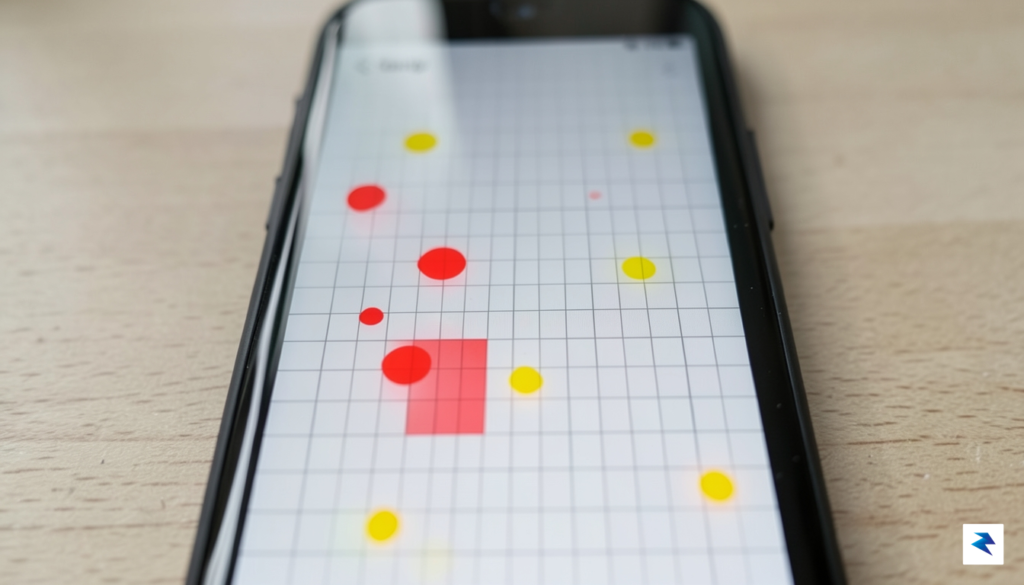
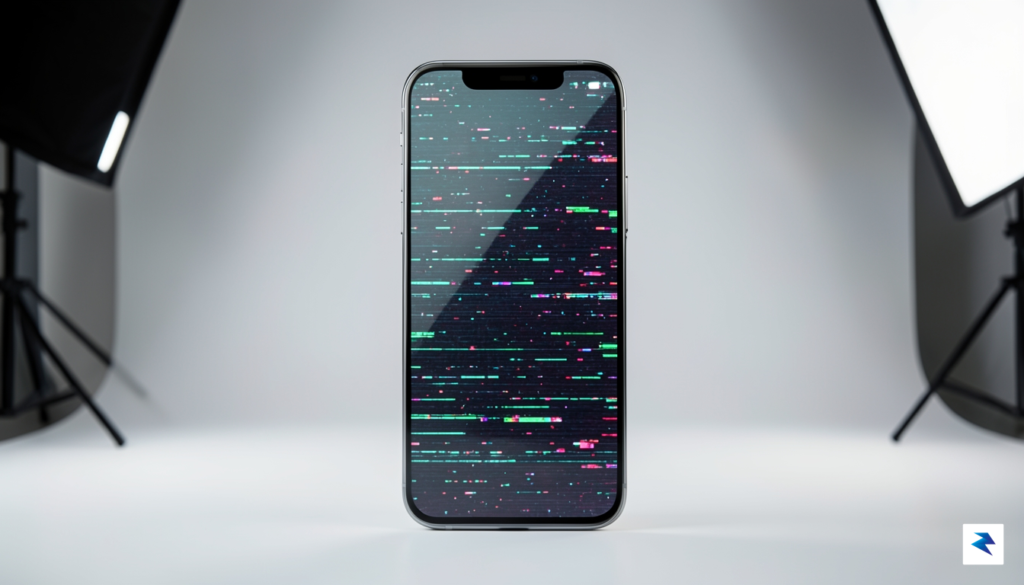
The most frequently reported issue involves “ghost touches,” where the system registers inputs that the user never initiated, often resulting in apps opening on their own or text being entered into fields without physical contact. Beyond this erratic behavior, many users are encountering significant “dead zones,” particularly along the edges of the display or near the notification bar, where the screen remains completely unresponsive to taps or swipes. Another persistent complaint involves reversed or jittery scrolling, where the interface fails to track the speed of a finger accurately, causing the screen to stutter or jump back to the top of a page unexpectedly. Furthermore, a noticeable lag in gesture recognition—specifically the “back” swipe—has turned standard navigation into a game of trial and error for thousands of frustrated owners.
If you find that your device is frequently launching applications or typing characters without your input, you are likely experiencing the software-driven ghost touch phenomenon linked to the latest OS patch.
These technical failures disproportionately affect the flagship Pixel 8 and Pixel 9 series, likely due to their high-refresh-rate adaptive displays which appear to be struggling to calibrate with the new Android 17 input handling protocols. When the digitizer fails to register touch input correctly, the impact on productivity is immediate; typing becomes a chore as keys are missed or double-pressed, and navigation becomes sluggish, making simple tasks feel cumbersome. Because these issues are deeply embedded in the software layer, standard troubleshooting steps like wiping the cache or removing screen protectors have proven largely ineffective. If your device is exhibiting these symptoms, it is highly probable that you are caught in the crossfire of this widespread firmware conflict, necessitating a patient wait for an official patch from the development team.
Troubleshooting Steps: Immediate Workarounds
While we await an official software patch from Google to resolve the widespread touchscreen instability introduced by the recent Android 17 update, there are several diagnostic and mitigation steps you can perform to stabilize your device. These measures are designed to help you regain control over your phone’s interface, though it is important to remember that these are temporary workarounds rather than a definitive cure for the underlying system bug.
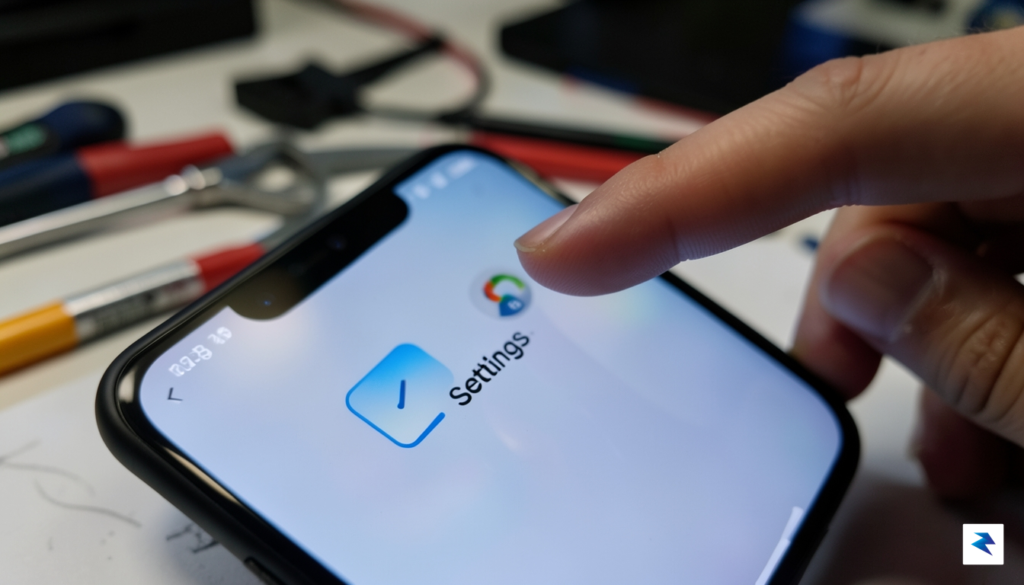
Testing Functionality in Safe Mode
The first and most effective step in your troubleshooting process is to boot your Pixel into Safe Mode. This environment disables all third-party applications, allowing you to determine if the touchscreen unresponsiveness is caused by a system-level conflict or a specific rogue app that has not been optimized for the new Android 17 architecture. To enter this mode, press and hold the power button, then long-press the “Power Off” icon on your screen until the “Reboot to safe mode” prompt appears. If the touchscreen functions perfectly while in Safe Mode, you should systematically uninstall recently updated applications, particularly those that utilize screen overlays, as these are often the primary culprits in touch-input errors.
Managing Overlays and Accessibility Services
Often, Android 17’s new display management protocols struggle to communicate with accessibility services that rely on screen drawing permissions. If you have any apps enabled under Settings > Accessibility that provide features like blue light filters, screen recorders, or gesture-based navigation helpers, try disabling them one by one. These services frequently create invisible “layers” over the display that can inadvertently block touch inputs, creating the illusion of a dead digitizer. Furthermore, clearing the system cache partition—if your specific Pixel model allows it through the recovery menu—can sometimes resolve lingering firmware conflicts caused by incomplete installation files during the initial OS update.
Important Note: Avoid the temptation to perform a factory reset immediately. While a factory reset might clear the configuration files causing the issue, it is a destructive process that wipes all your personal data. Given that this is a widespread software update issue, a factory reset is unlikely to prevent the problem from returning once the system reconfigures itself.
When to Seek Professional Support
If you have attempted to disable all third-party services and performed a soft restart, yet the screen remains entirely non-responsive, it is time to contact Google Support directly. You should provide them with your specific device model, your current build number, and a detailed description of when the touch failure occurs—for example, if it happens only at the lock screen or within specific system apps. Documenting these details helps Google’s engineering team prioritize the fix. Unless your phone is completely unusable for essential tasks, it is usually advisable to wait for the next Over-The-Air (OTA) update, as Google is likely already aware of the widespread reports and is working on an emergency hotfix.
The Root Cause: Why Software Updates Fail
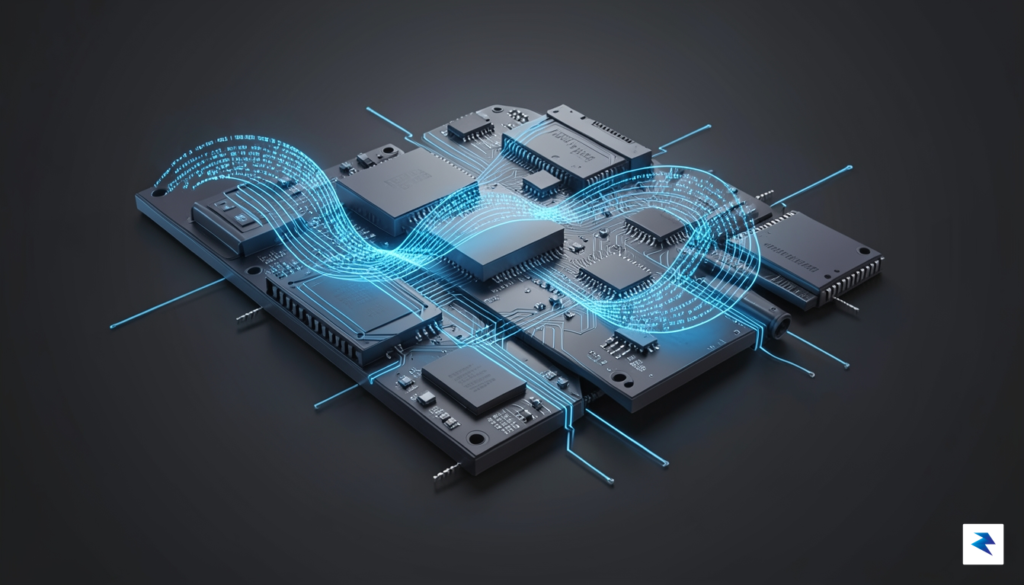
At the heart of the recent touchscreen malfunctions lies a phenomenon known as driver regression, a common yet frustrating obstacle in modern mobile software development. When Google engineers push out a major release like Android 17, they are not merely updating the visual interface; they are often updating the underlying Linux kernel—the core engine that facilitates communication between the software and the physical hardware components. If a new kernel update alters how the system interprets the electrical signals sent by the touch digitizer, the existing drivers may suddenly fail to “speak the same language” as the updated operating system. This misalignment creates a communication breakdown where the phone simply ignores or misinterprets the physical input from your fingertips.
Furthermore, these issues are frequently compounded by changes within the Android input handling framework. This framework acts as a bridge, translating raw sensor data into meaningful actions like swipes, taps, and gestures. When developers refine this framework to improve performance or add new features, they inadvertently introduce conflicts with hardware configurations that were optimized for previous versions of the software. Because hardware components—such as the specific digitizer model used in a Pixel 7 versus a Pixel 9—can vary even within the same product line, a change that works perfectly on one device may unintentionally destabilize the hardware interface on another. This sensitivity is why a single patch can cause widespread reports of “dead zones” or ghost touches across a diverse user base.
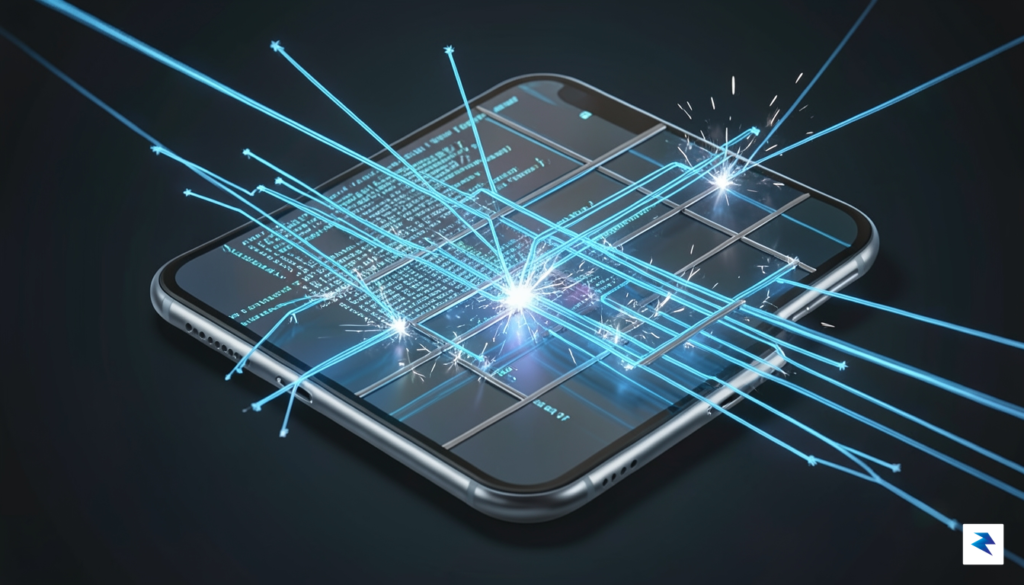
The complexity of modern smartphones means that even a minor change to the kernel’s power management or input polling rate can ripple outward, causing hardware components to behave unpredictably.
The sheer scale of hardware diversity presents an enormous challenge for quality assurance teams. Google must ensure that every update remains compatible with a vast array of internal components that have evolved over several years of manufacturing iterations. During the testing phase, while engineers prioritize the most common hardware configurations, it is mathematically difficult to account for every possible combination of firmware, hardware revision, and user setting. Consequently, subtle regressions often slip through the cracks, only becoming apparent once the update is deployed to millions of devices operating in real-world conditions. This highlights the inherent fragility of balancing deep system-level optimizations against the need for universal hardware compatibility.
What Google is Doing and When to Expect a Fix
Google has officially acknowledged the widespread touchscreen malfunctions reported following the recent Android 17 update, confirming that their engineering teams are currently prioritizing a software resolution. While the sudden loss of touch responsiveness is understandably frustrating for Pixel users, the company has indicated that internal diagnostics are underway to isolate the specific firmware conflict causing these input errors. Because this issue appears to affect various hardware iterations within the Pixel lineup differently, developers must ensure that any corrective patch restores full touch integrity without inadvertently introducing secondary bugs or compromising system stability. This diagnostic phase is critical, as rushing a fix without thorough vetting could potentially lead to further performance regressions.
For those anxiously awaiting a resolution, it is important to understand the typical lifecycle of an emergency Android system patch. Once a root cause is identified, the code must undergo rigorous quality assurance (QA) testing to ensure compatibility across all supported device models. This process is not instantaneous; it requires testing under various hardware configurations to ensure the fix is universal. While Google has not provided a definitive calendar date for the rollout, such “emergency” patches are typically fast-tracked through the release pipeline as soon as they pass internal stability benchmarks. Users should expect a minor system update—often denoted by a small version increment—to arrive via an over-the-air (OTA) notification once the fix is deemed safe for public deployment.
To stay informed, ensure your device’s “System Update” settings are configured for automatic checks, and consider joining the official Google Pixel Help Community to receive verified updates directly from product managers.
In the meantime, users can assist the development team by submitting detailed feedback through the “Settings > About Phone > Send feedback about this device” menu. When filing these reports, be sure to include specific details regarding which parts of the screen are unresponsive and whether the issue persists after a forced system restart. Providing this data helps engineers correlate the touchscreen failures with specific driver states or app conflicts. While patience is necessary during this waiting period, your active participation in the reporting process helps Google prioritize the most critical pain points. Rest assured that the engineering team is treating this as a high-priority incident, and a resolution is being developed as quickly as the necessary safety protocols allow.