Microsoft is removing password storage and autofill functions from the Authenticator app as of August 1, 2025. New passwords can no longer be saved since June, autofill stopped working in July, and this Friday all previously stored passwords will be permanently deleted unless transferred.
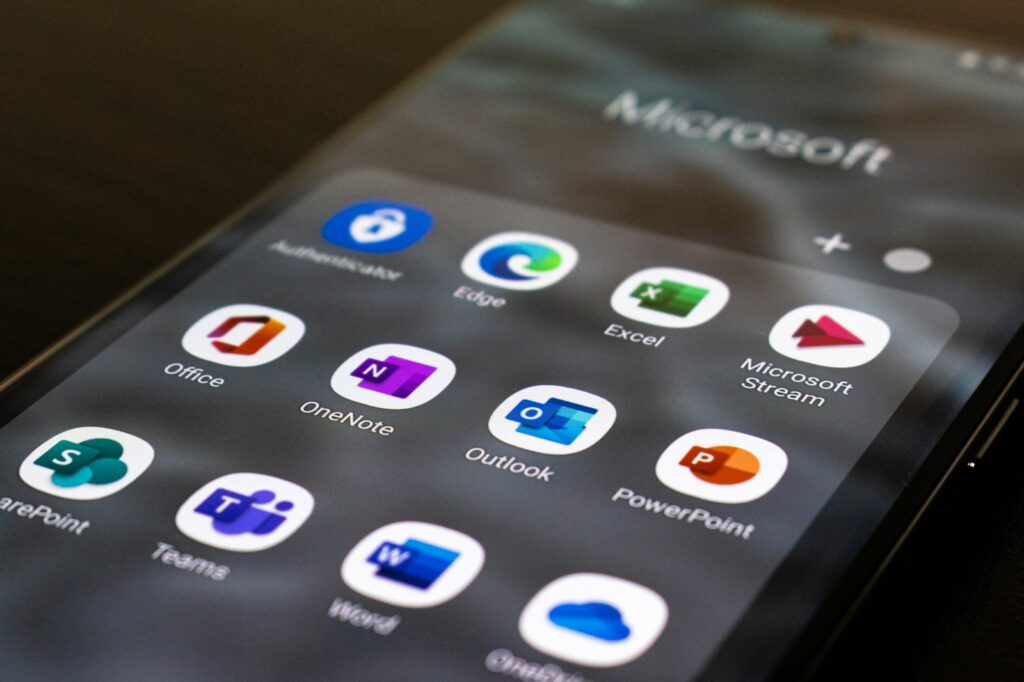
This marks a significant pivot in how users manage credentials and signals a broader shift to a passwordless future.
Why Microsoft Is Making the Change
- Security risks of traditional passwords: Password reuse, phishing attacks, and data breaches are more prevalent than ever. Removing saved credentials strengthens defenses.
- Fostering the passkey adoption: Microsoft is pushing users toward passkeys—secure, device-based authentication using biometrics or PINs—which are resistant to phishing, data reuse, and server-side breaches.
- Industry momentum: This step aligns with a growing movement among tech firms to make passwordless sign‑in the default, as it’s more user-friendly and secure.
Timeline of the Phase‑Out
| Month | Action Taken by Microsoft |
|---|---|
| June 2025 | Disabled ability to save any new passwords in Authenticator app |
| July 2025 | Turned off password autofill functionality inside the app |
| August 1 | Deletes all remaining saved passwords—without recovery via Authenticator |
Once deleted, passwords become unrecoverable unless you’ve already migrated them to a supported password manager or browser manager.
What You Need to Do Right Now
1. Export Your Authenticator-Stored Passwords
Within the Authenticator app:
- Navigate to Settings → Export Passwords.
- Export your passwords as a CSV or compatible file.
- Safely save the file for migration.
2. Import Into Microsoft Edge or a Secure Password Manager
- If you use Microsoft Edge, go to Settings → Profiles → Passwords and enable autofill.
- Import the saved passwords into Edge or any reputable password manager (e.g., your preferred desktop/mobile vault).
3. Set Up Passkeys Wherever Available
- In the Authenticator app or Microsoft account settings, select set up a passkey for supported services.
- Use built-in device biometrics or PIN to enable a secure sign-in method.
4. Enable Multi-Factor Authentication (MFA)
- Use device-based authenticators or SMS/email codes as a backup.
- Passkeys complement MFA by providing secure primary access to your accounts.
Why This Policy Shift Is Game-Changing
1. Stronger Security
Passkeys use cryptographic pairs tied to your device, making them invulnerable to phishing campaigns and server-side theft. Unlike passwords, they can’t be reused or guessed.
2. Improved User Experience
With device-based login, users avoid remembering complex strings. Successful sign-in rates for passkeys are estimated around 98%, compared to about 32% for traditional passwords.
3. Seamless Future Migration
All newly created Microsoft accounts are now passwordless by default, setting a clear path for full adoption of passkey standards across supported devices and platforms.
Potential Risks to Be Aware Of
- Migration hiccups: Some users report issues exporting passwords properly. Always verify imported data and keep your exported file secure.
- Transition headaches: Not all services support passkeys yet. Users may need to maintain some traditional logins during the migration window.
- Dependency on browser/tool choice: If you don’t use Microsoft Edge for import, Autofill support may vary across platforms and devices.
What This Means for You and Your Organization
- Individuals: Transitioning sooner ensures uninterrupted access to autofill and credential syncing.
- IT teams: Communicate early, provide migration guides, and assist users exporting/importing credentials.
- Security-conscious users: This is a prime opportunity to ditch risky password habits entirely and adopt passkeys.
- Password manager vendors: Expect a wave of migrations as users seek robust and cross-platform storage solutions.
Final Takeaway
If you’re still relying on Microsoft Authenticator for password storage or autofill, now is the time to act. Starting August 1, all saved credentials in the app will be deleted. Export them now and move to Edge or a trusted password manager. Better yet, transition to passkeys for a future-proof, secure experience.
Need help migrating passwords, setting up passkeys, or comparing passwordless options? I’d be glad to help.