
Department of Education Cuts Student Loan Interest: What You Need to Know
Understanding the New Student Loan Interest Rate Reduction In a decisive move to provide immediate financial relief to millions of borrowers,…
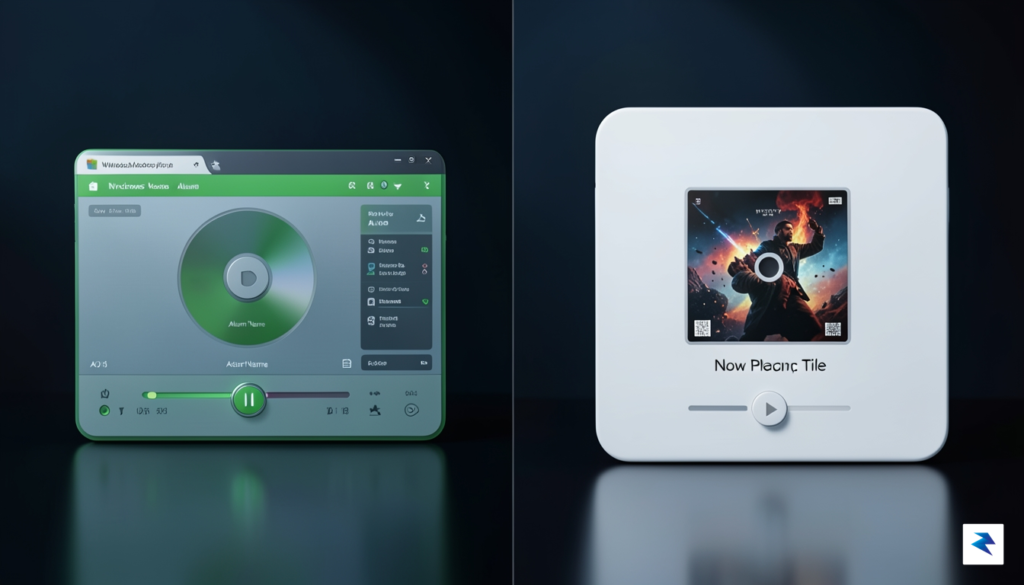
For decades, the classic Windows Media Player stood as a bastion of lightweight, utilitarian design, serving as the bedrock of digital entertainment for millions of users. It was a hallmark of the Win32 era—a period defined by software that prioritized local performance and minimal hardware footprint. However, as Microsoft pivots toward a unified design language in Windows 11, the company has replaced this legendary tool with a modern, UWP-based application that seeks to bridge the gap between music management and video playback. While this new iteration offers a sophisticated, mica-infused aesthetic that aligns perfectly with the contemporary desktop, the transition from legacy code to the WinUI 3 framework has fundamentally altered the application’s relationship with system resources.
The goal behind this shift was clear: create a cohesive, touch-friendly, and visually immersive experience that replaces both the aging legacy player and the short-lived Groove Music service. By leveraging modern frameworks, developers have enabled fluid animations, seamless theme integration, and a more intuitive interface that feels at home in the Windows 11 ecosystem. Yet, this modernization effort comes with a hidden price tag. The abstraction layers required to run these new frameworks mean that the application carries a significantly higher “weight” than its predecessor. What was once a lean, direct-to-hardware process is now wrapped in layers of modern dependencies, leading to a measurable increase in memory utilization.
The shift toward modern frameworks often prioritizes visual consistency over raw efficiency, forcing users to trade system headroom for a more polished aesthetic.
Recent performance metrics highlight that this new player consumes approximately 3.5 times more RAM than the legacy version during standard operation. For power users or those running older hardware, this is not merely a technical footnote; it is a tangible departure from the efficiency standards that defined previous versions of the operating system. Furthermore, the decision to decouple certain proprietary codecs—now requiring additional paid extensions—suggests a strategic shift toward a modular, “as-a-service” architecture. This approach allows the core app to remain lightweight in size, yet it complicates the user experience by turning essential playback functionality into a potential point of friction. Consequently, users are left wondering whether the trade-off of a beautiful, modern interface is worth the increased technical debt and the departure from the high-performance principles that made the original Windows Media Player an industry staple.
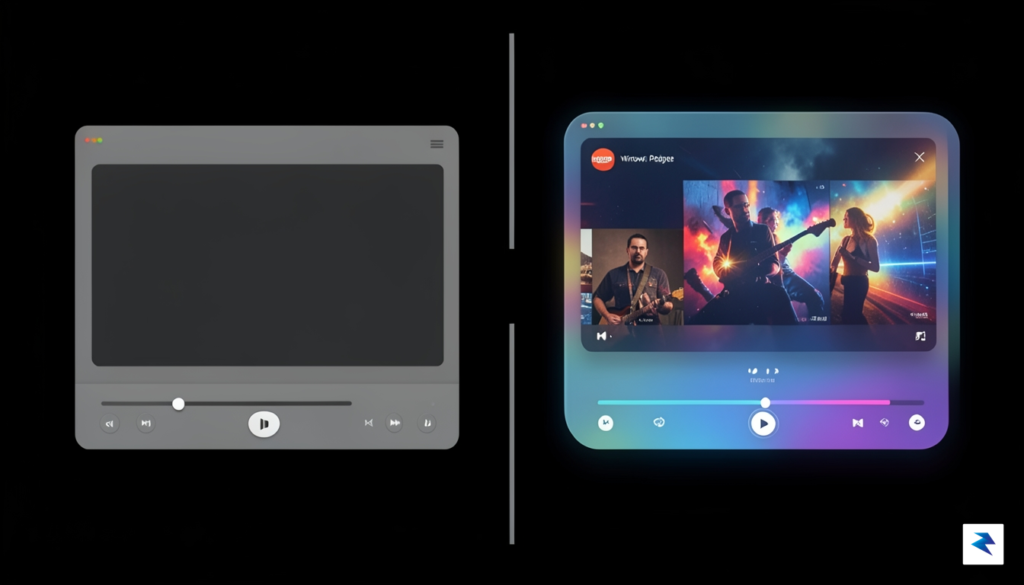

The most glaring point of contention regarding the modern Windows 11 media experience is the massive surge in system resource consumption. When users open the new application, they are greeted by a sleek, fluid interface, but that aesthetic comes at a steep price: the software consumes up to 3.5 times more RAM than the legacy Windows Media Player. While the old player was built on a lean, highly optimized framework designed for speed and efficiency, the new iteration relies heavily on WinUI 3 and the XAML-based architecture. This shift toward a more dynamic, component-heavy structure allows for the modern animations and fluid design language that define Windows 11, but it also necessitates a significantly larger memory baseline just to keep the application in an idle state.
To understand why this happens, one must look at the overhead introduced by the modern framework. Unlike traditional Windows apps that hook directly into native system APIs, the new player operates within a containerized environment that manages UI elements as discrete objects. This approach makes the software easier to update and more visually consistent across the operating system, yet it forces the application to load a substantial library of framework dependencies into RAM before a single frame of video is even processed. For users running high-end workstations with 32GB of RAM or more, this footprint might seem negligible; however, for those operating on mid-range laptops or budget-friendly devices, this represents a significant chunk of available memory that could otherwise be utilized by background processes or browser tabs.
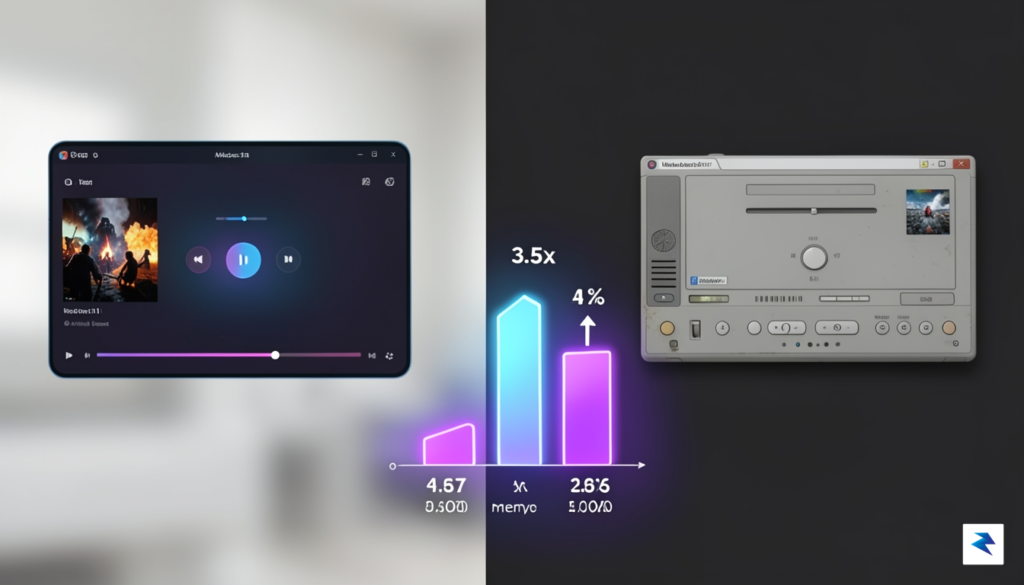
The transition from lightweight legacy code to modern UI frameworks often trades raw efficiency for developer flexibility and aesthetic cohesion, leaving hardware resources to bridge the gap.
The real-world impact of this bloated footprint becomes particularly noticeable during multitasking sessions. When you are editing a document, keeping a dozen browser tabs open, and running a suite of communication tools, every megabyte of RAM becomes precious. If your system is already hovering near its capacity, the 3.5x increase in the media player’s baseline can lead to aggressive memory swapping, where the operating system is forced to move data from the fast RAM to the comparatively slower storage drive. This transition often manifests as micro-stutters or a general feeling of sluggishness across the entire desktop environment. Consequently, users are left questioning whether the addition of rounded corners, translucent mica effects, and a modernized library view is truly worth the loss of the lightweight, “always-ready” performance that characterized the previous generation of playback tools.
Ultimately, this design choice reflects a broader trend in software development where user experience and visual polish are prioritized over absolute hardware optimization. While the modern player is undoubtedly more attractive and aligns better with the Windows 11 design aesthetic, the technical burden it places on the system is undeniable. As Windows continues to evolve, developers face a persistent challenge: balancing the demand for a premium, unified user interface with the necessity of keeping applications lightweight enough to function flawlessly on the diverse range of hardware that powers the global Windows ecosystem.

Perhaps the most contentious change accompanying the modern Windows 11 media experience is the decision to gate support for industry-standard video formats behind paywalls in the Microsoft Store. For decades, Windows users operated under a “batteries-included” philosophy, where the operating system came pre-equipped to handle nearly any file format a user might encounter. By unbundling high-efficiency codecs like HEVC (H.265) and requiring a separate purchase to enable playback, Microsoft has fundamentally altered the utility of its native software. This shift forces users to navigate the Microsoft Store to pay for functionality that was once considered a foundational aspect of the Windows multimedia suite.
The core of this issue lies in the complex landscape of intellectual property and patent licensing. Codecs like HEVC are governed by patent pools, which require hardware manufacturers and software developers to pay royalties for the right to implement these compression standards. Historically, Microsoft absorbed these costs into the price of the Windows license, effectively subsidizing the experience for the end-user. By removing these codecs from the core OS installation, Microsoft is essentially offloading those licensing fees directly onto the consumer, creating a fragmented experience where the default player is often incapable of playing high-quality video files without an additional financial transaction.
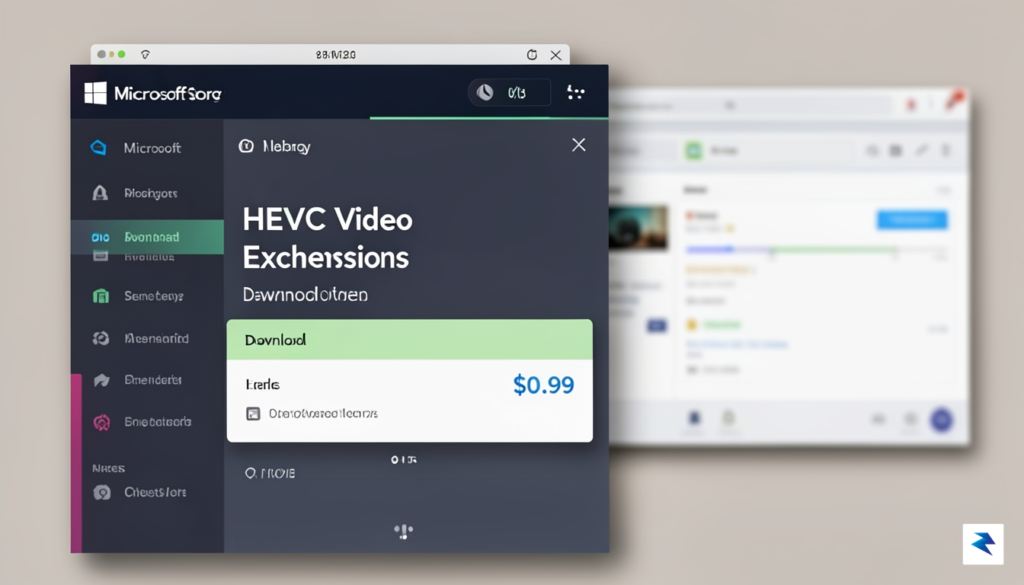
The transition from a comprehensive, all-in-one multimedia hub to a modular, pay-to-play model highlights a broader strategic pivot by Microsoft to reduce overhead costs while monetizing specific utility features within the ecosystem.
This monetization strategy stands in stark contrast to the robust world of open-source alternatives, such as VLC Media Player or MPC-HC. These community-driven projects leverage the free FFmpeg library and other open-source implementations to provide comprehensive format support without asking the user for a single cent. Because these third-party players operate outside of the proprietary licensing constraints that Microsoft faces, they remain the preferred choice for power users and casual viewers alike. The existence of these free, highly efficient tools makes the paid extension requirement in the native Windows 11 Media Player feel particularly jarring, as users are essentially being asked to pay for a level of compatibility they can obtain for free elsewhere.
Ultimately, the decision to unbundle these codecs suggests that Microsoft is prioritizing a leaner OS footprint over the convenience of a “works out of the box” experience. While this might appease corporate environments looking to strip down Windows components, it creates a significant friction point for home users. When a modern, flagship media player cannot open a standard high-definition file without prompting the user to visit a digital storefront, it erodes the perception of Windows as a versatile, self-contained multimedia platform. As consumers increasingly turn to third-party players to bypass these hurdles, the new Media Player risks becoming a vestigial component rather than the primary tool it was intended to be.

When evaluating the evolution of the Windows 11 Media Player, one must look past the raw telemetry of memory consumption to understand the philosophy driving Microsoft’s design choices. The new iteration replaces the aging Groove Music and the legacy Windows Media Player with a unified, high-fidelity experience that prioritizes visual consistency. For many users, this shift brings immediate benefits: a cleaner, mica-material aesthetic that blends seamlessly into the Windows 11 desktop, superior album art handling, and an intuitive library management system that organizes local files alongside cloud-synced content from OneDrive. These are not merely cosmetic tweaks; they represent a fundamental modernization of how we interact with media in an era where local and cloud libraries are increasingly intertwined.
However, this transition towards a polished, feature-rich interface raises a critical question about the priorities of modern desktop software development. The integration of high-definition visuals and cloud-syncing capabilities introduces layers of abstraction that consume significantly more system resources than the utilitarian players of the past. To a power user or someone running older hardware, these features can feel like unnecessary bloat rather than productivity enhancements. When a media player requires 3.5 times more RAM than its predecessor, the “cost” of a beautiful UI becomes tangible. We are witnessing a trend where the operating system’s native applications are becoming increasingly heavy, trading raw performance for a cohesive, mobile-inspired design language that may not resonate with those who simply want to double-click a video file and start watching without waiting for a background service to initialize.
The true measure of a media player’s success is not its ability to look beautiful while idle, but how efficiently it handles the transition from user intent to media playback.
Ultimately, whether the trade-off is worth it depends entirely on the user’s workflow. If you are a casual listener who relies on OneDrive to keep your music library synchronized across devices, the new player’s improved integration and aesthetic polish provide a genuinely better experience. Conversely, for the minimalist user who values low overhead and immediate playback, the added weight and the requirement to pay for specific video codecs feel like a step backward in functional design. Microsoft is clearly betting that the average user prefers a modern, “smart” interface over the lean, resource-efficient tools of the past. As we move further into the Windows 11 lifecycle, the developers will need to decide if they can further optimize this code to appease performance-conscious users, or if the “heavy” nature of the modern UI is simply the new baseline for the Windows experience.
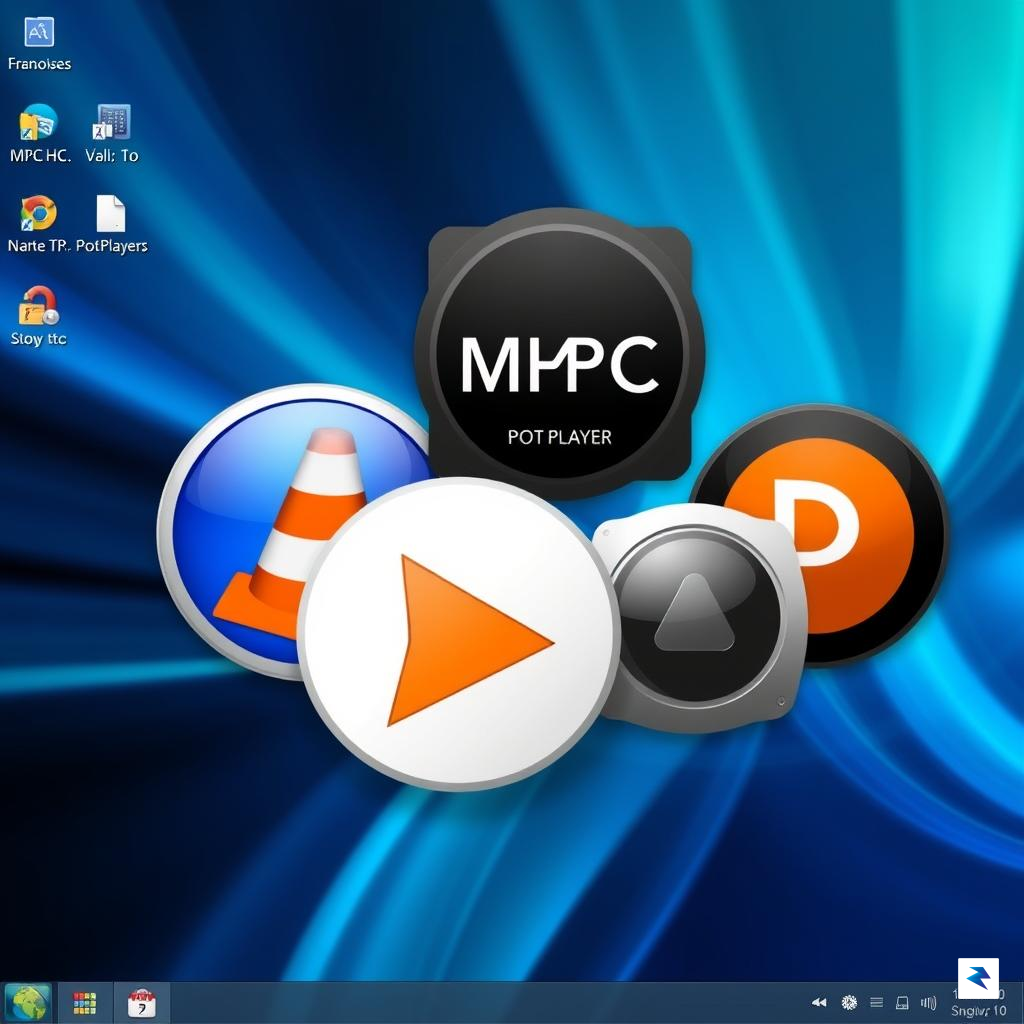
If the native Windows 11 Media Player feels bloated or fails to handle your specific media library requirements, you are far from alone. Many power users and enthusiasts find that the modern interface, while aesthetically pleasing, comes at the cost of significant system resources and restrictive codec licensing. Fortunately, the Windows ecosystem remains a stronghold for high-performance, open-source software that prioritizes efficiency and compatibility over flashy animations. By shifting to third-party tools, you can reclaim those precious megabytes of RAM while ensuring that virtually any file format—from legacy AVI files to high-bitrate 4K MKV streams—plays back without a hitch or a mandatory digital purchase.
For those who value stability and low system overhead, VLC Media Player remains the undisputed industry standard. Unlike the new native player, VLC includes a comprehensive suite of internal codecs, meaning it can handle almost any video or audio file natively without requiring you to install additional plugins or pay for “Essential” extensions. Its hardware decoding capabilities are remarkably efficient, allowing the software to run smoothly on older hardware or under heavy multitasking loads. Similarly, MPC-HC (Media Player Classic Home Cinema) offers a lightweight, spartan experience that focuses purely on playback speed. Because it is built on a highly optimized codebase, it consumes a fraction of the memory that the Windows 11 default application demands, making it the ideal choice for users who want their media to start instantly without waiting for UI elements to load.
Efficiency doesn’t have to mean sacrificing functionality; by choosing open-source players, you gain access to advanced features like subtitle synchronization, audio normalization, and frame-by-frame navigation that the native app often lacks.
Transitioning to a more capable media player is a straightforward process that takes only a few minutes. To ensure your system consistently uses your new preferred player rather than the default Windows utility, you should follow these steps:
.mp4 or .mkv.By taking these steps, you not only improve your immediate media playback experience but also regain full control over your system’s resource allocation. Whether you are a casual viewer or a media professional, moving away from resource-heavy defaults ensures that your computer remains responsive and efficient, regardless of the media you decide to enjoy.
You must be logged in to post a comment.