Understanding the Reality of Non-Invasive Glucose Monitoring
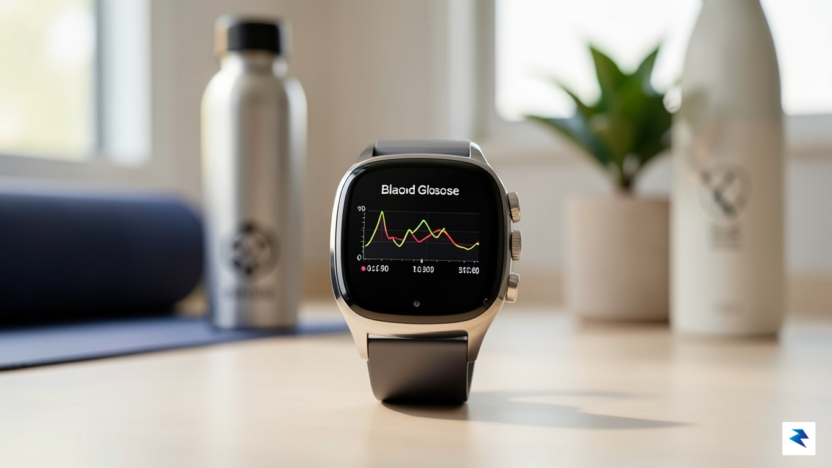
The pursuit of a needle-free, non-invasive glucose monitoring solution on a smartwatch has become a “holy grail” of wearable technology, yet it remains a goal rather than a current reality. Many consumers are drawn to the Samsung Galaxy Watch with the hope that its sophisticated suite of sensors can track blood sugar levels in real-time. However, it is essential to recognize that the optical sensors currently integrated into these devices—known as Photoplethysmography (PPG) sensors—are designed primarily to measure heart rate, blood oxygen saturation (SpO2), and peripheral blood flow. These sensors utilize light-emitting diodes to track changes in volume within the microvascular bed, which simply does not provide the chemical specificity required to quantify glucose concentrations in the bloodstream.
Because the current hardware lacks the enzymatic or electrochemical components necessary to interface with interstitial fluid, your Galaxy Watch cannot measure glucose directly through the skin. While researchers are actively investigating Raman spectroscopy and advanced impedance sensors, these technologies are not yet miniaturized or stable enough for commercial wearable deployment. Consequently, when you see a Galaxy Watch app claiming to display glucose data, it is not generating that information from the watch’s own hardware. Instead, these apps function as secondary displays or interfaces that pull data from an external Continuous Glucose Monitor (CGM) transmitter, such as a Dexcom or FreeStyle Libre system, via Bluetooth.
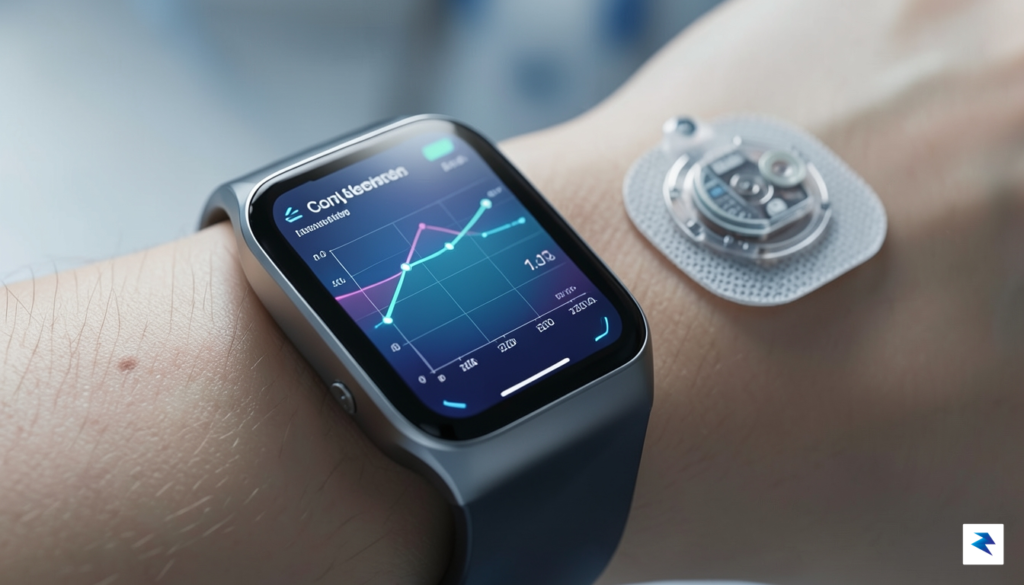
It is a critical safety distinction to remember: your smartwatch is currently a data aggregator, not a primary diagnostic tool for glucose measurement.
Understanding this distinction is vital for user safety, particularly for those managing insulin-dependent diabetes. Relying on a third-party app to bridge the gap between a medical-grade sensor and your watch can be incredibly convenient, but it introduces variables such as signal latency, data sync errors, and potential software bugs. Because these apps rely on external transmitters, the watch is susceptible to the limitations of the CGM itself, including calibration requirements and the natural lag between blood glucose and interstitial fluid readings. Always treat the watch display as a supplementary convenience rather than a replacement for the primary medical device, and ensure you remain familiar with the native app provided by your CGM manufacturer to verify any data that appears on your wrist.
Integrating CGM Systems with Wear OS: A Technical Overview
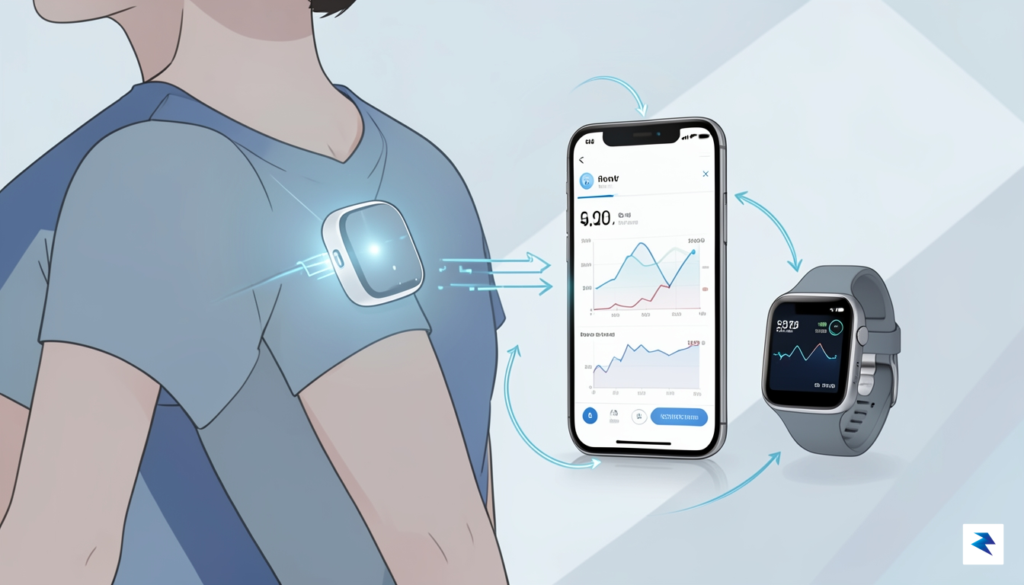
To understand how your Samsung Galaxy Watch displays real-time glucose data, it is essential to view your smartphone as the central hub of a complex digital ecosystem. Most Continuous Glucose Monitor (CGM) sensors, such as those from Dexcom or FreeStyle Libre, utilize Bluetooth Low Energy (BLE) technology to broadcast glucose readings. Because these sensors are designed for high efficiency and low power consumption, they typically communicate directly with a primary smartphone application rather than pairing directly with a smartwatch. Consequently, your Galaxy Watch acts as a secondary display, receiving processed data streams from your phone through the Wear OS environment, which ensures that your health metrics remain synchronized across your devices.
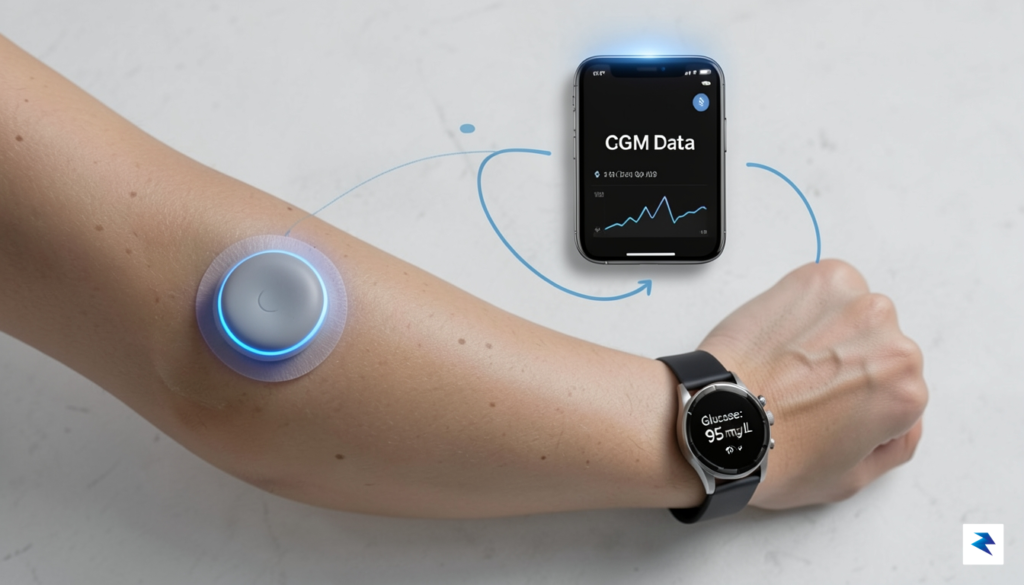
The Wear OS platform plays a pivotal role in this architecture by providing the necessary framework for third-party developers to bridge the gap between medical hardware and consumer wearables. Since official manufacturer applications often have limited support for watch faces or complications, the community has developed robust secondary bridging applications like xDrip+, G-Watch Wear, and Nightwatch. These applications act as translators, intercepting the data packets sent from the sensor to your phone and reformatting them into a readable stream that can be rendered on your watch face. This synchronization process is highly dependent on a stable connection between your phone and watch, as any disruption in the Bluetooth handshake can lead to gaps in your glucose tracking.
The reliability of your glucose monitoring setup on a Galaxy Watch is fundamentally tied to the stability of the background data synchronization between your smartphone and the wearable device.
For users looking to achieve a seamless integration, the configuration usually involves setting up a “collector” app on the smartphone that gathers the CGM data and a “watch face” or “tile” component installed directly on the Galaxy Watch. When you glance at your wrist to check your blood sugar, you are viewing a cached snapshot of the most recent data point pushed through the Wear OS notification or data layer. It is important to remember that this technical pipeline requires significant battery management; because these apps constantly poll for new information to keep your glucose levels current, you may notice an increased drain on your watch’s battery life throughout the day. By carefully managing your sync intervals and choosing watch faces optimized for CGM data, you can achieve a highly functional, hands-free monitoring experience that keeps your health metrics accessible without the need to reach for your phone.
Top Software Solutions for Samsung Galaxy Watch Users
For users navigating the ecosystem of Wear OS, transforming a Samsung Galaxy Watch into a continuous glucose monitoring (CGM) hub is more achievable than ever. The official Dexcom G6 and G7 applications remain the gold standard for many, offering a streamlined experience that syncs directly with your smartphone. These official integrations prioritize stability and medical accuracy, providing dedicated watch faces that display your current glucose reading and trend arrows at a glance. By leveraging these built-in complications, users can monitor their levels without the friction of pulling out a phone, making it an ideal solution for those who value a “set it and forget it” approach that integrates seamlessly into their daily routine.
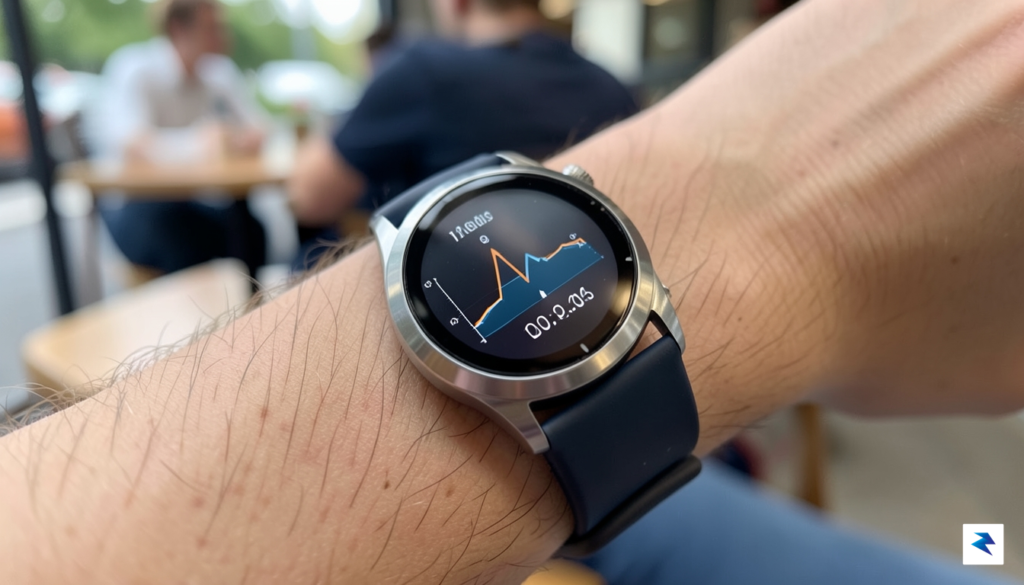
However, for those who demand more flexibility or community-driven features, third-party applications like Gluroo have emerged as powerful alternatives. Gluroo distinguishes itself by turning glucose management into a collaborative effort; it allows users to share real-time data with a care team or family members while keeping everything organized in a chat-style interface. The app’s Wear OS integration is particularly impressive, as it focuses on high-contrast, readable widgets that ensure data visibility even during high-intensity physical activity. By prioritizing social transparency and ease of communication, Gluroo effectively bridges the gap between clinical tracking and everyday lifestyle management.
Advanced Customization with xDrip+
If you are an advanced user who craves granular control over your health metrics, xDrip+ stands in a league of its own. Unlike the official apps, which are often locked into specific data visualization formats, xDrip+ allows for deep customization of every aspect of your glucose data. Users can calibrate their sensors more precisely, set highly specific alert thresholds, and create custom watch faces that display extra data points like insulin-on-board or predicted trends. While the learning curve is significantly steeper due to its complex settings menu, the payoff is a tailored monitoring experience that can be fine-tuned to your unique metabolic profile.
The best software solution is not necessarily the one with the most features, but the one that aligns with your specific need for data frequency, ease of use, and community support.
Ultimately, the user interface and the quality of complications are the deciding factors for most Galaxy Watch owners. A reliable app should provide a “glanceable” experience—meaning you should be able to read your glucose levels in under two seconds. Whether you choose the stability of the official Dexcom suite, the collaborative nature of Gluroo, or the advanced analytical depth of xDrip+, the goal remains the same: reducing the mental load of diabetes management. Before settling on an app, it is highly recommended to test how its specific watch face complication integrates with your preferred digital clock face, as a cohesive, distraction-free display is the key to long-term monitoring success.
Safety, Accuracy, and Regulatory Considerations
It is crucial to start with a fundamental reality: currently, no consumer-grade smartwatch on the market, including the Samsung Galaxy Watch, is clinically approved as a primary diagnostic tool for diabetes management. While the convenience of glancing at your wrist to check a glucose trend is undeniably appealing, these devices are designed for informational purposes rather than medical decision-making. Relying on watch-based data to calculate insulin dosages or make significant dietary adjustments can lead to severe health consequences, such as hypoglycemia or hyperglycemia. Always consult your endocrinologist before integrating any wearable software into your daily health regimen, and remember that these apps should never replace the guidance of a medical professional.
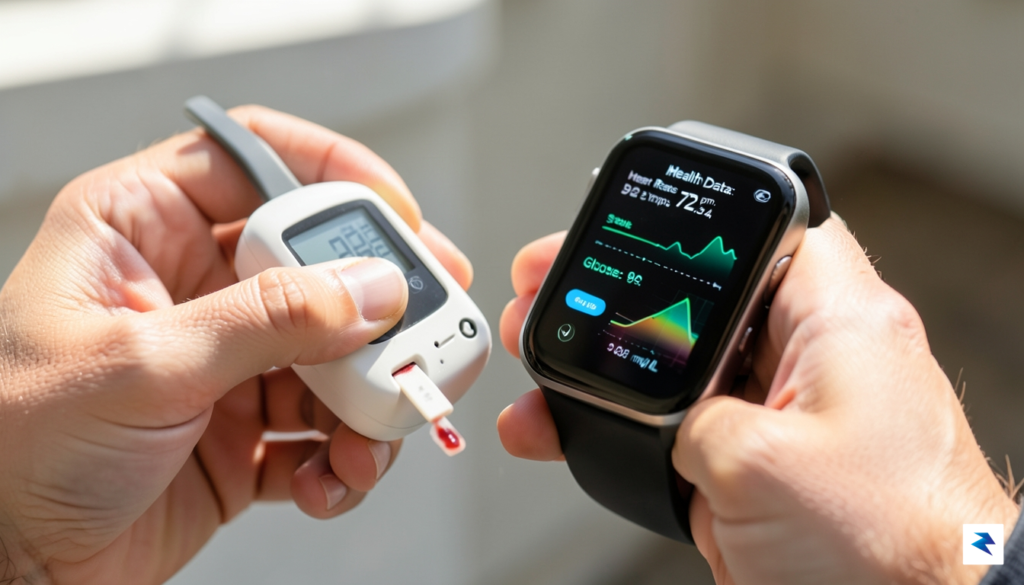
One of the primary technical hurdles facing users is the issue of data latency. Most Wear OS glucose-monitoring apps function by relaying information from a Continuous Glucose Monitor (CGM) via Bluetooth to your smartphone, which then pushes that data to your watch. This relay process can introduce significant delays, meaning the number currently displayed on your wrist may represent a reading from five, ten, or even fifteen minutes ago. In a rapidly shifting metabolic state, that time gap can be the difference between a safe correction and an over-correction. Because your blood sugar levels are dynamic and constantly changing, relying on “stale” data can provide a false sense of security while your actual levels are trending in a dangerous direction.
Important Takeaway: Wearable watch faces and apps are secondary displays. They should be treated as a supplement to, not a replacement for, the primary receiver or reader provided by your CGM manufacturer.
Furthermore, the accuracy of these readings depends heavily on sensor calibration and the stability of the connection. Official app integrations, provided by manufacturers like Dexcom or Libre, have undergone rigorous regulatory scrutiny by agencies such as the FDA. These applications are optimized for data integrity and error handling. Conversely, many “do-it-yourself” or open-source solutions—often favored by the #WeAreNotWaiting community—offer incredible flexibility but lack the same level of safety certifications. These DIY projects often rely on unofficial APIs that could break or return inaccurate data without warning. Regardless of the software source, the gold standard remains the finger-prick blood glucose test. If your watch shows a value that contradicts how you feel physically, you must perform a manual capillary blood test to verify your actual levels before taking any corrective action.
- Verify discrepancies: Always use a standard glucose meter if the watch reading feels inconsistent with your symptoms.
- Understand the lag: Recognize that Bluetooth transmission delays exist; always check the timestamp on your data.
- Regulatory awareness: Differentiate between FDA-cleared apps and community-developed software, as the latter carries higher risk profiles.
Optimizing Your Workflow: Tips for CGM Management on the Wrist
Your Samsung Galaxy Watch, when paired with a continuous glucose monitor (CGM), transcends being a mere time-telling device; it becomes a vital, proactive partner in managing your diabetes. Simply viewing your glucose numbers on your wrist is a great first step, but truly harnessing its potential involves optimizing its settings to deliver actionable insights precisely when you need them. By fine-tuning various aspects of your watch’s operation, you can transform it into an even more effective tool, ensuring that critical data is always accessible and alerts are impossible to miss, ultimately leading to more informed decisions throughout your day. This proactive approach not only streamlines your daily routine but also significantly enhances your peace of mind, empowering you to maintain tighter control over your glucose levels.
Continuous glucose monitoring demands consistent data flow, which in turn necessitates a reliably charged smartwatch. To maximize your Galaxy Watch’s battery life and ensure uninterrupted CGM data transmission, consider adjusting several key settings. First, disable the “Always On Display” feature; while convenient, it’s a significant power drain, and a quick wrist raise will still activate the screen when needed. Secondly, reduce screen brightness to a comfortable yet visible level and set a shorter screen timeout duration, allowing the display to dim faster when not actively in use. Furthermore, review the background app refresh settings for non-essential applications, limiting their activity to conserve precious battery reserves, though always ensure your CGM companion app on the phone has unrestricted background access to maintain connectivity. Finally, make it a habit to top up your watch’s charge whenever possible, such as during meals or before bed, to prevent unexpected power loss during critical monitoring periods.
For immediate, high-visibility access to your glucose levels, carefully selecting and configuring your watch face is paramount. Opt for watch faces that support “complications,” which are small widgets displaying information from various apps directly on the watch face. Dedicate a prominent complication slot to your chosen CGM app, ensuring your current glucose reading and trend arrow are visible at a glance without needing to open the app itself. Many CGM apps also offer color-coding options within their complications, allowing you to instantly discern if your glucose is high, low, or within your target range based on a quick color check – for instance, green for in-range, red for high, and yellow for low. Prioritize simplicity; an uncluttered watch face minimizes distractions and makes your glucose data stand out, providing critical information with just a flick of the wrist.
Beyond visual cues, setting up effective vibration alerts can be a game-changer, providing discreet yet undeniable notifications for critical glucose thresholds. Most CGM companion apps allow you to customize high and low glucose alerts, letting you define the exact numerical thresholds that trigger a notification. Crucially, you can often personalize the vibration pattern and intensity directly on your Galaxy Watch, making it distinct from other notifications so you immediately recognize it as a glucose alert. This means you can be notified of impending highs or lows during meetings, while