
The End of Unrestricted Access: Why the EU is Targeting Social Media for Teens
The Growing Global Crisis: Why Europe is Rethinking Social Media For over a decade, social media platforms have functioned as a vast,…


The sleek, reversible design of the USB-C connector has become ubiquitous, promising a universal solution for charging, data transfer, and even video output across a vast array of devices, from your smartphone to your powerful Mac. However, this seemingly straightforward connector hides a complex truth: not all USB-C cables are created equal. Beneath their identical appearance lies a bewildering spectrum of capabilities, meaning that a cable that looks perfectly suitable might be severely bottlenecking your hardware’s potential or even preventing essential functions from working at all.
Indeed, the “USB-C” label refers primarily to the physical connector shape, not the underlying communication protocols or power delivery standards it supports. A single USB-C port or cable can carry anything from basic USB 2.0 data speeds (a mere 480 Mbps, suitable for mice or keyboards) to blazing-fast USB 3.2 Gen 2×2 (up to 20 Gbps), or even the incredibly versatile Thunderbolt 3 or 4 protocols, which can achieve astounding speeds of 40 Gbps and support multiple 4K displays, external GPUs, and rapid data transfers simultaneously. This vast difference in performance, power delivery, and video capabilities means that while two cables might look identical on your desk, their internal wiring and chipsets dictate wildly different user experiences, often leading to confusion and frustration.
Using an unidentified or mismatched cable can have significant repercussions for your workflow and device performance. Imagine plugging in a high-speed external SSD to a USB-C cable that only supports USB 2.0; your lightning-fast storage device will be throttled to ancient speeds, turning minutes into hours for large file transfers. Similarly, a cable lacking the necessary power delivery specifications might result in your laptop charging at a snail’s pace, or worse, not charging at all while under heavy load. Many users also encounter issues when trying to connect external monitors, only to find their display remains blank because their generic USB-C cable doesn’t support the required DisplayPort Alternate Mode, leaving them questioning their hardware rather than the humble cable.
The inherent problem is that visual inspection offers no reliable clues about a USB-C cable’s true capabilities. Unlike older USB standards with distinct connector shapes for different speeds, every USB-C plug looks identical, regardless of whether it’s a basic charging cable or a full-featured Thunderbolt data powerhouse. While some manufacturers attempt to include subtle markings, these are often cryptic, easily overlooked, or entirely absent, leaving consumers in the dark. This lack of transparency means you cannot simply pick up any USB-C cable and expect it to perform optimally for every task, making the selection process a genuine gamble without proper identification.
In the world of USB-C, appearances are deceiving. What looks like a universal solution is, in reality, a complex ecosystem where the wrong cable can silently sabotage your device’s potential.
Beyond performance bottlenecks, there are also potential, albeit rarer, risks to your hardware. Using a poorly manufactured or improperly specced cable could, in extreme cases, lead to insufficient or unstable power delivery, potentially stressing device components over time. While modern devices often have safeguards, relying on unknown cables introduces an unnecessary element of uncertainty into your valuable tech ecosystem. Understanding and verifying the capabilities of your USB-C cables is therefore not just about optimizing performance; it’s about ensuring the longevity and reliable operation of your entire setup.

For years, the world of USB-C connectivity was a frustrating game of guesswork, forcing users to rely on expensive, often clunky hardware dongles to decipher what a specific cable was actually capable of doing. These dedicated physical testers were designed to bridge the gap between a cable’s physical appearance and its hidden technical specifications, yet they were frequently plagued by high price points, limited availability, and the unfortunate tendency to be discontinued just as they became useful. For the average user, purchasing a specialized piece of diagnostic hardware was simply impractical, leading to a landscape where mystery cables accumulated in junk drawers, their true potential—whether they supported high-speed Thunderbolt data transfers or mere low-wattage charging—remaining a complete enigma.
The arrival of WhatCable marks a definitive shift away from this hardware-dependent era, ushering in a streamlined, software-defined approach to diagnostic testing. By tapping into the sophisticated architecture of modern Apple Silicon Macs, this application bypasses the need for external gadgets entirely. Instead of requiring a middleman device to interpret the signal, the software communicates directly with the internal controller of the connected cable, extracting raw data that has been buried within the cable’s e-marker chip all along. This transition to a software-based diagnostic tool not only democratizes access to professional-grade testing but also ensures that the utility remains up-to-date and easily accessible through a simple application interface.
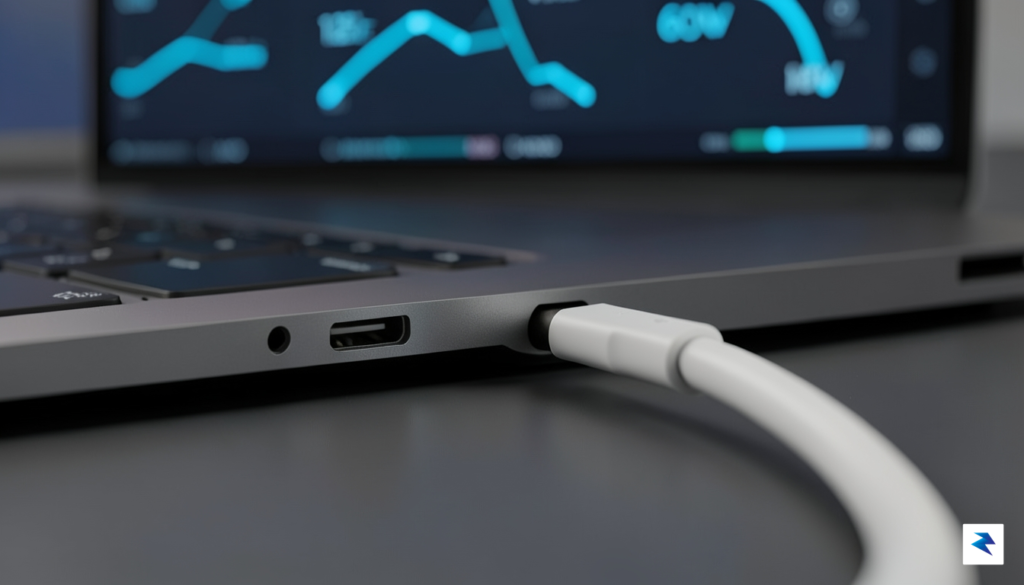
What truly sets this approach apart is the unique capability inherent in Apple Silicon hardware to query USB-C device information with granular precision. While older Intel-based Macs relied on more generic controller frameworks that often lacked the depth to interrogate specific cable protocols, the unified architecture of Apple’s custom silicon provides a direct pipeline to the USB-C Power Delivery and data negotiation protocols. Consequently, WhatCable can instantly surface critical specifications—such as maximum wattage, data throughput speeds, and even the manufacturer details—that were previously invisible to the operating system. By leveraging these native system-level hooks, the application provides a level of insight that was once reserved for engineers in specialized testing laboratories, now available to any user with a simple mouse click.
The power of WhatCable lies in its ability to transform a standard charging cable from a silent, mysterious accessory into a transparent, data-rich tool, ensuring you always know exactly what your hardware is capable of.
Ultimately, this evolution represents a smarter way to manage the modern peripheral ecosystem. Rather than discarding cables out of uncertainty or accidentally damaging devices by using the wrong cord, users can now perform a rapid audit of their entire collection. Whether you are trying to determine if a cable is suitable for a 4K monitor setup or if it safely supports the rapid charging requirements of your laptop, this software-driven method provides the clarity needed to make informed decisions. It is a bridge between the physical chaos of tangled, unlabeled cables and the digital precision of a well-organized workspace.

Testing your collection of mystery cables is remarkably straightforward thanks to the WhatCable utility. To begin, simply download the application and grant it the necessary permissions to access your Mac’s hardware information. Once the app is launched, connect a USB-C cable to an available port on your Mac; for the most accurate results, ensure the other end of the cable is either left unplugged or connected to a device that supports the cable’s maximum potential. The app interface will instantly refresh to display a comprehensive profile of the hardware, effectively lifting the veil on cables that previously looked identical.
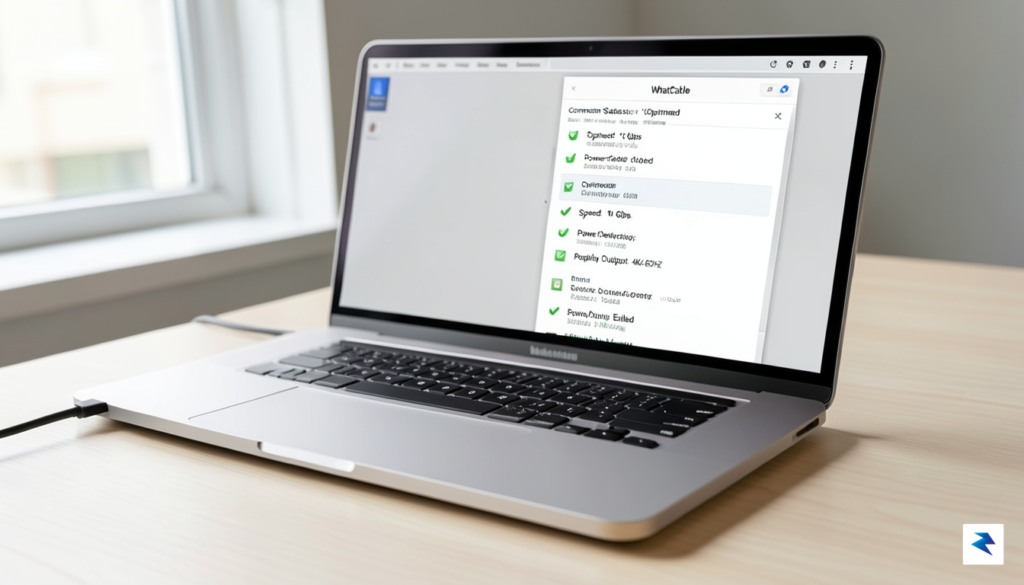
Interpreting the data provided by WhatCable is intuitive, even if you aren’t a hardware engineer. The main dashboard highlights three critical metrics: data transfer speed, power delivery (PD) capacity, and video support. If the app reports a data rate of 480 Mbps, you are looking at a legacy USB 2.0 cable, which is perfectly fine for charging or basic peripherals but will act as a bottleneck for external SSDs. Conversely, if you see 10 Gbps or 20 Gbps listed, you have a high-speed data cable capable of handling fast file transfers. Understanding these distinctions ensures you aren’t blaming your expensive hardware for slow performance when the true culprit is a cheap, mismatched cable hiding in your desk drawer.
Pro Tip: Always look for the Power Delivery (PD) rating in the app. If a cable is rated for 60W, using it to charge a high-performance laptop that demands 100W or more will result in slower charging times or, in some cases, the battery failing to charge entirely while the device is in use.
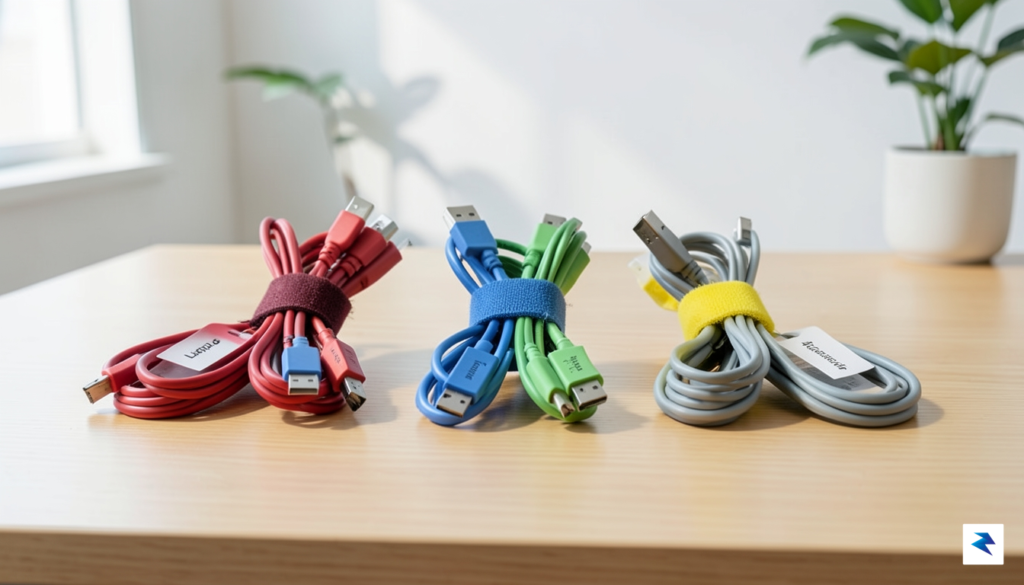
Beyond speed and power, the application also provides insight into the protocol support, such as whether a cable is optimized for DisplayPort Alt Mode. This is particularly useful if you frequently connect your Mac to external monitors and find that your display remains dark despite the cable being firmly seated. By verifying the protocol support, you can confirm whether the cable is designed to carry a high-bandwidth video signal or if it is strictly limited to power and basic data. Once you have identified the capabilities of each cord, consider using small adhesive labels or color-coded cable ties to mark your high-performance cables, ensuring you never have to guess about their specifications again. This simple audit process transforms your cable clutter from a disorganized mess into a curated kit of reliable, high-performance tools.
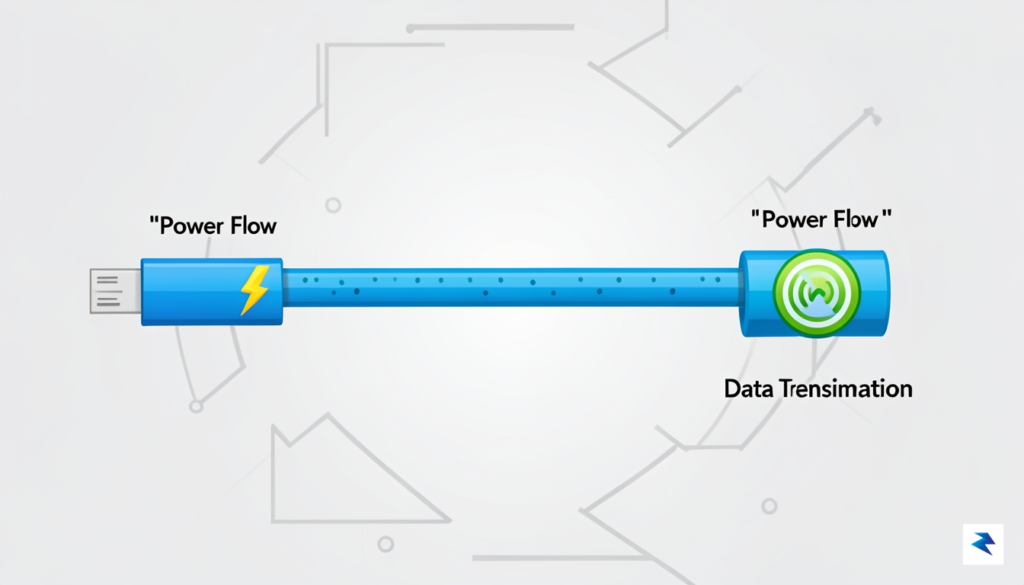
When you plug in a new USB-C cable, it’s natural to assume it will simply “work.” After all, isn’t USB-C supposed to be universal? While the connector itself is standardized, the truth is that the capabilities packed inside those sleek, reversible ends vary wildly. Knowing a cable is merely “fast” is no longer sufficient; to truly optimize your setup and avoid frustrating connectivity issues, you need to delve into the nuances of Power Delivery (PD) and specific data transfer protocols. Understanding these technical specifications isn’t just for tech gurus; it’s essential for anyone who wants their devices to perform at their peak, whether you’re charging a laptop, connecting a 4K monitor, or transferring gigabytes of data.
At its core, Power Delivery is a crucial specification that allows USB-C cables and ports to deliver significantly more power than older USB standards. Instead of a fixed voltage and current, PD enables devices to negotiate the optimal power level, supporting up to 240 watts with the latest USB PD 3.1 specification. This negotiation is why a single USB-C port can charge anything from a small smartphone to a power-hungry MacBook Pro, provided both the device and the charger support the necessary wattage. Without a cable capable of carrying the negotiated power, your device might charge slowly, refuse to charge at all, or even struggle to maintain power while under load, leading to frustrating interruptions in your workflow.
It’s not just about the maximum wattage, though. A cable must be specifically designed to safely handle the current and voltage passed through it. An inexpensive, low-quality cable might be rated for basic charging but could overheat or fail when pushed to deliver higher wattages required by a laptop. This distinction is critical because an under-specced cable can easily bottleneck your charging speeds, making you wait longer for your devices to power up, or even prevent your laptop from performing optimally if it’s constantly drawing more power than the cable can supply.
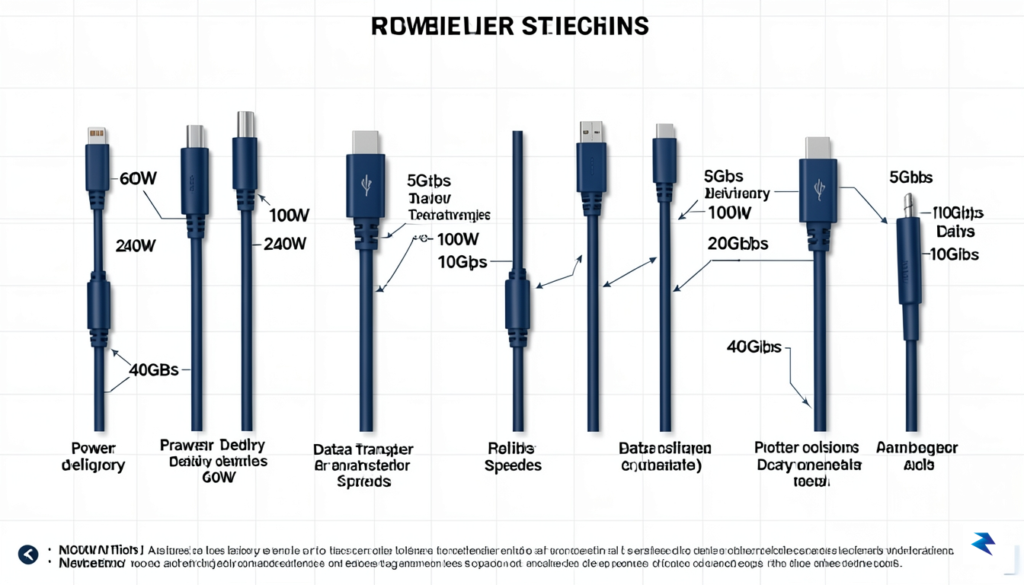
Beyond simply delivering power, USB-C cables are also responsible for transferring data, and here’s where the specifications become even more diverse. The USB standard itself has evolved rapidly, with several iterations that determine data transfer speeds. USB 3.2, for instance, encompasses various “generations” that dictate bandwidth: USB 3.2 Gen 1 (often just called USB 3.0) offers 5 gigabits per second (Gbps), while USB 3.2 Gen 2 provides 10 Gbps, and the less common USB 3.2 Gen 2×2 pushes it to 20 Gbps. These speeds are crucial for tasks like backing up large files to an external SSD or ensuring smooth performance from a high-bandwidth peripheral.
However, for the ultimate in speed and versatility, you need to consider Thunderbolt. While sharing the same physical USB-C connector, Thunderbolt 3 and Thunderbolt 4 cables are distinct and significantly more capable. These protocols offer a blazing 40 Gbps of bandwidth, enabling features that standard USB cables simply cannot match. This includes support for multiple 4K displays from a single port, external GPUs for enhanced graphics performance, and daisy-chaining several high-speed devices without sacrificing performance. A Thunderbolt cable includes specific active components and wiring configurations that allow for these advanced capabilities, making them more expensive but indispensable for professional workstations and advanced setups.
This brings us to a common point of confusion: why a USB-C cable might charge your laptop perfectly well but fail to output video to a 4K monitor, or perhaps only output at a lower resolution or refresh rate. The answer lies in the specific “lanes” and capabilities within the cable. A basic charging cable only needs to carry power lines. For video output, especially high-resolution signals like 4K or 8K, the cable must contain dedicated high-speed data lanes that support DisplayPort Alternate Mode (DisplayPort Alt Mode) or be a fully-featured Thunderbolt cable. These lanes are physically separate from the power lines and require more complex internal wiring.
Many cheaper or older USB-C cables simply do not have these high-speed video data lanes enabled or even present. They might be perfectly capable of delivering 100W of power, but lack the necessary internal architecture to transmit high-bandwidth video signals or sustained 40 Gbps data. Therefore, while your laptop happily sips power, the monitor remains blank because the signal simply cannot travel through the inadequate cable. Always check the cable’s specifications for explicit mention of video support (e.g., “4K 60Hz video,” “DisplayPort Alt Mode”) and data speed (e.g., “USB 3.2 Gen 2,” “Thunderbolt 4”) in addition to its Power Delivery rating.
Key Takeaway: A cable’s ability to charge your device doesn’t automatically mean it can handle high-speed data transfer or video output. Always check for specific ratings like Power Delivery (PD) wattage, data transfer speed (Gbps), and explicit video support (e.g., 4K, DisplayPort Alt Mode, Thunderbolt).
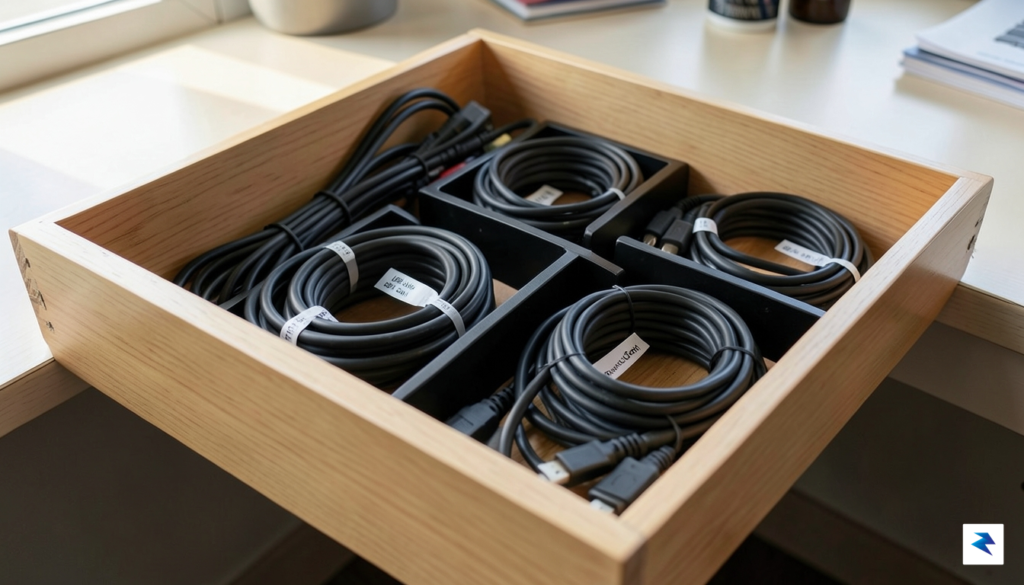
Once you have finished auditing your collection using diagnostic software, the transition from chaos to a streamlined workspace begins with intentional organization. Many users suffer from the “mystery cable” syndrome, where a drawer full of identical-looking cords leads to wasted time and performance bottlenecks. To prevent this, consider implementing a simple labeling system immediately after testing each cable. You can use inexpensive adhesive cable tags, color-coded heat-shrink tubing, or even small strips of masking tape to denote the specific speed or power delivery capabilities of each cord. By marking a cable as “100W/40Gbps” or “Charging Only,” you eliminate the guesswork entirely, ensuring that you always grab the right tool for high-bandwidth tasks like external SSD transfers or rapid laptop charging.
Beyond simple organization, you must be ruthless when it comes to culling your inventory. If the diagnostic tool reveals that a cable is non-compliant, fails to support modern standards, or exhibits inconsistent data transfer rates, it is time to retire it. Holding onto degraded or subpar hardware is not merely an exercise in clutter; it is a genuine safety concern. Frayed insulation, bent connectors, or oxidized pins can lead to short circuits, which, in the worst-case scenario, might damage the sensitive charging ports on your expensive MacBook or smartphone. If a cable shows visible physical distress or consistently causes your device to disconnect, discard it safely according to your local electronic waste recycling guidelines rather than risking a permanent hardware failure.
Consistency is the key to longevity. Treat your cables as essential components of your hardware ecosystem rather than disposable accessories.
To maintain order in the long term, consider adopting a dedicated storage solution that keeps your high-performance cables separate from legacy or low-power alternatives. Using velcro cable ties instead of tight knots or rubber bands will prevent internal wire fatigue, which is often the silent killer of USB-C longevity. Additionally, periodically revisit your collection every few months to test any cables that seem to be underperforming. By treating your charging and data cables with the same respect you accord your computer, you will significantly extend the life of your devices and ensure that you never again have to wonder if a slow transfer speed is the fault of your drive or the cable connecting it.
You must be logged in to post a comment.