Denmark’s $12M Huawei Ruling: The True Cost of Telecom Security
The Ruling: Denmark’s Liability in the TDC NET Dispute The recent judicial verdict delivered by the Danish courts represents a significant…
For years, the discourse surrounding major operating system updates has been dominated by the pursuit of headline-grabbing features, flashy interface overhauls, and ambitious new capabilities. However, the latest July update for Windows 11 signals a fundamental shift in Microsoft’s development philosophy, moving away from elective bloatware and toward the core pillars of a reliable computing experience: stability, workflow consistency, and system responsiveness. By prioritizing these “quality of life” improvements, Microsoft is acknowledging that the most significant innovations are not always the ones that look best in a marketing presentation, but rather the ones that stop you from losing your train of thought in the middle of a workday.
The average PC user spends their time navigating a complex web of multitasking, file management, and application switching. When these underlying processes stutter, lag, or fail to behave predictably, the resulting frustration far outweighs the utility of a new widget or decorative animation. This update focuses on the friction points that accumulate over time—the micro-delays when opening folders, the inconsistent behavior of windows after waking from sleep, and the erratic background resource usage that can turn a high-performance machine into a sluggish interface. By refining these everyday mechanics, the update ensures that the operating system acts as a seamless conduit for productivity rather than a barrier to it.
Choosing to fix these persistent annoyances is a strategic victory for the long-term health of the platform. Instead of adding complexity that could potentially introduce new bugs, this approach tightens the existing infrastructure, making the system feel “snappier” and more robust. For the user, this translates to a more predictable environment where commands execute instantly and system crashes or UI hang-ups become rare occurrences rather than weekly irritants. This commitment to stability is ultimately more valuable than any experimental feature because it builds trust between the user and their machine.
The true measure of an operating system is not how many features it possesses, but how effectively it stays out of the user’s way while they work.
Moving forward, users can expect a noticeable improvement in the fluidity of their daily computing routines. By trimming the fat and focusing on the optimization of system processes, Microsoft is essentially polishing the gears of the Windows 11 engine. This transition toward a more maintenance-heavy update cycle suggests that the company is listening to the feedback of power users and casual operators alike, both of whom demand a platform that respects their time and focus. You are not just getting a patch; you are getting a refined version of your daily digital workspace, designed to be more dependable, more consistent, and significantly less frustrating.
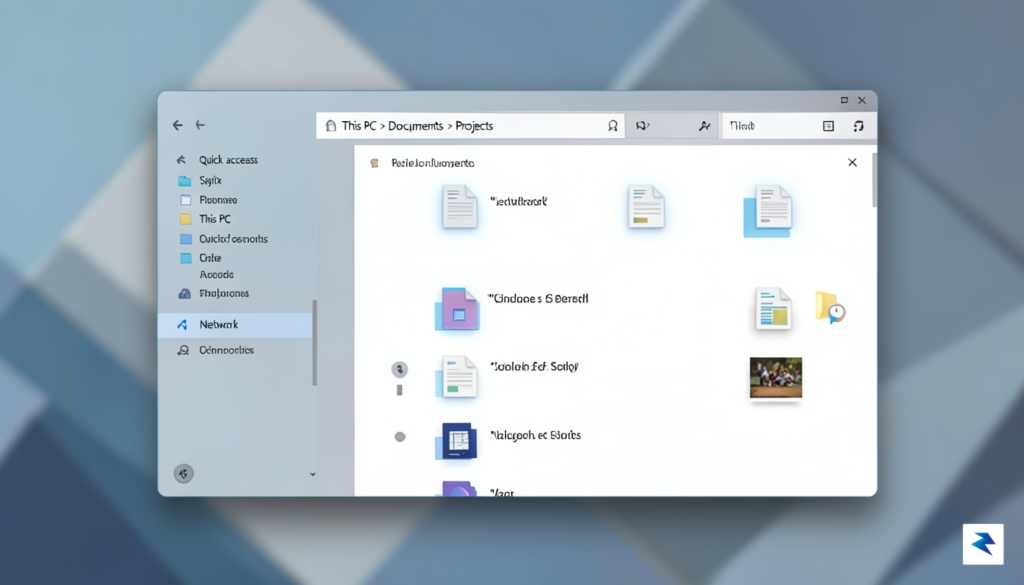
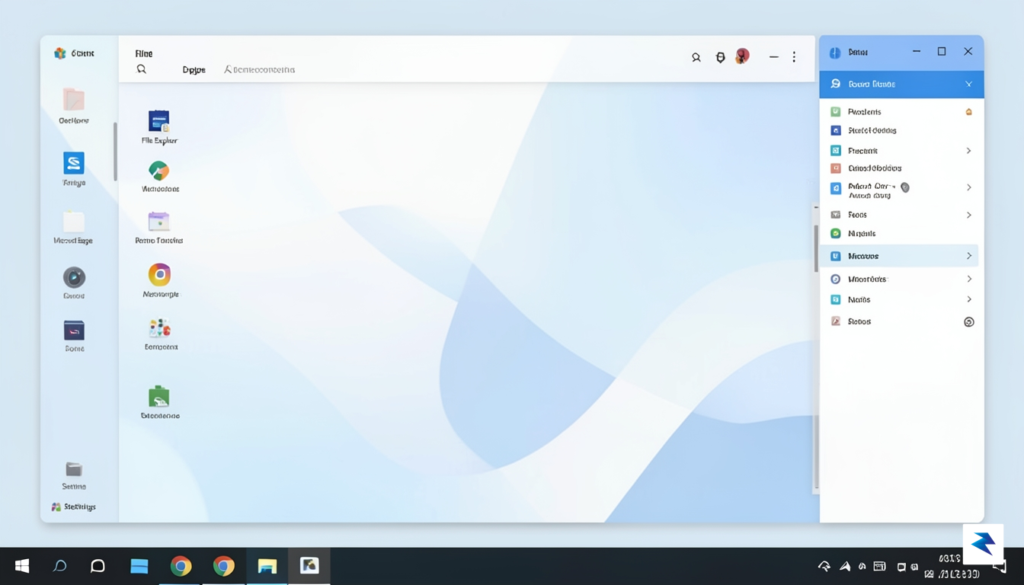
For most users, File Explorer serves as the absolute nerve center of the Windows 11 experience, acting as the primary gateway to every document, photo, and system file on the machine. When this core component falters, the entire user experience suffers, which is why the latest July update prioritizes deep-level refinements to its underlying architecture. By addressing long-standing issues with interface lag and input latency, Microsoft has fundamentally smoothed out the way the operating system handles directory navigation, ensuring that opening folders and moving files feels instantaneous rather than sluggish.
One of the most significant improvements in this release is the drastic reduction in the notorious “not responding” errors that have plagued power users for months. These frustrating hangs, often triggered by complex file structures or heavy background processes, have been mitigated through a more robust handling of asynchronous tasks. Instead of the entire Explorer window freezing while waiting for a network drive or a busy thumbnail cache to load, the system now manages these requests with far greater efficiency. This architectural shift prevents the dreaded “white screen” state that frequently interrupted workflows and forced users to manually restart the Windows Explorer process via Task Manager.
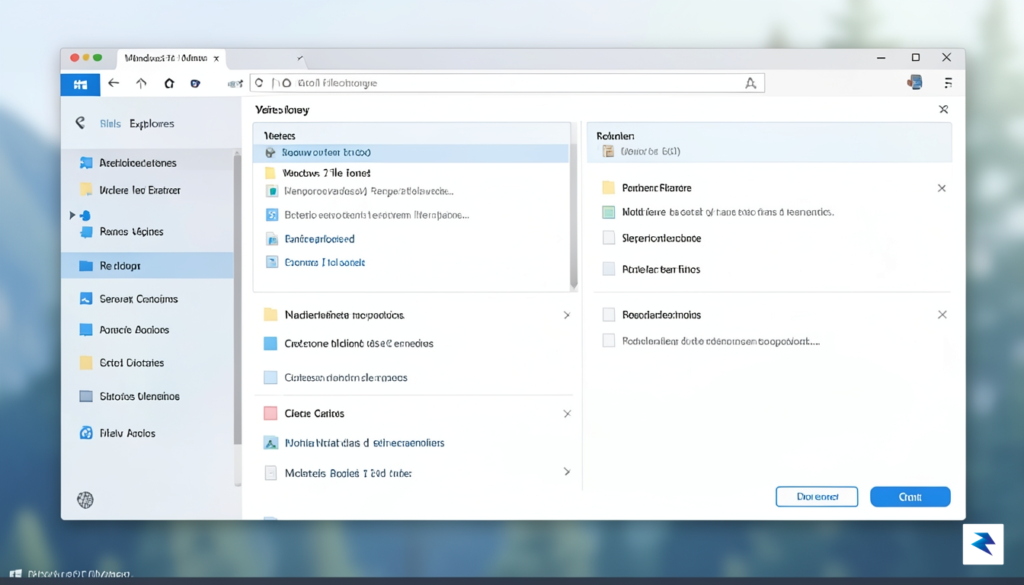
Beyond simple navigation, the update introduces critical optimizations to the system’s search indexing capabilities. Previously, searching for files in deep subdirectories could result in high CPU usage and sluggish return times, often leaving users waiting for results that should have appeared in milliseconds. By refining the indexing service to operate with a smaller memory footprint and improved prioritization, Windows 11 now delivers file search results with significantly higher speed and accuracy. This means that whether you are searching by file metadata, date modified, or specific keywords, the system is now far more responsive to your immediate needs.
The structural refinements within the July update represent a major leap forward in long-term system health, shifting the focus from visual flair to the reliability of the tools we use every single hour of the day.
Perhaps most importantly, the update tackles the lingering memory leak issues that previously necessitated periodic system restarts to maintain peak performance. Over extended sessions, File Explorer had a historical tendency to consume increasing amounts of RAM, eventually causing a noticeable degradation in overall system responsiveness. Through careful memory management patches, Microsoft has ensured that the application releases system resources appropriately after closing windows or completing background operations. This improvement not only stabilizes the File Explorer itself but also provides a more consistent, fluid performance profile for the entire operating system, allowing your PC to remain fast and reliable from the moment you boot up until you shut down.

For most modern professionals and casual users alike, a wireless workspace is no longer a luxury—it is a baseline requirement. However, the convenience of untethering your mouse, keyboard, and headphones has often been undermined by the persistent, intermittent frustration of Bluetooth drops. Whether it is a sudden lag in your typing or an audio stutter during a high-stakes video call, these connectivity failures have long been a notorious bottleneck in the Windows 11 experience. These drops often stem from complex conflicts within the driver stack, where power management protocols sometimes aggressively put wireless radios to sleep or fail to negotiate handshake signals effectively when a PC wakes from hibernation.
The July update directly addresses these underlying technical hurdles by implementing a comprehensive overhaul of how the operating system communicates with peripheral hardware. By streamlining the driver stack and refining the way Windows manages radio frequency handshakes, Microsoft has significantly reduced the latency that typically triggers a device disconnect. Instead of relying on generic driver behaviors that frequently misinterpret peripheral inactivity, the new patches allow for more intelligent, context-aware power management. This ensures that your devices remain in a low-power “ready” state without fully severing the connection, effectively creating a more seamless bridge between your hardware and the OS.
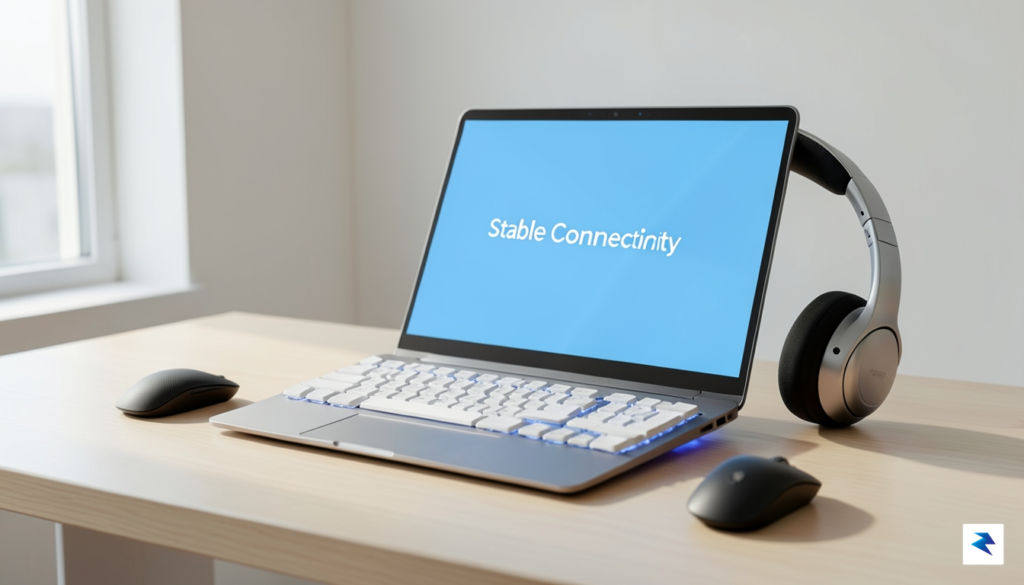
To verify if your specific hardware is benefiting from these improvements, start by ensuring the update is fully installed through the Windows Update settings. Once the installation is complete and your system has been restarted, observe your devices during transition periods, such as waking the computer from sleep mode or returning to your desk after a period of inactivity. You should notice that your peripherals respond almost instantaneously, rather than requiring a second or two of “re-pairing” time that plagued previous versions. If you previously experienced “ghost clicks” or stuttering audio, pay close attention to whether those anomalies have ceased during sustained use.
Key takeaway: The July update shifts Windows 11 from a passive power-saving approach to a proactive stability model, prioritizing constant peripheral readiness over aggressive battery preservation.
If you still encounter issues after the update, it is highly recommended to perform a quick clean-up of your peripheral drivers. Navigate to the Device Manager, right-click your Bluetooth radio, and select “Update driver” to ensure that the system has successfully integrated the latest improvements provided by the July patch. By combining these robust backend architectural changes with a fresh check of your peripheral settings, you can finally move past the era of unreliable connections and enjoy the fluid, wire-free workspace that Windows 11 was always intended to provide.
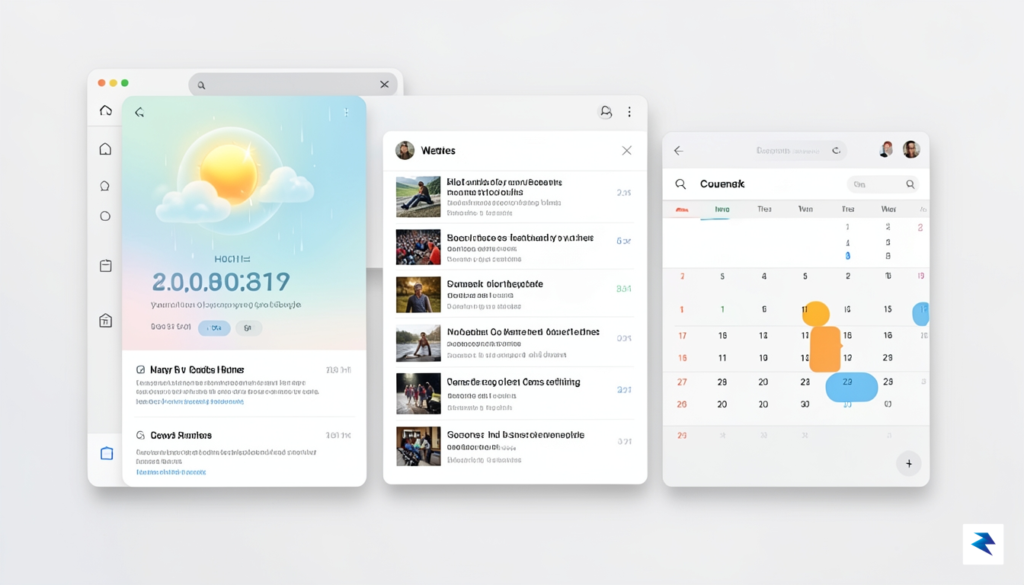
For many Windows 11 users, the Widgets board represents the fastest way to glance at weather updates, sports scores, and news headlines without needing to open a full browser window. However, past iterations have often suffered from sluggish loading times and occasional layout shifts that disrupted the flow of a productive workday. With the latest July update, Microsoft has prioritized the underlying performance of this panel, ensuring that your personalized information populates almost instantly upon activation. By optimizing how the board fetches data, the experience feels significantly more responsive, allowing you to access the information you need without the frustrating wait times that previously plagued the interface.
Beyond the improvements to speed, the update addresses several persistent visual inconsistencies that often distracted users during their daily tasks. One of the most welcome changes involves the refinement of taskbar interaction behaviors. Many users previously encountered minor graphical glitches—such as flickering icons or delayed hover animations—when navigating between open applications or checking notification badges. By smoothing out these transitions and polishing the visual feedback loop, Microsoft has ensured that the taskbar behaves with a level of predictable fluidity that feels native to the modern Windows aesthetic. These minor adjustments might seem subtle, but they collectively contribute to a more professional and stable desktop environment.
The true value of a user interface lies in its invisibility; when the OS works exactly as expected, you stop thinking about the software and start focusing entirely on your work.
Reducing the cognitive load required to navigate your operating system is essential for maintaining focus during intense multitasking sessions. When you are juggling multiple windows, a taskbar that occasionally stutters or a widget panel that fails to load correctly can act as a jarring interruption to your mental workflow. By eliminating these micro-frustrations, the July update allows for a more seamless transition between tasks. You can now rely on the system to provide immediate visual confirmation of your actions, which helps keep your attention centered on your creative or professional goals rather than on troubleshooting the operating system itself. Ultimately, these refinements represent a commitment to stability and consistency, ensuring that your PC remains a reliable tool that supports, rather than hinders, your daily digital life.
For years, the universal grievance among Windows users has been the intrusive nature of system updates that seem to occur at the most inconvenient moments. Whether you are in the middle of a critical presentation or deep into a creative project, the sudden interruption of a forced restart has long been a major source of friction. With the latest July update for Windows 11, Microsoft has finally pivoted toward a more user-centric philosophy, effectively handing the reins back to the people behind the screen. By refining the “pause update” functionality, the operating system now allows for much greater flexibility, ensuring that you can defer non-essential maintenance until it actually fits your schedule rather than the machine’s internal clock.
Beyond simply delaying restarts, the update introduces a more robust approach to system recovery, which is a significant relief for those who have previously feared the “blue screen of death” or broken configurations. The revamped recovery options are designed to be more intuitive, allowing users to restore their system to a stable state without the agonizing risk of losing personal files or important documents. This shift toward non-destructive restoration means that troubleshooting is no longer a last-resort measure that requires technical expertise or a complete wipe of your hard drive. Instead, the interface guides you through the process with clarity, prioritizing data integrity above all else.
The true measure of a successful operating system is its ability to remain invisible while you work, rather than demanding your constant attention for maintenance.
These changes represent a substantial victory for both home users and IT managers who oversee large fleets of machines. For the home user, the benefit is immediate: a reduction in technical anxiety and the assurance that their PC will be ready when they are. Meanwhile, IT professionals gain a more predictable environment where they can manage patches and security deployments without being bombarded by help-desk tickets from frustrated employees. By streamlining these recovery workflows, Microsoft is effectively reducing the “cost of ownership” associated with keeping a PC up to date, proving that security and convenience do not have to be mutually exclusive goals.
Ultimately, this evolution in update management signals a maturing of the Windows 11 ecosystem. It reflects a deeper understanding of the modern digital lifestyle, where time is a finite resource and technology should serve as an enabler rather than an obstacle. By prioritizing user agency through these refined tools, Microsoft is not just patching bugs; they are fundamentally improving the relationship between the user and their machine.
Ensuring a seamless transition to the latest Windows 11 improvements requires more than just clicking a button; it demands a disciplined approach to system maintenance. Before initiating the update process, your primary priority should be the security of your personal data. Even though modern update mechanisms are highly reliable, external factors such as sudden power outages or hardware glitches can occasionally lead to file corruption. Therefore, take a moment to back up your critical documents, photos, and projects to an external drive or a cloud storage service. Additionally, ensure your laptop is plugged into a reliable power source or that your desktop is connected to an uninterruptible power supply (UPS) to prevent an unexpected shutdown mid-installation, which could potentially destabilize your operating system.

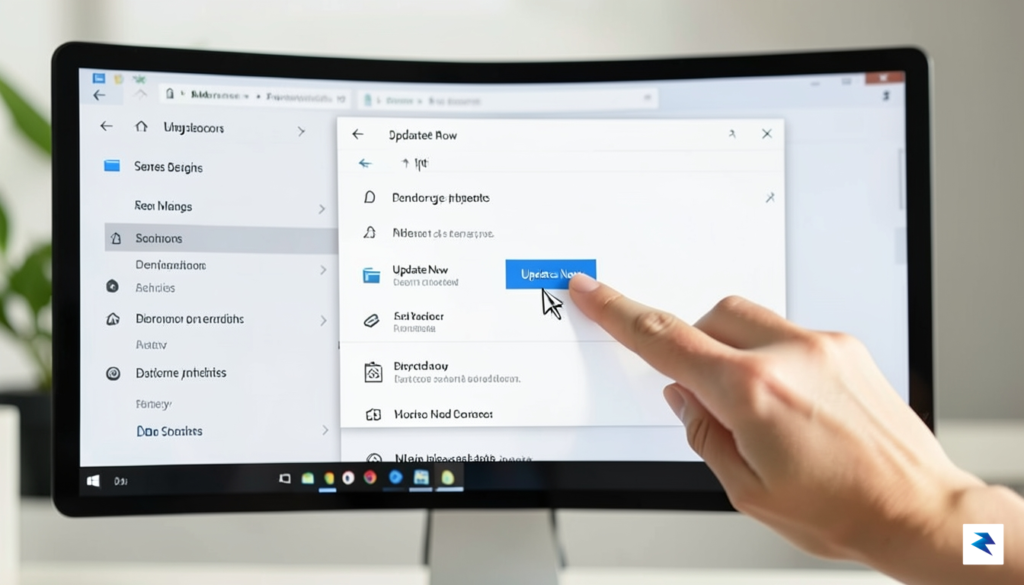
Once your data is secured, you can proceed by navigating through the Windows Settings menu. Open the Start menu and select the gear-shaped icon to launch Settings, then navigate to the Windows Update tab located on the sidebar. Click on the Check for updates button to allow the system to query Microsoft’s servers for the latest packages. If the update is available, Windows will typically begin downloading automatically. It is advisable to avoid running resource-intensive applications or games during this time, as the system needs to allocate bandwidth and processing power to verify and prepare the new files for deployment.
Remember: A pending update is only half the process. The installation is not complete until you have performed a full system restart, which allows the Windows kernel to swap out legacy files for the new, optimized versions.
If you encounter a scenario where the installation appears to be “stuck” at a certain percentage, do not panic and avoid the temptation to force a hard shutdown immediately. Often, the system is simply processing complex registry changes or migrating large driver sets, which can take longer than the progress bar suggests. Give the machine at least thirty to forty-five minutes to progress on its own. If the process is truly unresponsive, use the Windows Update Troubleshooter found in Settings > System > Troubleshoot > Other troubleshooters. This built-in diagnostic tool can reset the update components, clear corrupted cache files, and restart the necessary background services required to get the process moving again.
Finally, once the installation reaches 100 percent, the system will prompt you for a restart. While it may be tempting to “postpone” this step to continue your work, it is critical to restart as soon as possible. The restart phase is when the core system files are replaced; delaying this can lead to compatibility issues or leave your PC in a state of flux where old and new components conflict. By following these methodical steps, you not only ensure the successful deployment of the July enhancements but also maintain the long-term health and responsiveness of your Windows environment.
You must be logged in to post a comment.