
Bioresilience: How DeepMind and Isomorphic Labs are Rewriting Biology
Defining Bioresilience in the Age of AI Bioresilience represents a profound shift in how we approach the delicate yet robust mechanisms of…

For years, a pervasive sense of complacency has surrounded the macOS ecosystem, fueled by the long-standing myth that Apple devices are inherently immune to the malicious software plagues that frequently strike Windows environments. However, the emergence of the ClickLock malware serves as a harsh wake-up call, shattering the illusion of impenetrable security. ClickLock is not merely a nuisance or a piece of background adware designed to track browsing habits; it is a sophisticated, highly aggressive payload engineered to hijack the user experience entirely. By forcing victims into a grueling, three-day password verification loop, this threat transforms a functional computer into a digital prison, effectively weaponizing the user’s own need for security against them.
The strategic shift represented by ClickLock marks a departure from traditional malware tactics, which typically favored stealthy, long-term persistence in the background. In the past, attackers sought to remain undetected for as long as possible to exfiltrate data quietly. Conversely, ClickLock employs an overt, user-facing disruption strategy that demands immediate attention. By locking users out of their own systems and relentlessly demanding credentials, the malware forces victims to interact with malicious prompts. This psychological manipulation is designed to lower defenses, pushing frustrated or panicked users into handing over sensitive system passwords, iCloud credentials, or administrative access under the guise of “fixing” a system error.

The danger of ClickLock lies in its ability to weaponize user frustration, turning a technical lockout into a high-stakes psychological trap designed to harvest credentials.
The severity of this threat cannot be overstated, as it targets the very foundation of macOS user trust. When a machine becomes effectively unusable, the average user’s first instinct is to resolve the issue as quickly as possible, often bypassing common security best practices in a desperate bid to regain access to documents, emails, and personal accounts. By trapping users in this multi-day cycle of prompts, the attackers ensure that victims remain in a state of high stress, making them significantly more susceptible to social engineering. This evolution in malware design proves that modern cybercriminals have moved beyond simple exploitation of software vulnerabilities; they are now actively engineering user-hostile environments to manipulate human behavior as much as they manipulate system code.

The ClickLock malware operates by embedding itself deep within the macOS environment, effectively hijacking the system’s authentication protocols to create a persistent, frustrating blockade. Once the malicious payload is executed, it establishes a routine that mimics legitimate system behavior, specifically targeting the keychain and application permission prompts. By subtly interfering with background processes, the malware triggers a recurring request for user credentials. This is not a one-time glitch; rather, it is a calculated, three-day lockout cycle designed to render the device practically unusable for standard tasks while maintaining the appearance of a routine system maintenance error.
The technical brilliance—and danger—of this mechanism lies in its ability to interrupt legitimate system functions without triggering immediate red flags from standard security software. By forcing a recurring prompt, ClickLock holds the user’s workflow hostage, preventing them from accessing essential files, browsers, or encrypted storage. As the user attempts to enter their password to clear what they perceive as a temporary authentication bug, they are inadvertently feeding their credentials into a malicious interface. This constant cycle of failure and re-authentication creates a sense of urgency, as the malware makes it appear that the system is on the verge of a critical failure if the correct password is not provided immediately.
The psychological trap is far more effective than the technical one: by inducing a state of panic, the malware manipulates the victim into abandoning standard security protocols in a desperate attempt to restore their productivity.
Beyond the technical interference, the psychological warfare employed by this malware is remarkably sophisticated. As the three-day cycle progresses, the recurring prompts become increasingly frequent, intentionally wearing down the victim’s patience and critical thinking skills. Users are naturally conditioned to trust system-level prompts, and when those prompts appear repeatedly, the instinct to comply overrides the instinct to investigate. Consequently, individuals often resort to entering their most common passwords—or even administrative credentials—in hopes that the persistent error messages will cease. This desperation is the primary objective of the attacker; they rely on the fact that a frustrated user is significantly more likely to bypass security best practices when they feel their access to their own digital life is being stripped away.

Ultimately, the three-day duration of this lockout serves as a cooling-off period for the attacker, allowing them to quietly harvest data while the victim is distracted by the technical malfunction. During this window, the user is often too preoccupied with troubleshooting the “glitch” to notice that their sensitive information is being exfiltrated to a remote server. By the time the three days have elapsed or the user realizes that the prompt is not a legitimate system requirement, the damage to their personal privacy and security is usually already complete. Understanding that this loop is an intentional tactical choice is the first step in recognizing the threat and refusing to play into the attacker’s hands when the next “system error” appears.

While you are caught in the exhausting cycle of entering your password every few minutes, the true danger of ClickLock is occurring entirely out of your line of sight. The persistent, flashing prompt that demands your attention is not merely a nuisance or a system glitch; it is a meticulously designed diversion. As your focus narrows to the frustration of a locked machine, the malware operates in the background, treating your forced interactions as a gateway to your most sensitive digital vaults. By keeping you preoccupied with the login screen, the attackers ensure that you are too distracted to notice the subtle background processes quietly siphoning your personal information.

The primary objective of this malicious software is the systematic exfiltration of data, specifically targeting the core components of your macOS security architecture. Once the malware has established a foothold, it directs its attention toward the macOS Keychain, the centralized repository where your system stores passwords, private keys, and certificates. Because you are actively entering your credentials to “resolve” the lockout, the malware leverages these legitimate inputs to bypass security checkpoints. It essentially piggybacks on your own authorized actions to scrape browser credentials, saved credit card information, and persistent session tokens that allow attackers to impersonate you across various web services.
The most dangerous aspect of this attack is not the lockout itself, but the psychological manipulation that tricks a user into effectively handing over the “keys to the kingdom” under the guise of system troubleshooting.
To achieve this, ClickLock often exploits the standard permission requests inherent in the macOS ecosystem. It may trigger legitimate-looking system dialog boxes that ask for elevated administrative privileges, banking on the fact that you have been conditioned to provide your password just to get your computer working again. When you type your credentials into these prompts—believing you are unlocking your desktop—you are actually authorizing the malware to access protected directories and harvest sensitive data. This automated theft is rapid, silent, and highly effective, transforming your own security habits into the very weapon used against you. By the time you realize the three-day cycle is a fabrication, your financial data, social media sessions, and private communications have likely already been transmitted to an external command-and-control server.
The most effective defense against ClickLock is recognizing that this malware relies heavily on user interaction to establish its foothold. Because the infection process often disguises itself as legitimate system updates or software installers, you must remain vigilant regarding subtle irregularities in your Mac’s performance. Early warning signs often include persistent, unexplained system slowdowns that occur even when you are not running resource-heavy applications, as the malware may be silently exfiltrating data in the background. Furthermore, be hyper-aware of unexpected password prompts appearing while you are idling or performing mundane tasks; these windows are frequently designed to trick you into granting administrative privileges to the malicious script.
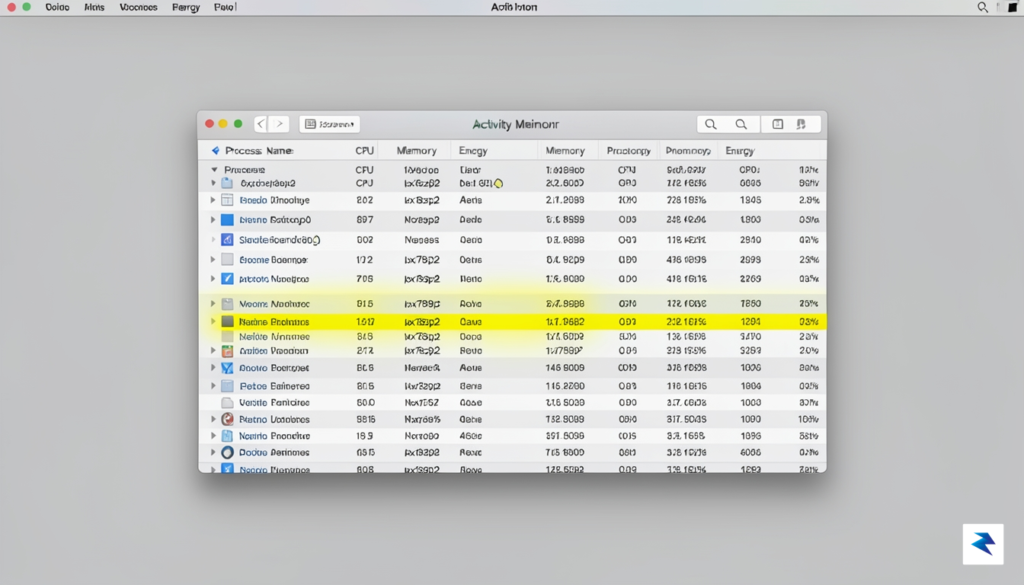
Another common indicator of compromise involves unauthorized changes to your browser settings, such as the sudden appearance of unfamiliar extensions, persistent redirects to unrecognized search engines, or a change in your homepage. Should you notice these erratic behaviors, it is vital to investigate your system’s active processes immediately to catch the threat before it triggers a full lockout. By opening Activity Monitor—found in your Utilities folder—you can sort processes by CPU usage to identify any unknown applications consuming significant system resources. Look for names that sound vaguely like system utilities but lack a verified developer signature, as these are often the primary vehicles for ClickLock’s persistence.
Beyond the graphical interface, you can perform a more granular audit by checking for malicious persistence mechanisms using the Terminal. Malware authors frequently hide their tools within your system’s launch agents or daemons to ensure they restart automatically after a reboot. You can inspect these by navigating to your ~/Library/LaunchAgents and /Library/LaunchDaemons directories and searching for files with randomized names or those created recently around the time you noticed the system instability. Execute the command ls -la ~/Library/LaunchAgents to list these files; if you find a file that you do not recognize, do not hesitate to research its name online or consult with a security professional before attempting to remove it.
The core of ClickLock’s strategy is patience and deception; it waits for the perfect moment of user distraction to initiate its cycle of password requests. If you are suddenly locked out of your account or prompted to re-enter credentials unexpectedly, treat the situation as an active security breach rather than a routine system glitch.
Ultimately, keeping your system secure requires a proactive mindset. If you observe any of these red flags, disconnect your machine from the internet immediately to prevent further data exfiltration. By isolating the device, you deny the malware its communication channel, giving you the necessary time to scan your system with reputable antivirus software or revert to a clean backup before the three-day loop initiates. Early detection is not just about convenience; it is the fundamental barrier that keeps your personal data out of the hands of malicious actors.

Recovering from a persistent threat like ClickLock requires a methodical approach that goes far beyond a simple restart. If you suspect your Mac has been compromised, the immediate priority is to sever the malware’s command-and-control capabilities by disconnecting your device from the internet. Once offline, reboot your computer into Safe Mode, which prevents non-essential third-party startup items from loading and provides a cleaner environment to perform a deep sweep. Within this mode, navigate to your System Settings to inspect “Login Items” and “Profiles”; malicious actors frequently install hidden configuration profiles to maintain persistence and bypass standard security prompts. If you encounter any unfamiliar items, remove them immediately and purge any recently installed applications that seem suspicious or lack a verifiable developer signature.

Beyond immediate remediation, you must treat your digital identity as if it has been exposed. Because threats like this often aim to harvest credentials, change the passwords for your most sensitive accounts—specifically banking, primary email, and cloud storage—using a separate, uncompromised device. To prevent future occurrences, transition to a zero-trust approach regarding software installation. This means strictly avoiding “cracked” software, suspicious advertisements, or applications downloaded from third-party sites that bypass the official Mac App Store or verified developer channels. Adopting a robust password manager is no longer optional; by using unique, complex credentials for every service, you minimize the “blast radius” if a single account or device is compromised.
True security is not a one-time fix but an ongoing process of vigilance and defensive configuration.
To further harden your machine against future, more aggressive variants of similar malware, ensure that your macOS is always updated to the latest version to leverage Apple’s built-in XProtect and Gatekeeper technologies. You should also consider enabling FileVault for disk encryption and reviewing your Privacy & Security settings to ensure that only trusted applications have access to your camera, microphone, and accessibility features. By auditing your system permissions regularly, you create multiple layers of defense that make it significantly harder for malicious code to gain the administrative leverage required to lock your machine. Ultimately, the best defense is a combination of proactive software management and a healthy skepticism toward any prompt that demands immediate, intrusive actions.
You must be logged in to post a comment.