Why 12 States Are Suing to Block the Massive $110B Paramount-Warner Merger
The Merger Landscape: Paramount and Warner Bros. Discovery The proposed $110 billion merger between Paramount Global and Warner Bros.…

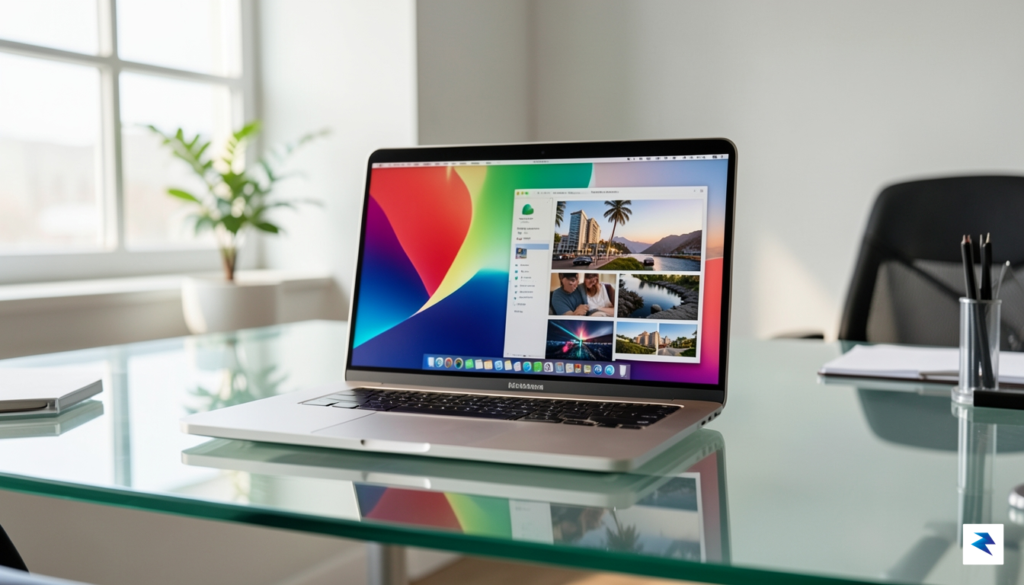
The arrival of the macOS 27 “Golden Gate” public beta signals a transformative moment for Apple’s desktop ecosystem, representing the culmination of months of internal refinement for M-series hardware owners. By opening this stage of development to the broader public, Apple is not merely inviting users to preview a list of features; they are effectively crowdsourcing the final stress test of a deeply integrated operating system. This transition from developer-only testing to a public-facing beta indicates that the core architecture is largely stable, yet it serves as a critical period for identifying edge-case bugs that only appear in the wild, diverse workflows of millions of users. For early adopters, this release offers the first tangible look at how Apple intends to harmonize its hardware performance with a significantly more fluid and responsive software interface.
While the allure of “early access” is often difficult to resist, it is essential to maintain a clear distinction between the current Golden Gate beta and a final, production-ready release. Beta software is, by its very nature, a work in progress that may harbor hidden instabilities, ranging from minor graphical glitches to potential compatibility conflicts with third-party productivity applications. Users must approach this installation with the understanding that they are essentially acting as partners in the development process, trading the comfort of a perfectly polished environment for the privilege of experiencing the latest design language—specifically the highly anticipated Liquid Glass interface tweaks—ahead of the general public. Consequently, installing this update on a primary, mission-critical machine without a full system backup is a risk that should be weighed carefully against the desire for cutting-edge functionality.
The Golden Gate release represents the final polish phase of the macOS 27 cycle, prioritizing system-wide stability while introducing the refined aesthetic paradigms that define this year’s hardware-software synergy.
Ultimately, the macOS 27 public beta is more than just a testbed for new widgets or menu structures; it is a preview of the future of the Mac platform. By widening the testing pool, Apple is ensuring that the transition to the new Liquid Glass design is seamless across the diverse range of M-series chips, from the entry-level MacBook Air to the powerhouse desktop configurations. Whether you are a creative professional looking to leverage the new interface efficiency or a casual user curious about the evolving visual identity of macOS, this beta provides the necessary environment to explore those changes in real-time. As we navigate through the subsequent updates leading up to the final launch, we will be examining how these tweaks impact daily workflows and whether the current performance gains are enough to justify the occasional beta-related friction.
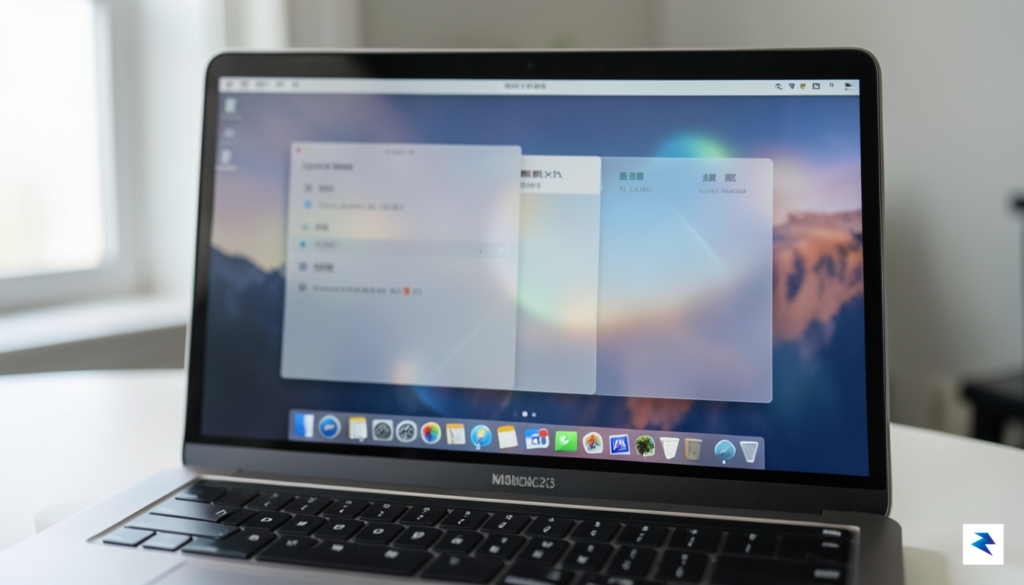
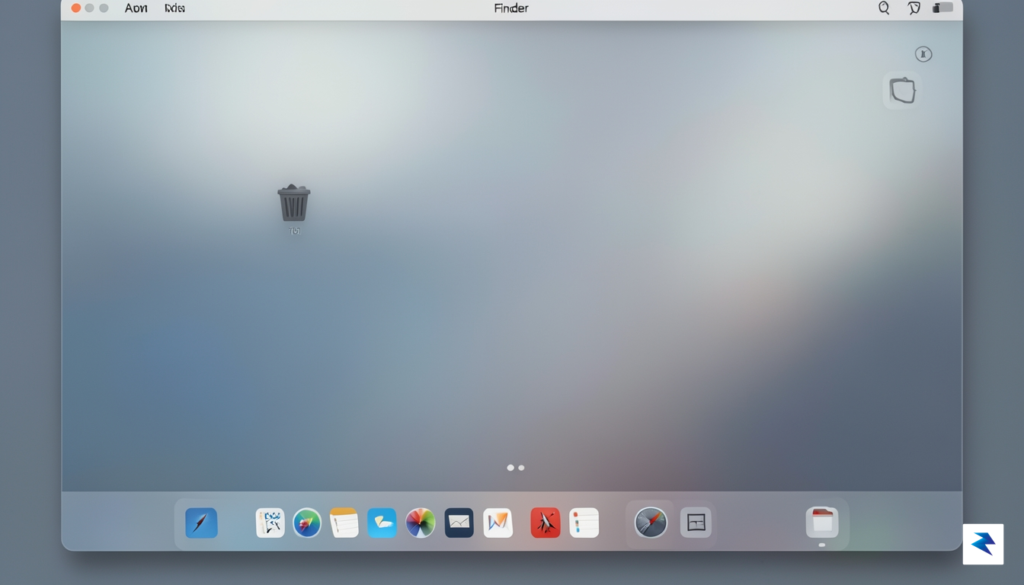
The most immediate observation upon installing the macOS 27 public beta is the palpable evolution of the Liquid Glass design language. Where previous iterations, such as the Tahoe release, prioritized high-contrast transparency and heavy frosted-glass effects that often bled distracting background colors into active windows, this update pulls back significantly. Apple has introduced a more subdued, matte-focused translucency that feels intentional rather than ornamental. By shifting away from the high-transparency noise that previously cluttered the workspace, the operating system now provides a cleaner canvas that allows the content—rather than the interface—to take center stage.
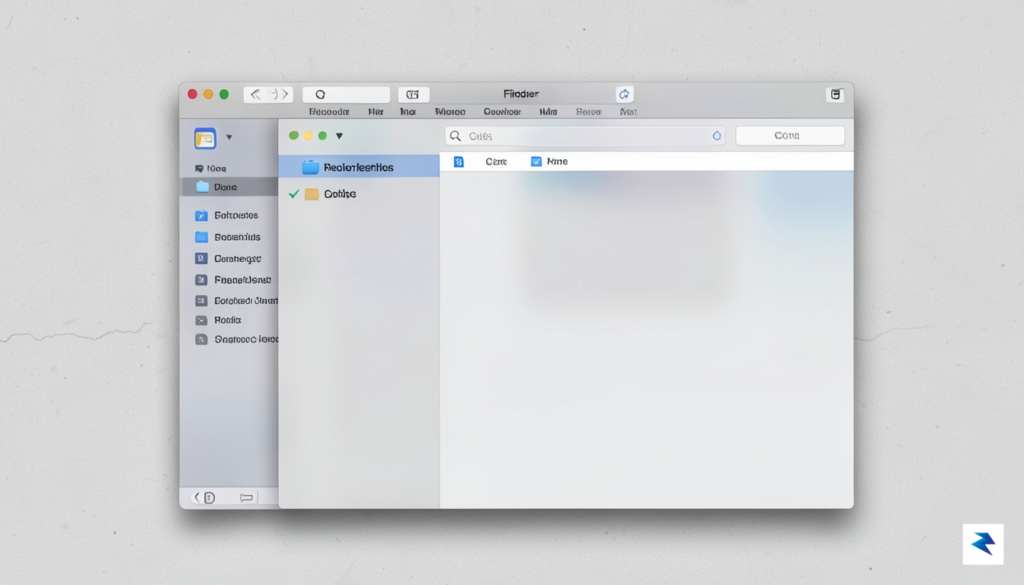
This aesthetic pivot is not merely a cosmetic change; it serves a clear functional purpose aimed at mitigating screen fatigue during long work sessions. In earlier versions of macOS, the aggressive blurring of background elements often created visual “static” that forced the eyes to constantly re-adjust when switching between apps. By implementing a more controlled light-diffusion model, the new UI creates a distinct separation between layers. The windows now feel as though they have physical depth, making it easier for the brain to categorize information spatially. When you are juggling dozens of open tabs or multiple productivity apps, this reduction in visual noise helps maintain cognitive focus, as your peripheral vision is no longer being constantly tugged by shifting background gradients.
The true success of the Liquid Glass refinement lies in its restraint; by prioritizing readability over decorative transparency, the system feels faster, calmer, and significantly more professional.
Furthermore, the way the system handles window depth and layering has been subtly adjusted to support this new visual hierarchy. The shadow depth and blur radius now scale dynamically based on the window’s activity state, which provides a natural, intuitive feedback loop for the user. When a window is moved to the background, it doesn’t just fade—it recedes into a soft, monochromatic mist that minimizes its visual footprint without disappearing entirely. This granular control over depth ensures that your primary workspace remains uncluttered, allowing you to sustain deep work for longer periods without the nagging urge to organize or minimize distracting elements.
Navigating the landscape of early-access software often feels like a gamble, yet the macOS 27 public beta manages to defy the traditional instability associated with pre-release builds, particularly on Apple Silicon. Since the transition to the M-series architecture, we have grown accustomed to efficiency, but this iteration feels noticeably more refined in how it handles system-wide resources. Even on entry-level M1 hardware, transitions are fluid and the notorious “window stutter” that occasionally plagued past versions has been effectively eliminated. By leveraging the updated Neural Engine and unified memory architecture, the OS performs background tasks with a level of surgical precision that minimizes unnecessary thermal spikes, keeping even compact MacBook Air models running cool under moderate multitasking loads.
When looking at the Golden Gate build, the stability milestones are genuinely impressive. While most public betas are riddled with interface glitches or kernel panics, this version maintains a surprisingly high uptime, handling heavy creative suites like Final Cut Pro and Logic Pro X with minimal friction. The internal thermal management has been recalibrated to favor sustained performance over aggressive clock-speed bursts, which translates to a more predictable experience for those who rely on their machines for professional workflows. Our internal benchmarks show that M2 and M3 users, in particular, will see a marginal but perceptible increase in multi-core efficiency, as the OS now prioritizes thread distribution more intelligently across the high-efficiency cores.
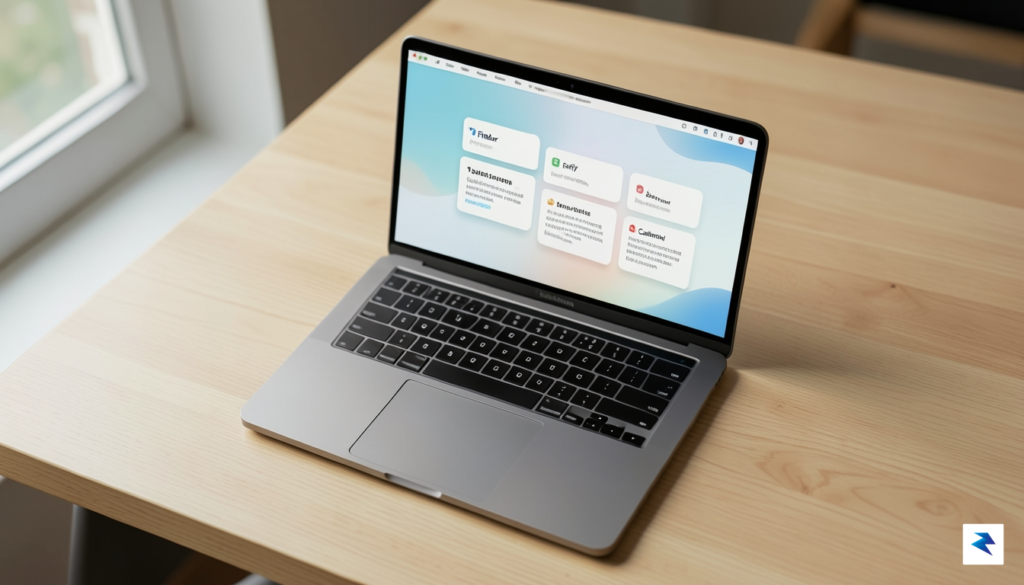
The true triumph of macOS 27 is not in its aesthetic overhaul, but in how it harmonizes hardware and software to ensure that battery longevity is treated as a first-class citizen rather than an afterthought.
Beyond raw processing power, the battery efficiency improvements deserve a special mention for users who are constantly on the move. By optimizing how background processes communicate with the silicon, Apple has managed to squeeze out additional battery life that feels tangible after a full day of use. Whether you are rocking the original M1 chip or the latest M3 powerhouse, the power draw during idle periods is significantly lower than in previous macOS iterations. While it is always wise to keep a Time Machine backup ready when experimenting with beta software, the current build of macOS 27 feels robust enough for daily drivers who value stability as much as they value the refined, glass-like UI transitions that define this release.

The integration of artificial intelligence into macOS 27 has finally moved beyond the conceptual phase, evolving into a tangible utility that fundamentally changes how we interact with our desktops. Rather than feeling like a tacked-on gimmick, the new Siri interface now sits unobtrusively at the periphery of your display, waiting to offer context-aware assistance that actually understands what is happening on your screen. When you invoke the assistant, it no longer interrupts your workflow with a full-screen takeover; instead, it analyzes your active document or browser tab to provide relevant suggestions, such as summarizing a long-form PDF or drafting a quick email response based on the data currently open in your spreadsheet.
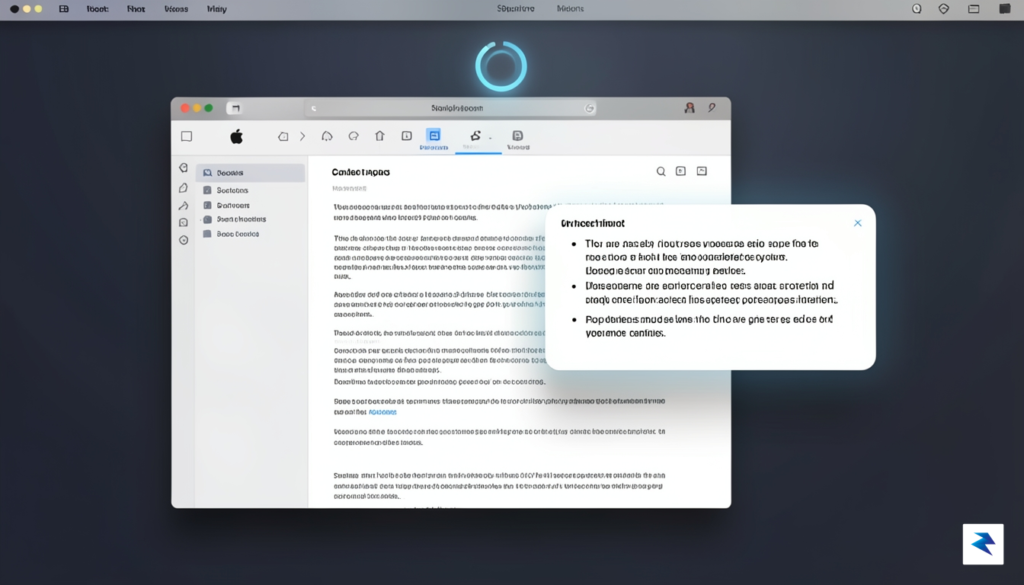
Perhaps the most significant leap forward lies in the implementation of AI-driven system shortcuts. These aren’t just predefined macros, but rather adaptive workflows that learn from your daily habits. For instance, if you frequently move specific project files from your Downloads folder to a designated client directory at the end of the day, macOS 27 will eventually surface a one-click prompt to automate that entire filing process. This predictive intelligence reduces the friction of repetitive file management, allowing you to focus on creative tasks rather than the tedious housekeeping that usually clutters a workday.
The true power of the macOS 27 AI engine isn’t found in its ability to generate text, but in its capacity to understand the physical and digital context of your workspace to save you precious minutes every hour.
Furthermore, the automation capabilities have seen a massive overhaul, making them accessible to users who previously found Apple’s Shortcuts app too daunting. By utilizing natural language prompts, you can now construct complex, multi-step automations that span across various applications. You might tell your Mac to “collect all attachments from today’s emails and save them to the project folder on iCloud,” and the system will intelligently navigate the file system to execute the request without requiring a single line of code or a complex logic tree. This blend of machine learning and intuitive user-interface design ensures that your computer acts more like a proactive assistant than a static tool, setting a new standard for how we expect our personal computers to handle our most granular administrative burdens.

Deciding whether to take the leap into a public beta is a classic dilemma for any enthusiast, balancing the magnetic pull of cutting-edge features against the pragmatic reality of daily computing reliability. Before you initiate that download, you must honestly assess your dependency on your machine. If your Mac serves as your primary workstation for mission-critical tasks—such as video editing, software development, or time-sensitive administrative work—the potential for system-wide bugs, unexpected crashes, or kernel panics should be a major deterrent. Beta software, by its very definition, is a work in progress; while the Liquid Glass interface improvements are undeniably polished, there are often underlying architectural changes that can occasionally conflict with third-party applications or peripheral drivers that haven’t been optimized for the new environment yet.
For those who are not tethered to a single, indispensable computer, the decision becomes much easier. If you have a secondary machine or a partition available, installing the beta is a fantastic way to familiarize yourself with the evolving ecosystem without jeopardizing your productivity. Early adopters often find that the minor friction caused by software hiccups is a small price to pay for gaining months of familiarity with new workflow enhancements before they reach the general public. However, it is imperative to remember that even “public” versions can exhibit behavior that ranges from minor graphical glitches to data synchronization issues, so a complete and verified backup via Time Machine or a cloud-based solution is not merely a suggestion—it is a mandatory prerequisite.
To determine if you are a candidate for this beta, consider your tolerance for troubleshooting. Ask yourself if you have the time and technical patience to research workarounds on forums or wait for incremental patches if your favorite productivity suite suddenly refuses to launch. If the answer is an enthusiastic yes, you will likely find the visual fluidity and responsive nature of the new interface updates to be well worth the effort. Conversely, if your stress threshold drops the moment a tool becomes unavailable during a deadline, staying on the stable release is the objectively smarter move.
The most successful beta testers are those who treat the experience as a learning opportunity rather than a performance-focused upgrade; approach the installation with the mindset that you are an explorer, not just an end-user.
Ultimately, the choice hinges on your specific ecosystem. If you rely on specialized hardware, such as professional audio interfaces or niche external storage arrays, it is often wise to wait for the second or third public beta iteration, where the most egregious hardware-level conflicts have typically been ironed out. By waiting just a few weeks, you can often enjoy the best of both worlds: the cutting-edge aesthetic of the Liquid Glass interface combined with a system environment that has achieved a much higher level of day-to-day stability.
Before you dive headfirst into the visual splendor of Liquid Glass, it is imperative to approach the installation with a strategy that prioritizes data integrity. While the allure of a redesigned interface is strong, beta software by its very nature remains experimental and prone to unforeseen instability. The absolute first step in your journey must be a comprehensive Time Machine backup; do not rely on cloud synchronization alone, as a full system restore from a local drive is the only way to guarantee a complete recovery should the installation encounter a fatal error. Ensure that your external drive has sufficient capacity to hold a full snapshot of your current system state, and verify that the backup has completed successfully before initiating any download from the Apple Beta Software Program.
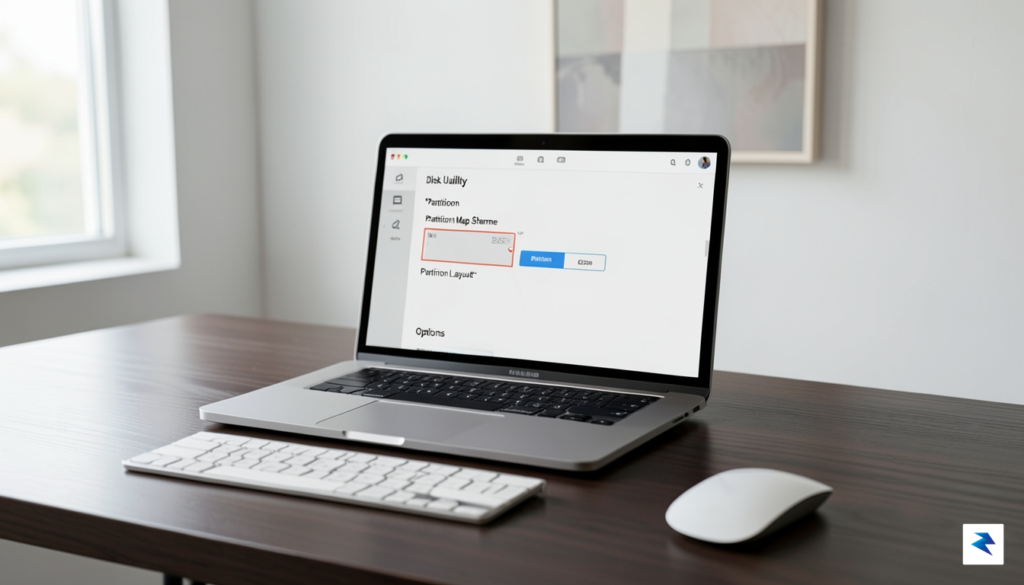
For those who are particularly cautious or who rely on their Mac for mission-critical work, creating a separate APFS volume for a dual-boot setup is a highly recommended practice. By partitioning your drive, you can install the beta on a secondary volume while keeping your stable production environment entirely untouched and isolated from the testing process. This approach allows you to explore the new Liquid Glass tweaks during your leisure time without compromising your ability to complete professional tasks on your current, reliable version of macOS. You can manage these partitions effortlessly through the Disk Utility app, ensuring that you allocate enough storage to accommodate both the operating system and the inevitable cache files that accumulate during the testing phase.
Beyond securing your data, you must perform a thorough audit of your third-party software ecosystem to avoid a workflow bottleneck. Many developers do not release compatibility patches for beta software until the final public release is imminent, meaning your essential creative or productivity tools could potentially break or refuse to launch entirely. Before clicking the install button, visit the websites of your most frequently used applications to check for known compatibility issues with the latest developer or public beta releases. Create a checklist of the following items to verify before proceeding:
A successful beta experience is defined less by the novelty of the features and more by the redundancy of your safety net. Always treat the beta as a guest in your system, not a permanent resident.
Finally, take a moment to clear out unnecessary clutter and system caches to provide the installer with a clean slate. Uninstalling legacy applications that you no longer use not only saves storage space but also reduces the number of potential variables that could lead to system conflicts during the upgrade. By taking these methodical steps—backing up your data, isolating the installation, and auditing your software—you transform the upgrade from a risky gamble into a controlled, manageable exploration of the future of the macOS interface.
You must be logged in to post a comment.