
Beyond the 37K LoC Headline: The Reality of Agentic AI in Development
The Myth of the 37,000-Line Daily Output When headlines circulate claiming that a developer is pushing 37,000 lines of code (LoC) into a…

The intersection of law enforcement and digital forensics recently reached a new milestone when a high-profile criminal investigation relied heavily on telemetry data harvested directly from a Windows-based device. In this instance, investigators were able to bypass traditional IP-based tracking methods, which are often obscured by VPNs or dynamic routing, by utilizing a persistent, hardware-linked identifier embedded within the operating system. This unique device ID acted as a digital fingerprint, allowing authorities to correlate specific online activities with a physical machine, effectively bridging the gap between a virtual identity and a real-world location. The success of this operation serves as a stark reminder that the operating system itself is often the most comprehensive witness to a user’s behavior.

It is crucial to understand that this level of tracking is rarely the result of a bespoke, targeted surveillance program designed for individual monitoring. Instead, the capability stems from the vast ecosystem of diagnostic data and telemetry that Microsoft collects to maintain system health, optimize performance, and deliver software updates. Windows constantly generates logs that include hardware signatures, software configurations, and even user interaction patterns, all of which are transmitted back to company servers. While these features are marketed as essential tools for debugging and improving the user experience, the recent arrest highlights how easily this repository of diagnostic information can be repurposed for legal discovery when a court order is involved.
The very telemetry designed to make Windows more reliable can, under the right legal conditions, transform your computer into an involuntary informant.
The implications of this discovery are profound for privacy-conscious users who previously believed that masking their network traffic provided a sufficient shield against tracking. By tying specific events to an immutable device identifier rather than a transient connection, Microsoft’s telemetry infrastructure provides a permanent trail that persists even as a user changes network environments. This shift in investigative methodology suggests that the focus of digital surveillance has moved away from the network layer and toward the device itself. As operating systems become increasingly integrated with cloud-based diagnostic services, the line between helpful system maintenance and invasive data collection continues to blur, leaving users to grapple with the reality that their hardware may be working against them in ways they never intended.

At the foundation of the modern Windows ecosystem lies the Windows Device ID, a unique alphanumeric string that functions essentially as a digital fingerprint for your specific hardware configuration. When you first install or initialize an operating system, Windows performs a deep scan of your machine’s components, including the motherboard serial number, processor architecture, and network interface controller details. By hashing these disparate pieces of hardware data into a single, cohesive identifier, Microsoft creates a persistent profile that remains tethered to your device throughout its operational lifespan. This mechanism is not merely an incidental byproduct of the installation process; it is a deliberate architectural design choice intended to ensure that the software remains cryptographically linked to the specific machine on which it was originally activated.

It is essential to distinguish between the various types of identifiers that Windows utilizes to manage your machine’s relationship with the cloud. While hardware-based identifiers are primarily rooted in physical component signatures, telemetry-linked identifiers are dynamic and serve a different purpose entirely. These telemetry IDs are often rotated or refreshed by the operating system to prevent long-term, static tracking by third parties, yet they remain inextricably linked to the primary Device ID stored within the Windows registry. Consequently, even when a user attempts to opt out of certain data collection features, the underlying hardware ID acts as a persistent anchor, allowing Microsoft’s backend systems to maintain a consistent record of the machine’s history, update status, and service entitlements.
The Windows Device ID serves as the bridge between your physical hardware and Microsoft’s vast ecosystem, ensuring that your software license and system updates are always mapped to the correct environment.
Beyond simple identification, this system plays a critical role in the maintenance of software licensing and the delivery of Windows Update services. By validating your Device ID against Microsoft’s activation servers, the operating system verifies that your copy of Windows is legitimate and running on authorized hardware. Furthermore, the Windows Update service relies on these IDs to tailor the distribution of specific drivers and security patches, ensuring that your computer receives the precise software updates optimized for your unique hardware components. This creates a highly efficient, automated pipeline for system maintenance, but it simultaneously transforms your computer into a constantly reporting asset that is inherently tracked within the company’s global server infrastructure.
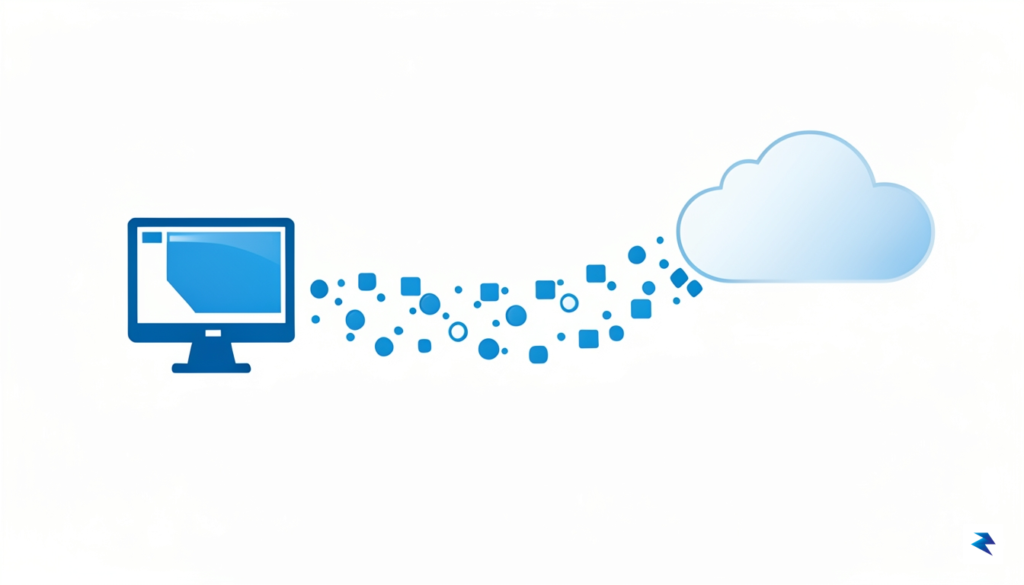
At the core of the Windows operating system lies an expansive telemetry infrastructure designed to monitor system health and performance. To understand how Microsoft manages this information, it is essential to distinguish between the two primary tiers of data collection: Required and Optional diagnostic data. Required diagnostic data is the baseline information that Microsoft deems necessary to keep Windows secure and up-to-date. This includes fundamental details such as basic error reports, security patches, and information about the device’s hardware configuration, such as processor type and memory capacity. Without this data stream, the company argues that it would be unable to effectively deploy critical updates or respond to emerging vulnerabilities that could compromise the integrity of millions of devices worldwide.
In contrast, Optional diagnostic data encompasses a much broader range of insights that users can choose to share to help improve the platform. This category often includes information about how a user interacts with various features, which applications are launched most frequently, and even detailed performance metrics regarding how specific software behaves under different workloads. By opting into this level of telemetry, users are essentially providing Microsoft with a map of their digital habits and usage patterns. While this helps developers refine the user experience and troubleshoot obscure bugs, it also creates a persistent link between a unique Device ID and an individual’s behavioral history, which raises significant questions about the long-term anonymity of the average user.

Beyond simple usage statistics, the telemetry process frequently captures environmental metadata that can be surprisingly revealing. This includes IP addresses, which are processed to determine the general geographic location of the device, as well as hardware identifiers that effectively act as a digital fingerprint. When combined, these data points allow Microsoft to maintain a precise inventory of active devices and their respective deployment regions. Although Microsoft maintains internal policies that dictate how this information is handled, the sheer volume of data collected—and the retention periods associated with it—often remain opaque to the end user. According to the company’s privacy statements, diagnostic data is stored with unique identifiers that allow them to determine if a specific device is experiencing a recurring issue; however, these identifiers are subject to internal rotation and deletion cycles that vary depending on the sensitivity of the data.
The core of the privacy debate hinges on the fact that while telemetry is framed as a technical necessity for maintenance, the granularity of that data often blurs the line between system optimization and detailed user profiling.
Ultimately, Microsoft’s approach to data retention emphasizes the aggregation of findings rather than the permanent storage of identifiable raw logs. The company asserts that they employ automated processes to strip personal identifiers from diagnostic telemetry before it is used for broad analysis. Nevertheless, the presence of a persistent Device ID means that for the duration of a device’s lifespan, there is a consistent thread tying specific performance events back to a single entity. For users concerned about their footprint, navigating the privacy settings menu is the only effective way to limit this flow, effectively disabling the optional telemetry streams that go beyond the absolute minimum required for the operating system to function.

The revelation that Windows devices utilize a hardware-level identifier to facilitate tracking introduces a significant “creepy factor” that strikes at the core of personal digital autonomy. For the average consumer, the convenience of a seamless, personalized computing experience often masks the reality that their machine is acting as a constant beacon, broadcasting unique signatures to Microsoft’s telemetry servers. When a device ID is irrevocably tied to a specific user account and their associated behavioral data, the line between helpful product improvement and persistent surveillance blurs. This creates a power imbalance where users are effectively forced to trade their digital privacy for the ability to use the operating system itself, often without a clear understanding of the granular reach this tracking mechanism truly possesses.
Beyond the immediate sense of privacy erosion, there are tangible legal and security risks inherent in maintaining such a centralized repository of user behavior. Because this hardware ID can bridge the gap between anonymous online actions and physical hardware, it becomes an attractive target for legal requests and government subpoenas. If law enforcement or third-party entities can link a specific Windows machine to a particular sequence of digital activities, the privacy of the user is effectively stripped away. While Microsoft frequently labels this data as “pseudonymized,” security researchers have long warned that such protections are often flimsy; with enough auxiliary data points, it is frequently possible to re-identify individuals, rendering the promise of anonymity effectively moot.
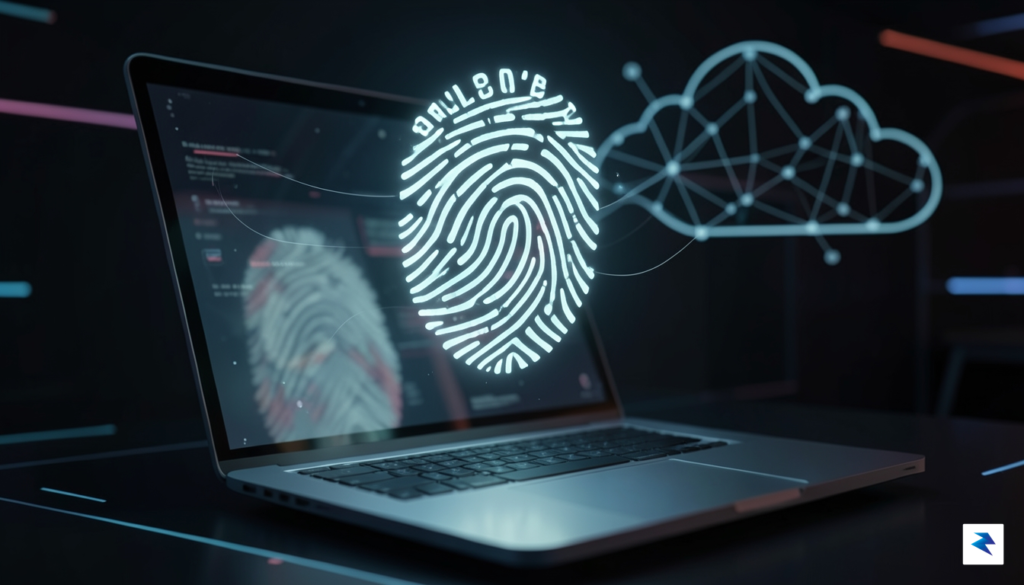
The illusion of pseudonymity is a fragile shield; in an era of big data, enough disparate data points can be triangulated to unmask even the most cautious user.
The contrast between Microsoft’s approach and that of competing platforms like macOS or Linux is particularly stark for those who prioritize security. While Apple has certainly faced its own scrutiny regarding telemetry, the company generally promotes a more closed ecosystem that emphasizes hardware-bound encryption and local processing to minimize the transmission of identifiable user behavior. Conversely, the Linux community remains the gold standard for transparency, as the open-source nature of the kernel ensures that any attempts at hardware-level tracking would be immediately identified and stripped out by the community. For the privacy-conscious user, the Windows model represents a fundamental departure from the principle of user-owned hardware, placing the corporation—rather than the consumer—in the driver’s seat of the device’s identity.
Ultimately, the implications of this tracking capability extend far beyond simple advertising profiles; they strike at the foundational expectation of privacy within one’s own home. When a computer, which serves as a gateway to our most private communications and professional documents, is engineered to report back to a central authority using an immutable identifier, the potential for abuse—whether through data breaches, unauthorized government access, or corporate overreach—is non-trivial. Users must now weigh the utility of the Windows ecosystem against the reality that they are carrying a digital tail that never stops recording, regardless of their privacy settings or personal habits.

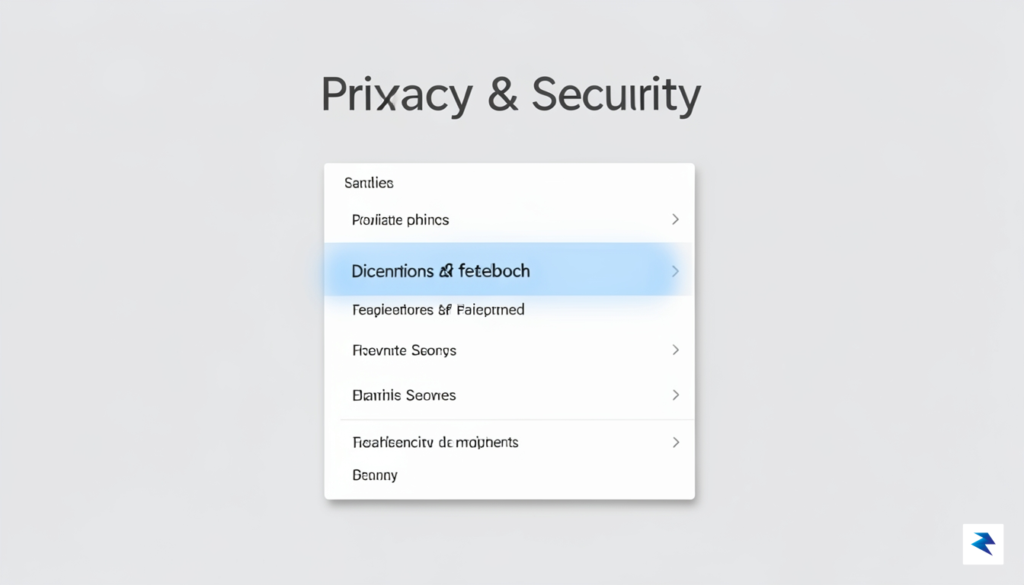
While Windows is engineered as a highly connected operating system that relies on constant cloud synchronization, you are by no means powerless when it comes to managing your digital footprint. Taking control begins with a deep dive into the Privacy & Security menu within your system settings, which serves as the primary command center for data collection. By navigating to Settings > Privacy & security > Diagnostics & feedback, you can toggle the “Send optional diagnostic data” setting to the “Off” position. This simple action prevents Microsoft from collecting additional information about how you use applications or viewing your handwriting and typing patterns, effectively restricting the telemetry to only the bare essentials required to keep your device secure and functional.
For those who wish to exert even more granular control over the background processes that phone home to Microsoft servers, third-party utilities such as O&O ShutUp10++ offer a robust, user-friendly interface for managing advanced privacy settings. These tools aggregate hundreds of hidden registry tweaks and Group Policy settings into a single dashboard, allowing you to disable everything from telemetry and location tracking to targeted advertising IDs and Wi-Fi Sense. Using these tools is often more efficient than hunting through individual menus, as they categorize recommendations based on their impact, giving you a clear view of which features are safe to disable without compromising the stability of your operating system.
It is essential to remember that while these tools are powerful, they are not a silver bullet. Every time a major Windows update rolls out, some of your carefully curated privacy settings may be reset to default, necessitating a periodic re-audit of your configuration.
Despite these proactive measures, achieving complete isolation from Windows telemetry remains a significant challenge. Because Windows is deeply integrated with cloud services like OneDrive, Microsoft Account syncing, and Windows Update, cutting off all outgoing traffic can lead to a degraded user experience, broken features, or even security vulnerabilities if essential updates are blocked. Total privacy is often at odds with total functionality; therefore, the goal should be to find a sustainable balance. By auditing your settings regularly and remaining skeptical of default “express” installations, you can successfully minimize the data Microsoft collects while still enjoying the convenience of a modern, cloud-connected computing environment.
You must be logged in to post a comment.