
Windows 11 24H2 Support Ending Soon: Your 2026 Upgrade Guide
Understanding the Windows 11 24H2 Lifecycle Microsoft operates under what is known as the "Modern Lifecycle Policy," a framework designed to…


The recent disclosure of a critical vulnerability within the Zoom client for Windows has sent a clear signal to the global remote-work community: security hygiene must remain a top priority. Identified by security researchers and subsequently cataloged, this flaw represents a significant risk because it involves a Remote Code Execution (RCE) capability. In the context of software security, an RCE vulnerability is one of the most dangerous types, as it allows an unauthenticated, remote attacker to execute arbitrary commands on a victim’s machine. By exploiting this flaw, a malicious actor could bypass standard security protocols, effectively gaining control over the application’s environment and, by extension, the underlying operating system.
Because the vulnerability resides in the way Zoom processes specific network requests, the path to exploitation does not necessarily require the user to perform complex actions; rather, it could potentially be triggered through subtle interactions within the meeting environment. Once an attacker gains this level of unauthorized access, the implications for personal and corporate data privacy are severe. They could exfiltrate sensitive files, install persistent malware or spyware, and gain access to internal credentials that might facilitate lateral movement across a corporate network. This turns a simple video conferencing tool into a gateway for full-scale system compromise.

The severity of this RCE vulnerability cannot be overstated. It transforms a trusted communication tool into a potential beachhead for cybercriminals to compromise your entire digital workspace.
The urgency surrounding this discovery stems from the ubiquity of Zoom in both personal and professional spheres. Given that millions of users rely on the Windows client daily, the attack surface is massive, making this an attractive target for threat actors. While Zoom has already released a security patch to remediate this flaw, the window of risk remains open for any user who neglects to update their software. Failing to apply these patches leaves your system exposed to known exploits that are now publicly documented and easily weaponized by opportunistic attackers.
To protect your digital environment, it is imperative that you verify your Zoom client version immediately. Checking for updates is a straightforward process, but its simplicity should not lead to complacency. Beyond just updating, corporate IT departments should ensure that their device management policies enforce the latest versions of all communication tools to prevent legacy vulnerabilities from becoming systemic weaknesses. By staying proactive and treating software updates as a non-negotiable aspect of your security routine, you can effectively mitigate the risk posed by this critical flaw and ensure that your virtual meetings remain private and secure.

At its core, the Zoom Windows client functions as a complex bridge between a user’s local hardware and the company’s global cloud infrastructure. This bridge relies on a series of background system processes designed to handle tasks like rendering video, managing audio streams, and verifying user identity. The attack surface exists where these background processes interact with the user interface; when a user clicks a link or interacts with a specific, maliciously crafted message, the application must process that input before executing a command. If the underlying code fails to properly sanitize or validate that input, it creates a “choke point” where an attacker can inject unauthorized instructions that the system mistakenly interprets as legitimate commands from the user.
When a vulnerability of this nature is present, the exploit typically hinges on a chain reaction starting from a seemingly benign interaction. An attacker might send a specially formatted string—often hidden within a chat message or a link—that triggers a buffer overflow or an improper memory reference within the Zoom client. Because these clients often run with specific privileges to ensure seamless hardware integration, the malicious code can effectively “piggyback” on the application’s elevated permissions. This allows the attacker to bypass standard operating system security boundaries, effectively tricking the Windows client into executing unauthorized actions on the user’s behalf without their explicit consent or knowledge.
The danger lies not in the complexity of the exploit itself, but in the trust we place in our software to validate every piece of data it receives from the outside world.
The most severe consequence of such a flaw involves the theft of authentication tokens, which act as digital “keys” to your account. Under normal circumstances, these tokens are stored in memory to prevent the need for constant re-authentication during a session. By leveraging an input validation error, an attacker can force the application to inadvertently reveal these session cookies or tokens to a remote server under their control. Once an attacker possesses these tokens, they no longer need your password to access your account; they can simply “impersonate” your session, granting them full access to your profile, historical meetings, and private contact information until the session is manually revoked.

Understanding these mechanics highlights why security updates are far more than just “feature improvements.” Each patch issued by developers often closes these specific gaps, tightening the input validation logic and ensuring that background processes are no longer susceptible to malicious manipulation. By keeping your client updated, you are effectively reinforcing the digital walls that prevent unauthorized actors from turning your own tools against you. This proactive approach remains the most effective defense against sophisticated threats that seek to exploit the hidden pathways between your user interface and your operating system.

While the headlines have been dominated by the alarming account takeover risks associated with the recent Zoom vulnerabilities, the update also quietly addressed three distinct, high-severity bugs that pose a different, yet equally dangerous, threat: privilege escalation. To understand why these flaws are so critical, it is important to first define privilege escalation itself. In a typical computing environment, users operate with “limited” permissions, which act as a digital safety net, preventing users—or malicious software—from altering core system files or installing unauthorized programs. Privilege escalation is the process by which an attacker bypasses these standard security constraints to gain elevated, administrative-level control over a machine. Once a foothold is established, these vulnerabilities effectively provide a ladder that malicious actors can climb to seize full command of the victim’s operating system.
The danger of these specific Zoom vulnerabilities lies in their ability to bridge the gap between a minor initial exploit and a total system compromise. By leveraging these flaws, an attacker who has already gained access to a standard user account can manipulate the underlying software processes to execute commands with the highest possible system privileges. Effectively, this turns a localized security weakness into a full-scale takeover of your Windows environment. Once an attacker achieves this level of access, they can bypass security software, install persistent backdoors, harvest sensitive system credentials, or deploy ransomware that would otherwise be blocked by the operating system’s built-in defenses. The transition from a limited-access user to an administrator is essentially the “holy grail” for cybercriminals, as it removes almost all barriers to their malicious objectives.

Key Takeaway: Privilege escalation flaws turn a simple application glitch into a gateway for attackers to gain deep-level access to your computer’s core systems, making them just as dangerous as the more publicized remote-access threats.
In a collaborative, modern workplace, the risks of these local exploits are significantly amplified. Because applications like Zoom are designed to integrate deeply with the operating system to facilitate screen sharing, microphone access, and audio processing, they operate with a degree of trust that attackers are eager to abuse. In a shared work environment, a single compromised machine can quickly become a launchpad for lateral movement, where an attacker uses their elevated permissions to scan the local network and target other connected devices. This is precisely why layered security defenses are vital. Relying on a single line of defense is no longer sufficient when software vulnerabilities can be chained together to bypass those protections. Organizations and individual users must adopt a “defense-in-depth” approach, ensuring that software is patched immediately upon the release of security updates, while simultaneously maintaining robust endpoint protection and the principle of least privilege. By closing these security gaps quickly, you effectively pull the rug out from under attackers who rely on these escalation paths to escalate their intrusion from a mere nuisance into a catastrophic system breach.
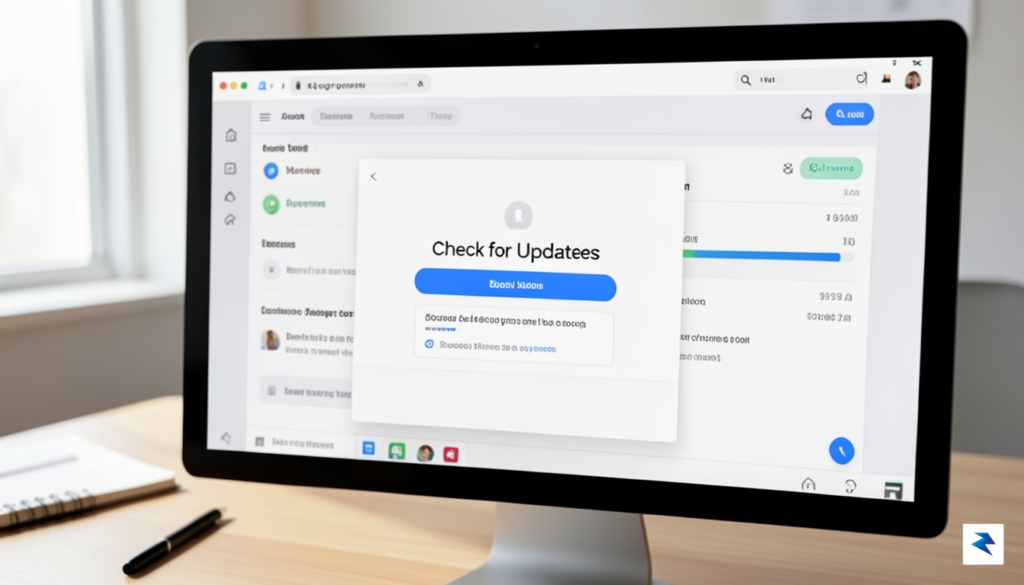
The most effective defense against sophisticated exploits targeting your Windows environment is ensuring that your application software remains current. Vulnerabilities like the recently discovered remote code execution flaw are specifically designed to leverage outdated code, making regular updates your primary line of defense. By taking a few moments to verify your Zoom client status, you can mitigate these risks and ensure you are benefiting from the latest security patches deployed by the development team.
To determine if your installation is vulnerable, you must first identify which version of the software is currently active on your machine. Launch the Zoom desktop client and click on your profile picture located in the top-right corner of the window. From the dropdown menu, select the Help option, followed by About Zoom. A small window will appear displaying your current version number; compare this against the latest release notes available on the official Zoom support website. If the numbers do not align, your client is outdated and requires an immediate upgrade.
If you discover that your software is behind, the manual update process is straightforward and should be performed immediately to close potential security gaps. Within the Zoom desktop client, click on your profile avatar again and navigate to the Check for Updates option. If a newer version is available, the client will automatically begin downloading the necessary files and will prompt you to install them once the process is complete. After the installation finishes, the application will restart, ensuring that all security patches are correctly applied to your system.
Pro-Tip: Always restart your computer after performing security-critical software updates to ensure that all background processes and DLL files are fully refreshed and protected.
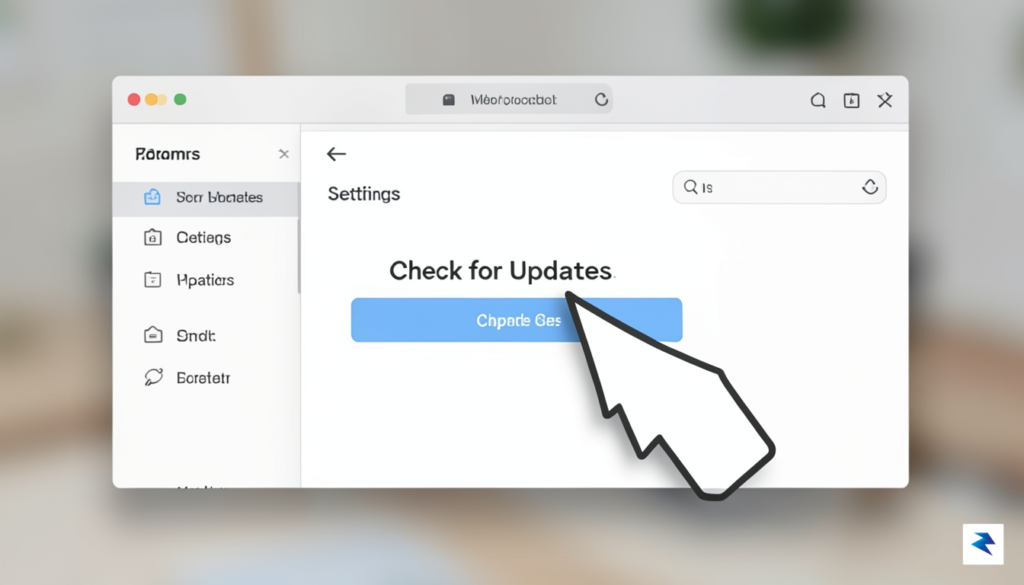
For individual users, the most reliable way to stay protected is by enabling the auto-update feature. Within the Zoom settings menu, navigate to the General tab and look for the section labeled Zoom Updates. Check the box that says “Automatically keep Zoom updated” to ensure that future critical patches are applied without manual intervention. This setting removes the burden of remembering to check for releases, providing a seamless layer of background security that keeps your Windows account fortified against emerging threats.
For IT administrators managing large-scale deployments across an organization, manual updates are often impractical. You should utilize the Zoom MSI installer or the Group Policy Object (GPO) templates provided by Zoom to push updates centrally. By configuring your environment to enforce automatic updates via the Zoom dashboard, you ensure that every workstation in your network remains compliant and secure, drastically reducing the risk of a widespread security compromise originating from an unpatched meeting client.

Securing your virtual workspace requires a multi-layered defense strategy that extends well beyond simply installing the latest software patches. While keeping the application updated is the first line of defense, a truly hardened environment necessitates a proactive security posture that accounts for human behavior and system configuration. By integrating robust authentication protocols and tightening meeting controls, you can significantly reduce the attack surface available to malicious actors looking to exploit vulnerabilities or gain unauthorized access to your sensitive communications.
The most fundamental step in protecting any Zoom account is the mandatory implementation of Multi-Factor Authentication (MFA). By requiring a secondary verification method—such as a time-based code from an authenticator app—you effectively neutralize the danger of compromised passwords. Even if an attacker manages to steal your credentials, they will be blocked from accessing your account without that physical second factor. Furthermore, it is essential to manage meeting permissions granularly; avoid using your Personal Meeting ID (PMI) for recurring or public sessions, as this provides a static, predictable target for bad actors. Instead, generate unique IDs for every meeting and utilize features like waiting rooms and passcode requirements to ensure that only authorized participants can join your discussions.
Beyond the application itself, your underlying operating system must remain fortified through comprehensive endpoint security software. Modern antivirus and EDR (Endpoint Detection and Response) solutions act as a safety net, monitoring for suspicious activity or unauthorized code execution that might attempt to leverage a software flaw before a patch is even available. These tools provide real-time scanning that can identify anomalies originating from within your communication applications, providing an extra layer of protection for your Windows environment. Additionally, make it a habit to periodically audit your Zoom privacy settings and administrative dashboard. Digital landscapes change rapidly, and features that were once secure may require configuration adjustments to align with current best practices.
Key Takeaway: Security is a continuous process, not a one-time setup. Regularly reviewing your account permissions and ensuring that your secondary defensive software is fully operational can prevent a minor vulnerability from escalating into a full-scale system compromise.
Finally, maintain a policy of “security hygiene” across all your communication tools, not just Zoom. This includes keeping your entire software suite, including your web browser and operating system, updated to the latest versions to ensure that known vulnerabilities are patched across the board. By remaining vigilant and fostering a culture of security awareness, you ensure that your virtual meetings remain private, productive, and resilient against evolving cyber threats.
You must be logged in to post a comment.