
Kimi and the New AI Arms Race: Understanding Moonshot AI’s Latest Move
Understanding the Evolution of Moonshot AI's Kimi Founded by computer science prodigy Yang Zhilin, Beijing-based Moonshot AI has rapidly…
Microsoft operates under what is known as the “Modern Lifecycle Policy,” a framework designed to provide continuous support and updates for products throughout their lifespan. Under this model, Windows 11 releases are treated as distinct servicing milestones, each carrying a predictable timeline for security updates and technical assistance. Specifically, the 24H2 version of Windows 11 is slated to reach its end-of-support date on October 13, 2026. While this may seem like a distant horizon, understanding this lifecycle is essential for proactive IT management, as it dictates when your current operating system environment will stop receiving the critical infrastructure updates necessary to defend against evolving digital threats.
When we talk about the “end of support,” it is vital to distinguish between a functional operating system and a secure one. Once the October 2026 deadline passes, Microsoft will cease issuing security patches, bug fixes, and technical assistance for the 24H2 build. Consequently, any vulnerabilities discovered after this date will remain unpatched, leaving your system exposed to potential exploits, malware, and ransomware. While your computer will technically continue to operate, it effectively becomes an open door for cyberattacks, as the protective shield provided by regular Windows updates will no longer be maintained by the developer.
Ignoring the lifecycle expiration isn’t merely a matter of missing out on new features; it is a significant security liability that leaves sensitive data at risk.
It is important to emphasize that this expiration is a standard procedure within Microsoft’s ecosystem, rather than an emergency or a sudden hardware obsolescence. This predictability is intended to allow individual users and organizations ample time to plan their transition to newer versions of the operating system. By framing this as a routine aspect of software ownership, users can shift from a reactive mindset—where they scramble to update only when something breaks—to a proactive strategy. Staying ahead of these dates ensures that your computing environment remains stable, compatible with modern software, and, most importantly, secure against the latest threats circulating on the web. Transitioning to a newer release before the deadline is the single most effective way to maintain both the performance and the integrity of your digital workspace.
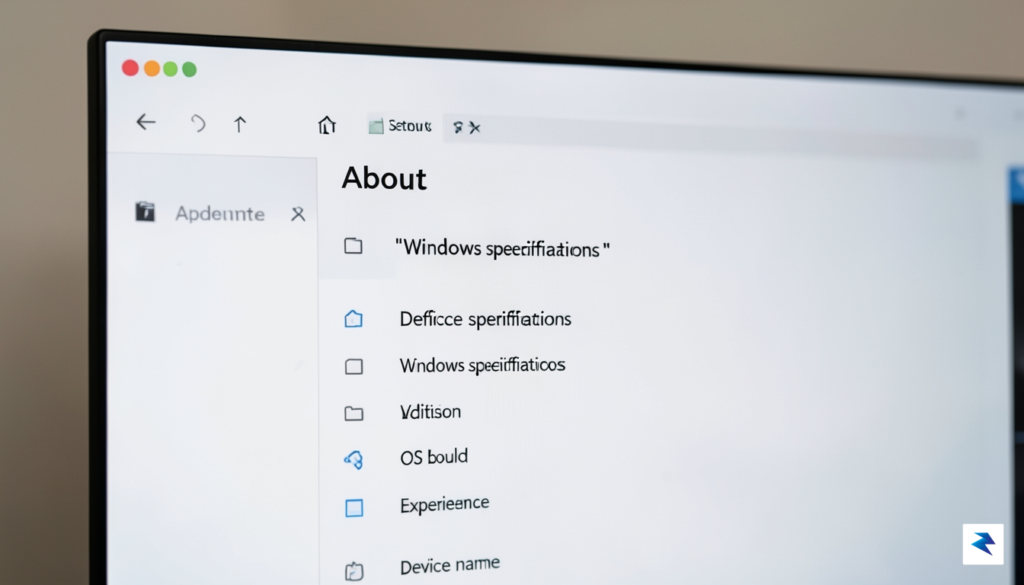
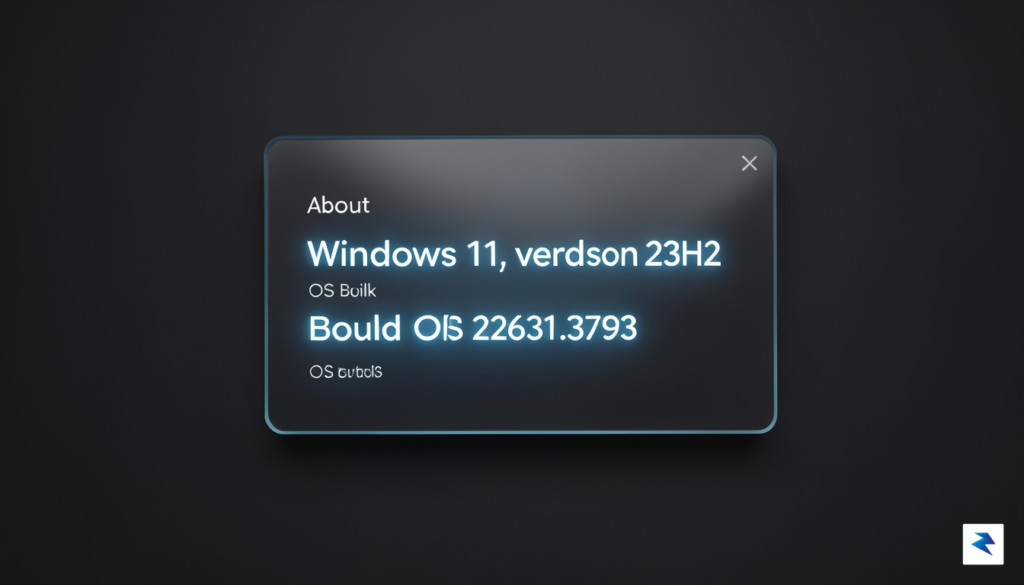
Before you can begin planning your transition away from the current version of Windows, you must first establish a baseline by identifying exactly which operating system build you are running. The quickest and most reliable way to perform this check is through the winver command. Simply press the Windows Key + R on your keyboard, type winver into the dialog box that appears, and hit Enter. A window will pop up displaying your current Windows 11 version and build number. This screen also explicitly identifies your edition—whether it is Home, Pro, or Enterprise—which is crucial because certain enterprise-specific support lifecycles or management policies may differ from the standard consumer roadmap. Knowing this information is the first step toward determining if your current environment is compliant with the upcoming transition requirements.
Once you have verified your software version, the next logical step is to assess whether your physical hardware is capable of supporting the next major iteration of Windows. Microsoft has set strict security standards for modern operating systems, primarily focusing on the presence of a Trusted Platform Module (TPM) 2.0 chip and UEFI Secure Boot capabilities. These features are not merely optional performance boosts; they serve as the foundational security layer that guards your system against firmware-level attacks and unauthorized boot processes. If your computer lacks these specific hardware prerequisites, you may find yourself unable to receive future security patches or feature updates once the current version hits its end-of-life status. Consequently, hardware compatibility is the ultimate gatekeeper for your upgrade path.
Key Takeaway: If your system fails the hardware check for TPM 2.0 or Secure Boot, you will likely be unable to perform an in-place upgrade to future versions of Windows, making a hardware refresh or a specialized migration plan necessary.
To determine if your machine meets these stringent benchmarks, you should utilize the official PC Health Check app provided by Microsoft. This tool scans your processor, memory, storage, and security features to provide a definitive “yes” or “no” regarding your eligibility. Many users are surprised to find that while their processor may be powerful enough, their motherboard might have TPM 2.0 disabled in the BIOS/UEFI settings, which is a simple fix that requires entering your system’s setup menu during the boot process. By proactively identifying these technical hurdles today, you avoid the panic of a forced migration when the support deadline arrives. Taking these steps now ensures that you remain in control of your digital workspace, allowing for a seamless transition rather than a disruptive emergency update.

For most home users and small business owners, the transition to the next major version of Windows 11 is designed to be a seamless, automated process. Microsoft typically manages this transition through Windows Update, which identifies your device’s hardware configuration and prepares it for the subsequent feature release without requiring technical intervention. By keeping your system settings configured to receive automatic updates, you ensure that your machine remains within the supported lifecycle, which is essential for maintaining security patches and receiving the latest performance optimizations. However, relying solely on automated systems can sometimes lead to unexpected downtime, making it vital to check your update status periodically as the end-of-support deadline approaches.

While the automated path is the standard, there are instances where a manual approach is more appropriate for maintaining stability. For power users or administrators managing multiple workstations, utilizing the official Media Creation Tool can provide greater control over the deployment process. This method allows you to create a bootable USB drive or an ISO file, which is particularly useful for performing a clean install—a practice that often resolves lingering system “clutter” and improves overall performance. Whether you choose to wait for the automatic push or prefer to trigger the update manually via the Windows 11 Installation Assistant, the key is to avoid waiting until the final weeks of support, as last-minute updates can occasionally conflict with specific third-party drivers or legacy software configurations.
Proactive system maintenance is the most effective way to prevent catastrophic data loss and ensure that your transition between operating system versions is completely transparent to your daily workflow.
Before initiating any major system upgrade, the most critical step that users often overlook is the implementation of a robust backup strategy. Even with the reliability of modern update mechanisms, unexpected power failures, drive errors, or software conflicts can potentially jeopardize your personal files. We strongly recommend using a multi-layered approach: utilize cloud-based storage services for your active documents and perform a comprehensive local backup of your entire hard drive using an external storage device. By securing your data on a separate medium, you effectively insulate yourself against any unforeseen instability that might occur during the upgrade process, allowing you to proceed with confidence regardless of the complexity of your current system environment.
Ultimately, strategic planning is about minimizing risk rather than just checking a box. By reviewing your hardware compatibility and ensuring your applications are ready for the next iteration of the OS, you place yourself in a position of control. Small business owners, in particular, should prioritize testing mission-critical software on a single machine before rolling out updates to their entire fleet. Taking these intentional steps today prevents the frantic troubleshooting that typically characterizes the final days of an operating system’s supported lifecycle, ensuring that your transition is not just a necessity, but a smooth upgrade to a more secure and efficient computing environment.

For IT administrators, the transition to Windows 11 24H2 is far more than a simple software update; it is a complex logistical operation that requires a shift away from the traditional “big bang” deployment model. Relying on a single, organization-wide rollout often invites unnecessary downtime and a flood of help-desk tickets. Instead, administrators should embrace a phased deployment strategy, beginning with a pilot group that represents the diverse hardware and software needs of the company. By utilizing Microsoft Intune, teams can establish ring-based deployment policies, allowing for the gradual distribution of the update while maintaining centralized control over compliance and security settings.
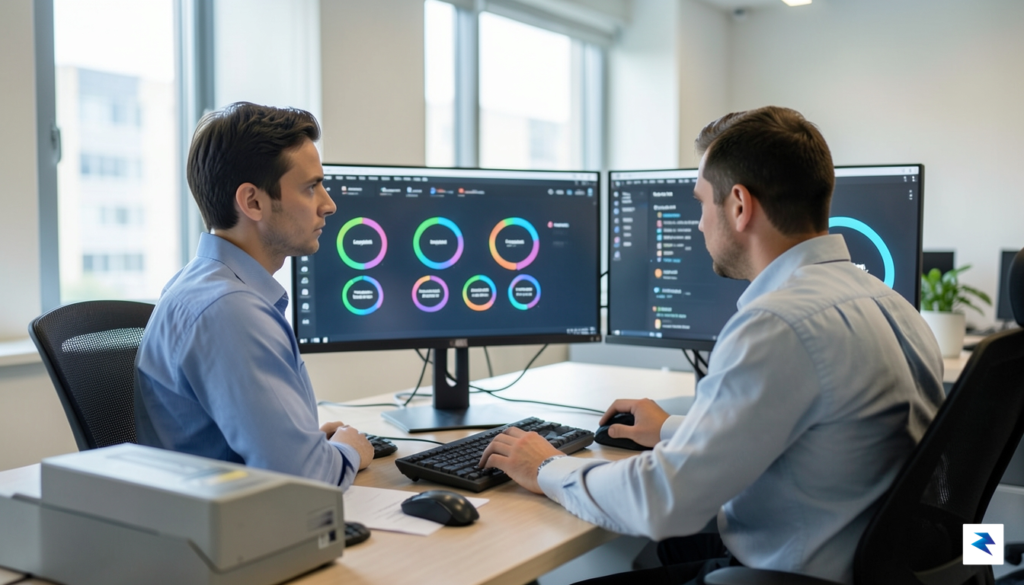
Before deploying to the broader fleet, it is non-negotiable to conduct rigorous testing within a sandbox environment. This controlled space allows IT teams to identify potential application conflicts, driver incompatibilities, or security policy regressions before they affect productivity. Integrating Windows Autopilot into this workflow significantly streamlines the process, as it enables the pre-configuration of new devices and the seamless enrollment of existing hardware into the management ecosystem. By automating the provisioning process, administrators can ensure that every machine adheres to the organization’s security standards immediately upon receiving the 24H2 build.
Proactive hardware auditing is the cornerstone of a successful transition; identifying incompatible machines early allows for budget planning and hardware refreshes before an OS version becomes a critical bottleneck.
Furthermore, a comprehensive audit of your hardware inventory is essential to prevent the creation of “orphaned” machines—devices that lack the necessary firmware or processing power to support the latest OS requirements. Administrators must leverage endpoint analytics to pinpoint machines that fail the compatibility check, such as those missing TPM 2.0 or specific processor generations. Addressing these hardware gaps well in advance of the support cutoff ensures that your fleet remains secure and performant. Ultimately, by combining automated deployment tools like Intune with a methodical approach to hardware lifecycle management, IT teams can mitigate the risks associated with major OS migrations while maintaining a stable, high-performing enterprise environment.

Many users operate under the false assumption that because their computer continues to boot up and run their favorite applications, it remains a secure environment. However, the “it still works” mentality is one of the most dangerous strategies in modern computing. When an operating system reaches its end-of-life, Microsoft ceases the development and distribution of security patches, meaning any newly discovered Common Vulnerabilities and Exposures (CVEs) will remain open indefinitely. Cybercriminals actively monitor these announcements, specifically targeting systems known to be legacy, as they represent low-hanging fruit for automated exploit kits that can gain administrative access to your files in seconds.
The technical reality is that an unpatched system is effectively an open door for malicious actors. Without the protective shield of monthly security updates, your machine becomes increasingly susceptible to ransomware, credential-stealing spyware, and zero-day exploits that no longer have a remedy. Because the underlying architecture of the operating system is no longer being hardened against evolving threats, even the most robust third-party antivirus software may struggle to compensate for deep-level kernel vulnerabilities that only Microsoft can address. Consequently, keeping an outdated version of Windows 11 on your machine is not merely a minor inconvenience; it is a significant liability for your personal data and digital identity.

Beyond the immediate threat of malware, running unsupported software creates substantial complications for those navigating professional or regulatory environments. For businesses and remote workers, utilizing an operating system that no longer receives security updates can lead to a direct violation of regulatory frameworks such as HIPAA, GDPR, or SOC2. These standards mandate that all hardware and software must be actively maintained and patched to protect sensitive data; failing to comply can result in severe financial penalties, legal repercussions, and a complete loss of trust from your clients or employer.
The core danger of legacy software isn’t just the presence of a virus, but the total loss of control over your system’s integrity once a vulnerability is made public.
To summarize the risks associated with delaying your upgrade, consider the following critical factors that impact your digital safety:
Ultimately, the transition to a newer, supported version of Windows is not just about gaining new features or aesthetic improvements; it is a fundamental maintenance task required to keep your digital life secure. Proactive planning allows you to move to a protected environment before the threat landscape shifts against your favor, ensuring that your most valuable data remains shielded from those looking to exploit the vulnerabilities of the past.
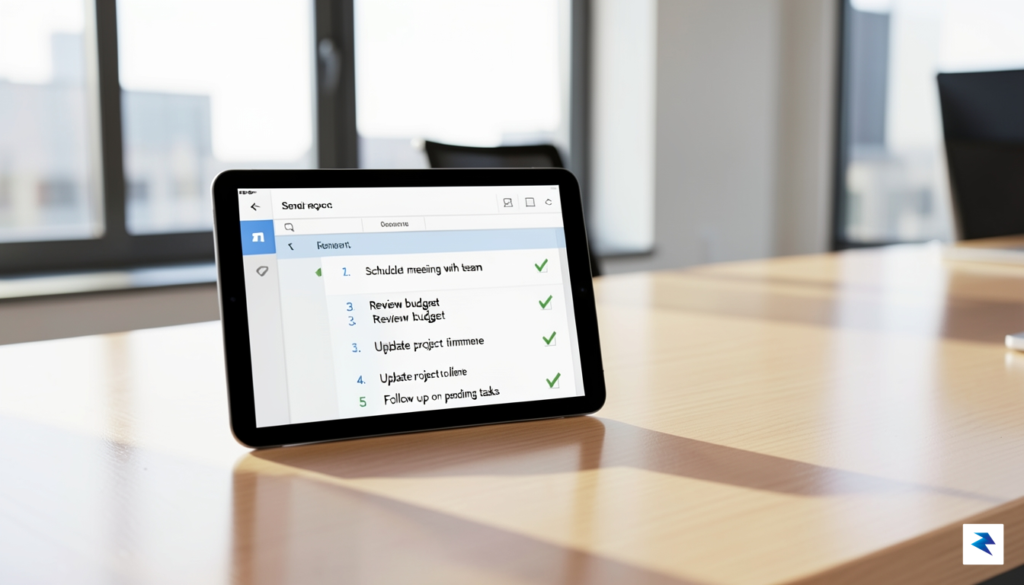
Achieving a seamless transition when migrating your operating system is rarely about luck; rather, it is the direct result of methodical preparation and disciplined execution. By moving away from reactive “break-fix” management and toward a structured deployment strategy, both individual users and enterprise IT teams can ensure that their digital environments remain secure, compatible, and efficient throughout the lifecycle of the upgrade. To navigate the requirements of the 24H2 transition effectively, consider following this comprehensive five-step checklist to minimize operational friction.

While the official end-of-support deadline for the 24H2 release might seem distant, the reality of modern IT infrastructure demands long-term foresight. Waiting until the final months creates unnecessary pressure and increases the likelihood of security vulnerabilities.
Ultimately, the goal of this migration is to leverage the performance and security enhancements of the latest Windows architecture without sacrificing productivity. By treating the upgrade as a structured project rather than a one-time task, you establish a reliable cadence for system maintenance that will pay dividends for years to come. Consistency and patience throughout these five steps will not only protect your existing data but also future-proof your computing environment against the evolving threats of the digital landscape.
You must be logged in to post a comment.