
Understanding the Microsoft Edge Collections Update
For several years, Microsoft Edge Collections occupied a unique space in the browser landscape, acting as a sophisticated bridge between the fleeting nature of standard bookmarks and the rigidity of dedicated project management software. Users gravitated toward the feature for its ability to aggregate text snippets, images, and entire webpage links into visually organized sidebars, making it an essential tool for academic research, trip planning, and complex professional workflows. By allowing users to capture context alongside content, Collections effectively transformed the browser from a simple navigation tool into a repository for intellectual labor. However, the release of version 149 marks a definitive end to this era, as Microsoft has officially deprecated the feature in favor of newer interface paradigms.
The technical transition introduced in version 149 is not merely a cosmetic update; it represents a fundamental shift in how the browser handles data persistence for power users. When Microsoft integrated Collections, they provided a sandbox where users could archive research-heavy sessions without cluttering their main bookmark bar or relying on third-party extensions. By removing this capability, the update forces a reliance on alternative organizational methods, such as basic favorites or external productivity applications. This transition is particularly jarring for long-term users who had integrated Collections into their daily routines, as the underlying architecture that supported the feature has been gutted to streamline the browser’s codebase and improve overall performance metrics.
The retirement of Collections signals a move toward a leaner browser footprint, but it leaves a significant void for users who prioritized deep-work organization over minimalist UI design.
For researchers, writers, and students who relied on the feature to maintain order during extensive browsing sessions, the impact is substantial. The loss of a native, integrated archiving tool means that critical web project data is no longer easily accessible from within the browser’s primary interface. Without a built-in migration path, many users now face the daunting task of manually exporting their accumulated data to avoid losing months or even years of curated research. This shift effectively redefines the browser’s role, moving away from a comprehensive information management hub and back toward a more traditional consumption-focused model. As users navigate this change, understanding the new limitations is the first step toward securing their digital assets and finding viable, long-term alternatives to replace the functionality that version 149 has permanently archived.
Why Microsoft Phased Out the Collections Feature
The removal of the Collections feature in Microsoft Edge version 149 is far from an arbitrary software update; rather, it represents a calculated evolution in Microsoft’s browser philosophy. As the modern web becomes increasingly resource-intensive, browser developers are under immense pressure to optimize performance without sacrificing utility. By pruning legacy features that have become redundant or overly resource-heavy, Microsoft is actively working to reduce the browser’s memory footprint, ensuring that Edge remains competitive in speed and responsiveness against increasingly lean alternatives.
This shift aligns with a broader industry trend toward “browser minimalism,” where the objective is to provide a streamlined, high-performance experience that avoids unnecessary interface clutter. Collections, while initially hailed as a revolutionary way to organize web content, had arguably become a siloed feature that competed for system resources without offering the seamless integration found in newer, AI-driven tools. By reallocating the development bandwidth previously dedicated to maintaining the Collections infrastructure, Microsoft can now concentrate on refining the browser’s underlying architecture to be more efficient, stable, and secure for the average user.
Prioritizing the AI-Driven Sidebar
Central to this strategic pivot is the transition toward a more unified productivity experience, specifically centered around the AI-powered sidebar. Microsoft is betting heavily on Copilot and other integrated intelligent assistants to handle the organizational tasks that users once relied on Collections to perform. Instead of maintaining a standalone, static repository for clipped images and text, the browser is evolving into an active participant in the user’s workflow. This new direction favors real-time data processing and contextual assistance, which the company views as more valuable than the traditional, manual methods of saving and sorting web snippets.
The decision to phase out legacy organizational tools is a clear signal that Microsoft is prioritizing active AI-driven productivity over passive content archival.
Ultimately, this change is designed to consolidate the user interface, reducing the cognitive load required to navigate Edge. By funneling productivity features into a cohesive sidebar, Microsoft aims to provide a more intuitive environment where AI can synthesize information on the fly, rather than waiting for a user to manually organize it into a collection. While long-time users may mourn the loss of a familiar tool, this move is a deliberate step toward an AI-first future where the browser does more of the heavy lifting, effectively transforming from a static viewer into a dynamic, intelligent workspace.
How to Retrieve Your Data Before or After the Update

If you find yourself racing against the automatic update cycle or attempting to piece together information from a previous version of Microsoft Edge, the recovery process requires a methodical, step-by-step approach. Because the native Collections interface has been deprecated, the most immediate priority is to verify if your saved items have been automatically migrated to the Favorites folder. To check this, open the browser and navigate to the Favorites hub by clicking the star icon in the toolbar; often, the browser creates a dedicated folder labeled “Collections” within this hierarchy, which preserves the links and notes originally stored in your previous workspace.
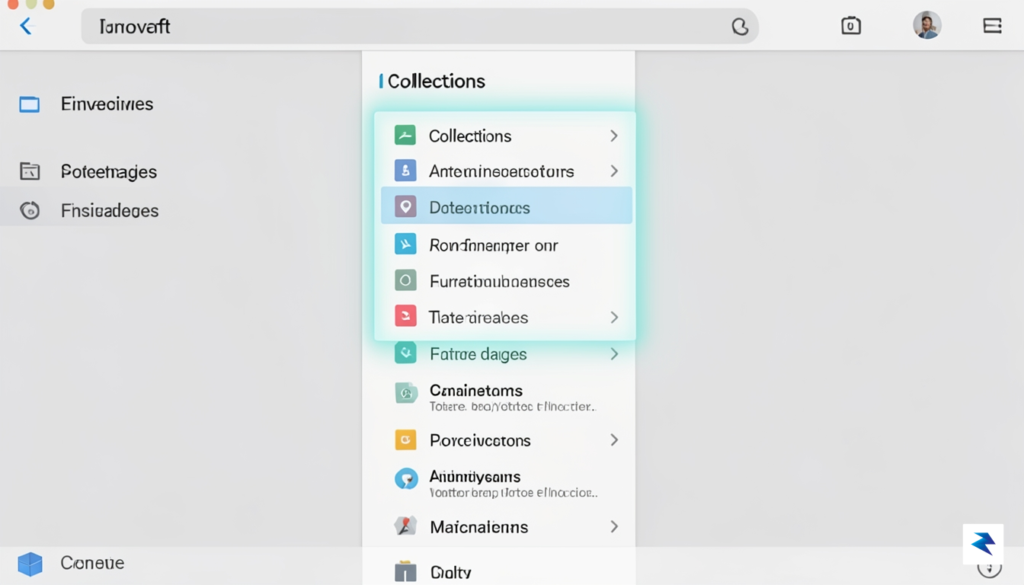
For users still running a version of Edge that has not yet force-updated, or for those who have access to an un-updated machine, you should immediately utilize the legacy export functionality. Within the Collections pane, locate the three-dot menu icon in the upper-right corner. This menu often provides a direct “Send to Excel” or “Send to Word” option, which is the most reliable way to convert your curated content into a static, portable file format. By exporting these lists before the update overwrites your local data, you ensure that your research and saved references remain accessible regardless of the browser’s future structural changes.
Important: Do not wait for the update to complete if you have critical data; manual exporting is the only way to guarantee a complete backup of your organized notes and web snippets.
If you have already moved past the update and find that your local data appears to be missing or corrupted, you should look toward secondary synchronization paths. One often-overlooked recovery method involves checking your Bing Saves account. If your Microsoft account was synced with your browsing profile, there is a possibility that your saved items were mirrored to your personal Bing dashboard. Navigate to the Bing homepage while signed in and search for the “Saves” or “Collections” tab in your profile settings; this is frequently the final repository for users who have lost access to their local browser cache.
Troubleshooting Corrupted or Missing Data
In cases where data does not appear in your favorites or cloud-synced accounts, you may need to delve into the local browser profile folders located in your system’s AppData directory. While this is a more technical route, searching for the Collections database file within your Edge user profile can sometimes allow you to recover raw data if the file has not been overwritten. If the file is still present, you can attempt to copy it to a secure location, though please note that without the native interface, reading this data will likely require third-party database viewers or a specialized script to parse the JSON-formatted entries into a readable list. If you encounter missing data, consistently check your cloud sync status in Edge Settings to ensure that any remaining metadata is correctly pulling from Microsoft’s servers.
Recommended Workflows for Content Organization
The sudden removal of the Collections feature serves as a stark reminder of the dangers inherent in relying on browser-specific proprietary tools for long-term research and project management. When your data is tethered to a single application’s internal database, you are perpetually vulnerable to shifts in company policy or software updates that may prioritize streamlined code over user-defined features. To ensure your productivity remains unaffected by future software changes, it is time to pivot toward more resilient, platform-agnostic organizational habits that prioritize data portability.
Leveraging Dedicated Knowledge Management Tools
For users who previously utilized Collections to build complex research databases, transitioning to dedicated Knowledge Management (KM) systems like Notion or Obsidian is the most robust path forward. Unlike browser-based lists, these tools allow you to aggregate links alongside comprehensive notes, images, and project documentation in a centralized workspace. By decoupling your research from the browser, you gain the ability to access your data seamlessly across mobile devices, desktop applications, and web interfaces, effectively insulating your workflow from any single browser’s feature set.
True digital resilience is found in tools that allow you to export your data in universal formats like Markdown or PDF, ensuring that your hard work remains accessible even if the service itself ceases to exist.
Specialized Browser Extensions and Native Alternatives
If you prefer to keep your organizational tools closer to the web browsing experience, consider adopting third-party extensions designed specifically for session and bookmark management. Tools such as Raindrop.io or Toby offer powerful tagging, search capabilities, and cloud synchronization that often surpass the functionality once provided by Edge. These services operate as independent layers on top of your browser, meaning that if you decide to switch browsers entirely, you can simply install the extension elsewhere and pick up exactly where you left off.
For those who prefer a minimalist approach, returning to native browser bookmark folders—or a hybrid system using cloud-based bookmark managers—is often the most stable solution. While it may feel like a step backward, folders represent a universal standard that is supported by every major browser, ensuring long-term compatibility. To maximize this, consider the following best practices for your transition:
- Standardize your taxonomy: Implement a consistent naming convention for folders across all devices.
- Regular exports: Periodically export your bookmarks as an HTML file to create a local, offline backup.
- Cross-platform syncing: Use services that offer dedicated mobile applications, ensuring your research is never locked to your primary computer.
Ultimately, by moving away from browser-specific silos, you are investing in a future-proof workflow. Whether you choose the sophisticated structure of an app like Notion or the simplicity of a cloud-synced bookmark manager, the goal is to own your data. This approach not only prevents the loss of productivity during software transitions but also provides a more organized, searchable, and flexible foundation for your ongoing digital projects.
Final Thoughts on Browser-Based Productivity

The recent removal of Microsoft Edge Collections serves as a stark reminder of the inherent volatility in relying too heavily on proprietary browser-integrated features for critical tasks. What was once a convenient, built-in tool for research and organization has, for many, become a source of frustration and lost data, underscoring the paramount importance of data portability. When our workflows become deeply intertwined with a single application’s unique features, we inadvertently subject our productivity and accumulated insights to the whims of that application’s development cycle and business decisions. This incident highlights a fundamental trade-off between the immediate convenience of native browser tools and the long-term resilience of our digital assets.
This experience should prompt a broader re-evaluation of where we store and manage our valuable information, especially research, ideas, and curated web content. Entrusting significant data to features that can be deprecated or altered without extensive warning places users in a vulnerable position. The ability to easily export, import, and migrate your data between different tools and platforms is not just a ‘nice-to-have’ but a critical safeguard in today’s rapidly evolving software landscape. Without robust data portability options, users can find themselves locked into an ecosystem, unable to seamlessly transition their work even if a superior alternative emerges or, as in this case, the original feature vanishes entirely.

Adopting a “platform-agnostic” mindset is perhaps the most powerful lesson to glean from such changes. This approach advocates for leveraging external, specialized tools that are not beholden to the development trajectory of a single web browser. Instead of relying on a browser’s built-in note-taker or bookmark manager, consider dedicated applications for these purposes. Tools like specialized note-taking apps, comprehensive bookmark managers that sync across browsers, or read-it-later services offer robust features, greater control over your data, and typically better export capabilities. These standalone solutions are often designed with longevity and cross-platform compatibility in mind, ensuring your workflow remains intact regardless of which browser you choose to use or how frequently its features change.
The benefits of such an approach extend far beyond merely avoiding future disappointments. By choosing tools that operate independently of your browser, you gain greater flexibility, often access to more advanced functionalities, and a stronger guarantee of data ownership. Your research, notes, and curated links become assets that you control, rather than temporary components of a browser’s feature set. This investment in platform-agnostic tools ensures that your meticulously gathered information is resilient against unforeseen software updates, deprecations, or even a personal decision to switch browsers altogether. It fosters an environment where your digital productivity is anchored by tools designed for enduring utility, not fleeting convenience.
Ultimately, the landscape of web browsers and their integrated features will continue to evolve, introducing new conveniences while occasionally deprecating old ones. Adapting to this dynamic environment requires a proactive strategy that prioritizes the security and portability of your digital information above all else. Embracing platform-agnostic solutions isn’t about shunning innovation; it’s about building a robust, personal productivity system that is resilient, adaptable, and truly user-centric. By thoughtfully choosing where to house your critical data, you can safeguard your efforts against future disruptions and ensure your workflow remains efficient and uninterrupted, no matter how the digital winds shift.