The Evolution of macOS Automation

For decades, automating a Mac felt like an exclusive club reserved for those who possessed a natural affinity for logic gates and syntax. In the early days, tools like Automator offered a visual way to chain tasks together, but it often required a meticulous, step-by-step assembly that felt more like programming than productivity. As the ecosystem matured, the transition to the Shortcuts app brought a more polished interface, yet it still demanded that users think like software architects. You had to understand variables, loops, and conditional triggers to build anything truly transformative. For the average user, the mental overhead required to construct a functional workflow was simply too high, effectively turning potential time-savers into daunting technical projects.
The paradigm is currently shifting away from this “builder” mindset toward a much more intuitive “describer” model. Instead of dragging and dropping individual action blocks to form a complex tree of logic, modern macOS integration is moving toward a future where the operating system interprets human intent directly. By leveraging advanced natural language processing, your Mac can now parse a simple request and determine exactly which apps, system settings, and data points need to interact to achieve your goal. This evolution effectively removes the barrier to entry, allowing anyone—regardless of their technical background—to dictate a desired outcome and see it executed in real-time.
This movement toward intent-based interaction represents the most significant change in personal computing since the invention of the graphical user interface. When we rely on natural language, we stop fighting the software and start collaborating with it. Rather than getting bogged down in the minutiae of how an application handles a specific variable, we can focus on the higher-level objective, such as organizing a project or streamlining a morning routine. This change is not merely a convenience; it is a fundamental shift in how we command our digital environments, transforming the computer from a tool that requires precise instructions into a partner that understands the nuance of our daily workflows.
The true power of modern automation lies in its ability to translate the ambiguity of human language into the precision of machine execution, finally democratizing productivity for every Mac user.
Ultimately, the goal is to make the technology beneath the surface invisible. By allowing users to describe what they want to happen rather than coding how it should happen, macOS is evolving into a more responsive, human-centric system. As we move further into this era of AI-driven shortcuts, the distinction between a “power user” and a casual user will continue to blur, ensuring that the most advanced capabilities of the operating system are accessible to everyone. This is the future of operating system interaction: a seamless dialogue where your intent is the only script you need to write.
Understanding the macOS Shortcuts Revolution
The upcoming iteration of macOS introduces a groundbreaking evolution in automation known as the “Shortcuts Playground.” For years, the Shortcuts app required users to possess a rudimentary understanding of logic, variables, and action chaining to build anything beyond the most basic tasks. This new feature fundamentally dismantles those barriers by leveraging integrated Large Language Models (LLMs) to interpret natural language instructions. Instead of manually dragging and dropping individual blocks, you can now simply describe your desired outcome—such as “summarize the last five emails from my boss and save them to a project folder”—and the system will intelligently construct the underlying workflow for you in real-time.
At its core, this shift represents a departure from imperative programming toward intent-based interaction. The Shortcuts Playground acts as a bridge between human thought and machine execution by parsing your request into a sequence of actionable AppleScript or native Shortcuts steps. By analyzing the context of your request, the AI can predict which applications need to be opened, what data needs to be extracted, and how that information should be formatted or stored. This process effectively offloads the cognitive burden of learning syntax from the user to the operating system, allowing you to focus on the result rather than the mechanics of the bridge between apps.
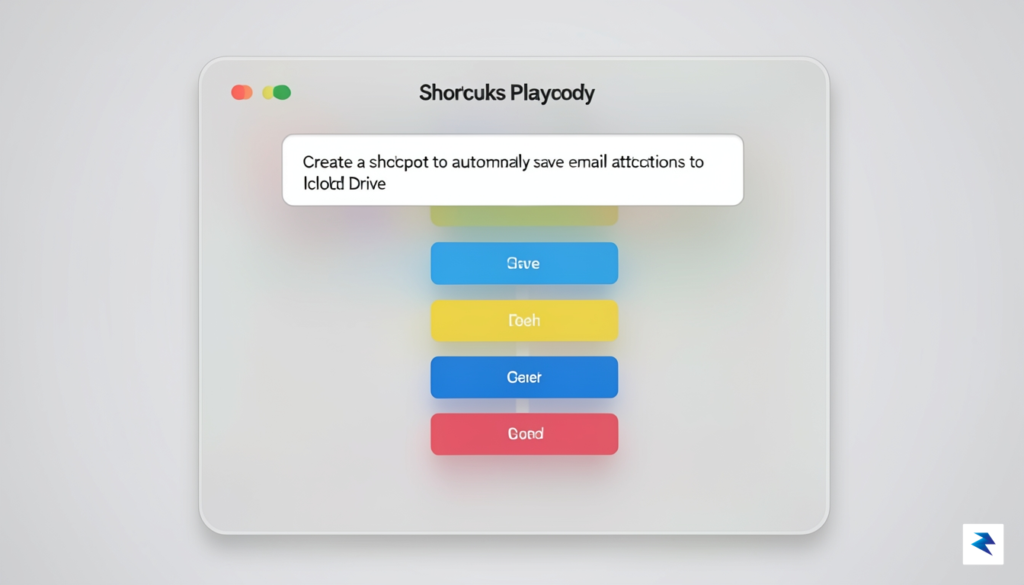
This technological leap is particularly transformative for non-technical users who previously felt intimidated by the complexity of automation tools. Productivity is no longer reserved for those who can parse the logic of nested “if-then” statements; it is now accessible to anyone who can clearly articulate their needs. Because the system can handle the complex wiring of APIs and system permissions, the gap between a manual, repetitive task and a fully automated process shrinks to nearly zero. This democratization of power-user features ensures that the average person can reclaim hours of their week by automating mundane administrative duties without needing to write a single line of code.
The true power of the Shortcuts Playground lies in its ability to turn the operating system into a proactive collaborator rather than a passive set of tools.
Ultimately, this integration changes the fundamental philosophy of how we interact with our computers. We are moving toward a future where the interface is secondary to the output, and the operating system functions more like a digital assistant that understands the intent behind every click and keystroke. As these LLM-driven workflows become more robust, we can expect the boundary between different applications to dissolve entirely. Whether you are managing complex project data or simply looking to streamline your daily communication, the ability to build sophisticated automation through plain conversation marks the beginning of a new era in personal computing productivity.
Bridging the Gap: Using LLMs for Apple Shortcuts Today
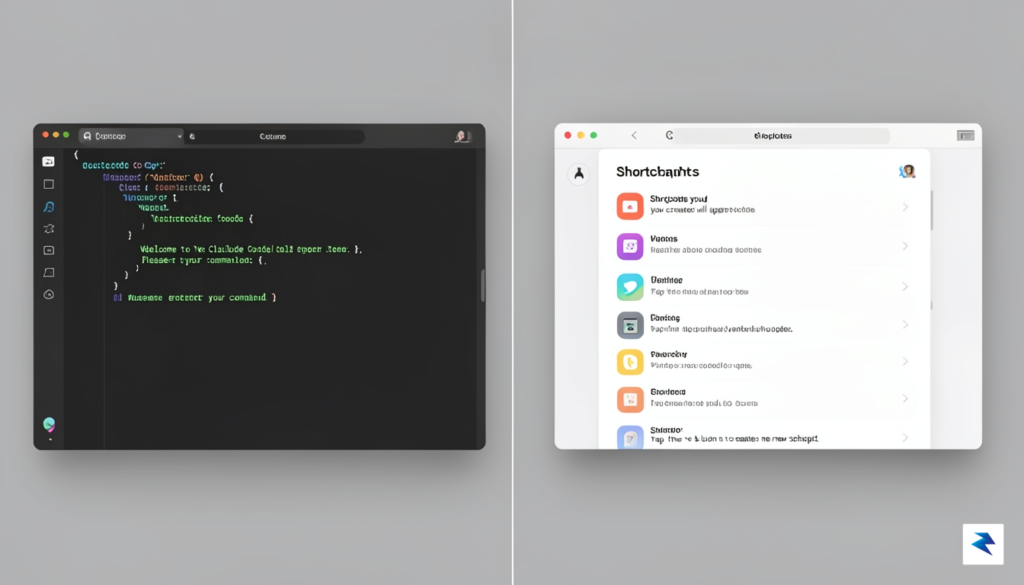
You don’t have to wait for a hypothetical future version of macOS to experience the power of natural language automation. While Apple continues to refine its own integrated intelligence, you can bridge the gap today by leveraging current LLMs like Claude 3.5 Sonnet or OpenAI’s o1 to architect complex Apple Shortcuts. Instead of manually dragging and dropping dozens of individual actions, you can describe your desired workflow to an AI coding assistant and have it generate the foundational logic. By treating Shortcuts as a form of “no-code programming,” you can transform vague ideas into sophisticated, functional scripts that interact with your files, web APIs, and system settings in a fraction of the time it would take to build them by hand.
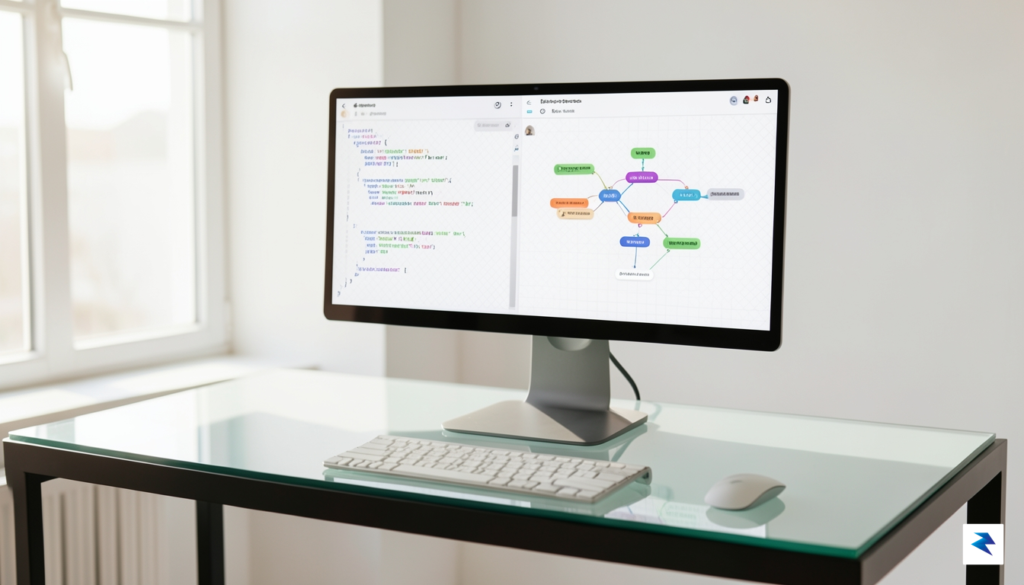
To get started, you must learn to prompt your AI assistant with the specific structure required by the Shortcuts app. Since Apple Shortcuts files are fundamentally based on a specific XML-style property list (plist) or JSON structure, you should ask the AI to “generate the logic for a Shortcut that [describe your task], formatted as a valid plist structure compatible with the Shortcuts app.” It is often helpful to provide the AI with a simple example of a basic Shortcut you’ve already created, so it understands the specific schema and naming conventions Apple uses for system actions. Once the AI provides the code, you can save it as a .shortcut file and import it directly into your library to see the workflow materialize before your eyes.
When prompting an LLM for automation, prioritize clarity over brevity; provide the AI with clear “if-then” logic, the specific apps involved, and the desired output format to ensure the generated workflow is actionable and accurate.
However, relying on AI-generated workflows requires a disciplined approach to safety and validation. Before running a complex Shortcut in your production environment, always open the generated file in the Shortcuts editor to audit the individual steps. Check that the AI hasn’t accidentally inserted placeholders for sensitive data or created loops that could trigger unintended actions, such as mass-deleting files or sending unauthorized emails. By treating the AI as an expert intern rather than an autonomous operator, you can verify the logic, test the individual components, and make minor refinements to the parameters. This hybrid methodology—combining the raw speed of LLMs with your own critical oversight—allows you to build powerful, custom automation tools that feel like they belong in the future of macOS, all while keeping your data and system integrity firmly under your control.
Practical Implementation: Building Your First AI-Driven Shortcut
To truly harness the potential of macOS automation, we need to move beyond simple actions and build a cohesive system. Let’s create a “Deep Focus” shortcut—a utility that simultaneously silences your notifications, launches your primary work applications, and initiates a 25-minute Pomodoro timer. By utilizing an LLM to structure this logic, you can bypass the tedious process of searching through hundreds of available Shortcut actions manually.
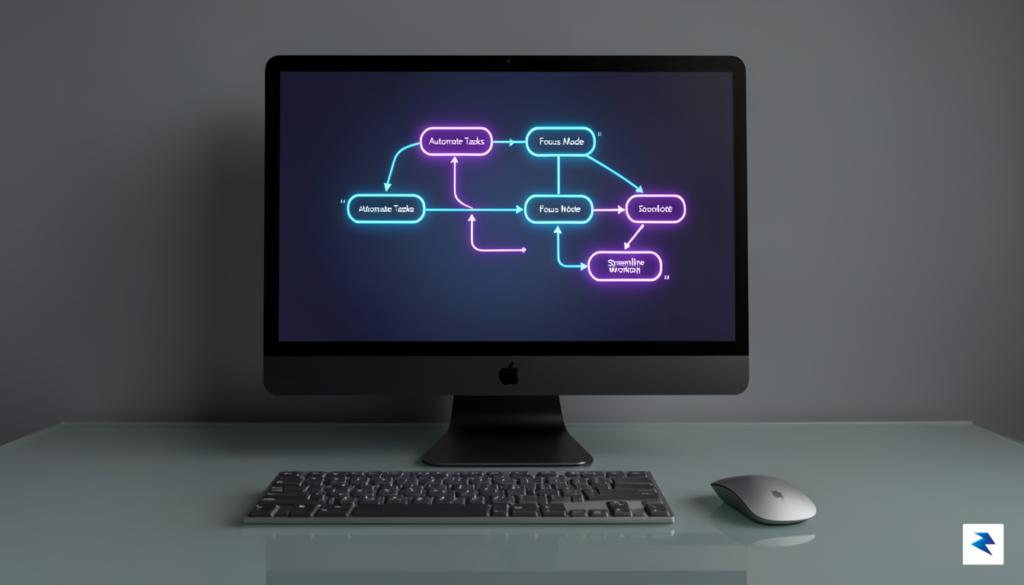
Start by defining your goal with extreme clarity. Rather than asking for a generic “focus mode,” provide your AI assistant with a specific behavioral map: “Create a macOS shortcut that enables ‘Do Not Disturb,’ sets the system volume to zero, opens Notion and Obsidian, and starts a 25-minute timer in the Clock app.” By breaking your requirements into distinct, actionable steps, you ensure that the AI generates a sequence of commands that the Shortcuts app can interpret without ambiguity.
Once the AI provides the logical structure, you will notice it often outputs the steps in a pseudo-code or a list format. To translate this into your system, open the Shortcuts app and create a new shortcut. As you drag in each block, verify that the parameter values match the requirements you set in your prompt. If the AI suggests a specific “Wait” action or a “Set Focus” command, ensure that the variable inputs—such as the duration of the timer or the specific application names—are precisely typed to match your system’s configuration.
Key Takeaway: The AI acts as your architect, but you are the builder. Always verify that the generated actions actually exist in your version of macOS, as some older commands may have been deprecated or renamed in recent updates.
After assembling the pieces, it is time to test and refine your creation. Run the shortcut by clicking the “Play” icon within the editor; observe closely whether each action triggers in the intended order. If the shortcut fails to open an app or hangs during the timer initialization, look for syntax errors in the variable fields. Common issues often stem from misaligned application names or missing permissions in your System Settings, particularly for accessibility and automation tasks. By systematically toggling off one action at a time, you can isolate which part of the script is causing a conflict, allowing you to make surgical adjustments until your Deep Focus mode operates with flawless efficiency.
The Future of Agentic Computing on macOS
We are currently witnessing a fundamental shift in the relationship between human and machine, moving away from the era of manual command-line inputs and mouse-driven navigation toward a paradigm of agentic computing. As macOS evolves to integrate more sophisticated AI models at the system level, the traditional barrier between the user and the developer is rapidly dissolving. You no longer need to write lines of code to automate complex workflows; instead, you simply describe your intent, and the operating system acts as a digital proxy to execute multi-step processes across disparate applications. This transition effectively democratizes automation, turning every Mac user into an architect of their own productivity environment.
This evolution suggests a future where your computer acts less like a static tool and more like an anticipatory partner that understands your habits, deadlines, and preferences. Imagine an operating system that doesn’t just wait for you to open an application but instead observes your behavioral patterns to proactively prepare your workspace for the day ahead. Whether it is organizing project assets before a morning meeting or filtering notifications based on the cognitive load of your current task, the OS of the future will operate in the background to reduce friction. By minimizing the time spent on “digital housekeeping,” we can reclaim hours of mental bandwidth previously lost to repetitive administrative tasks.
The transition to agentic computing marks the end of the ‘manual labor’ era of personal computing, where the machine finally begins to adapt to the user rather than the user learning the limitations of the software.
However, granting an operating system the agency to navigate and modify your workflows requires a rigorous approach to privacy and data security. As these agents gain permission to read your emails, access your calendar, and interact with third-party software, the security architecture of macOS must remain steadfastly local. Apple’s emphasis on on-device processing will be the cornerstone of this transition, ensuring that your intent and your private data remain confined to your hardware rather than being uploaded to a cloud server. Users must be prepared to adopt a “zero-trust” mentality when granting system-wide permissions, carefully auditing which applications can interface with your agentic tools to prevent unauthorized access to sensitive system layers.
To thrive in this automated future, users should start by embracing the current iteration of AI-driven shortcuts and automation tools. By experimenting with small, contained tasks today—such as summarizing documents or automating file organization—you are effectively training your intuition for the more autonomous systems of tomorrow. Think of this as building a literacy in intent-based computing: the clearer you can articulate your desired outcomes, the more capable your operating system will become at delivering the results you need without constant intervention. Preparing for this shift isn’t just about learning new software; it is about learning how to delegate effectively to a machine that is finally becoming as agile as the person using it.