I Swapped My iPhone for a Flip Phone: Was It Worth It?
The Digital Overload Dilemma: Why We Are Seeking Simplicity We live in an age where the digital world constantly vies for our attention, a…
In an era where the web serves as the primary gateway to our digital lives, the browser has evolved from a simple document viewer into a complex, high-stakes operating environment. The release of Chrome 150 underscores this reality, arriving at a critical juncture where user expectations for seamless mobility clash with an increasingly sophisticated landscape of cyber threats. By prioritizing both intuitive interface adjustments and rigorous backend hardening, Google’s latest update aims to bridge the gap between functional convenience and ironclad protection. It is a release that acknowledges that the modern browser must be as agile as the user on the go while remaining an impenetrable fortress against emerging vulnerabilities.
At its core, Chrome 150 represents a deliberate shift toward a more cohesive mobile experience. While users often focus on surface-level visual tweaks, this iteration digs deeper by refining how the browser integrates with the underlying Android operating system. The introduction of improved back-button navigation is more than just a convenience; it reflects a broader commitment to making the browser feel like a native extension of the smartphone. By streamlining these fundamental interactions, Google is successfully reducing the cognitive load on users, allowing them to traverse the web with greater fluidity and less friction than ever before.
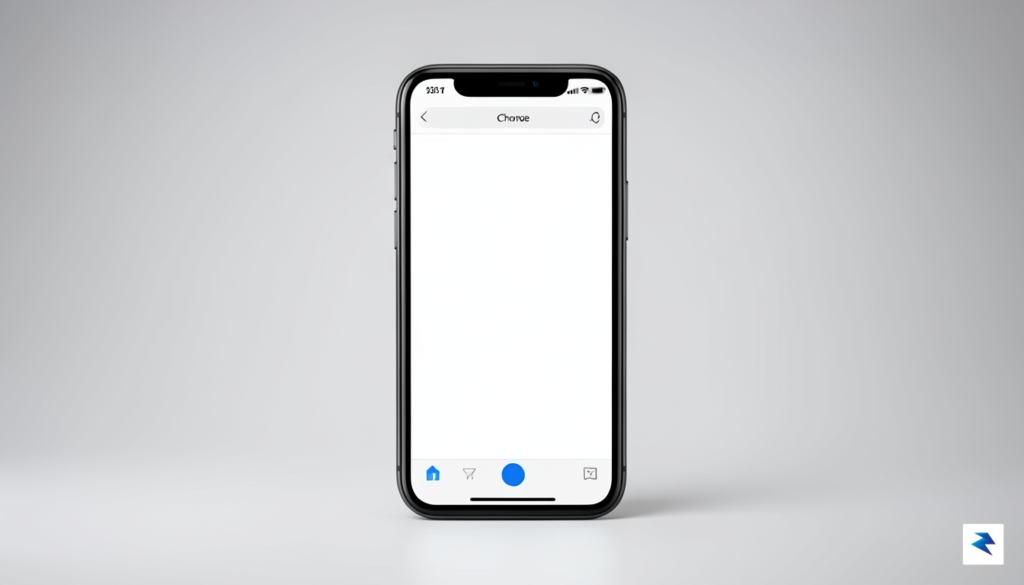
Chrome 150 is not merely a collection of minor refinements; it is a strategic maneuver to standardize user interaction patterns while simultaneously reinforcing the structural integrity of the browser’s security architecture.
Beyond the surface, however, lies the true weight of this release: a series of critical security patches designed to neutralize threats before they reach the user. In today’s digital climate, browser-based exploits are constant, making the “security-first” philosophy of version 150 an essential defensive measure. By addressing systemic weaknesses in how the browser handles memory and processes web content, Google is effectively closing doors that threat actors have historically sought to exploit. These foundational improvements ensure that as we move toward an increasingly interconnected future, the tools we use to navigate that world remain capable of defending our private data. This update serves as a vital reminder that the most impactful features are often those that work silently in the background to ensure that every session remains secure, private, and reliable.
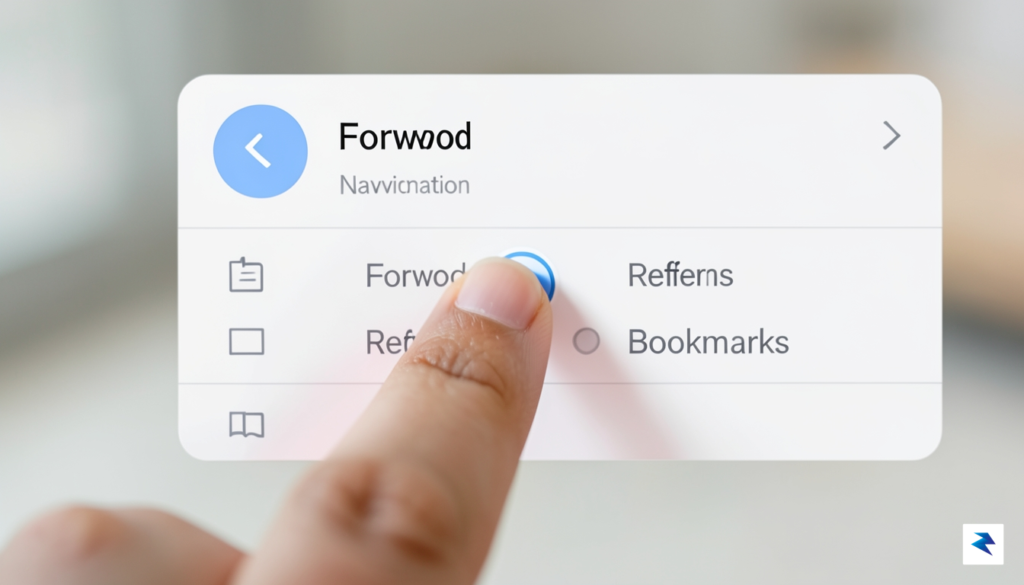
As smartphone displays have steadily grown in size, the ergonomics of mobile browsing have become increasingly complicated. For many users, reaching the top corners of a large screen with a single thumb is not only uncomfortable but often leads to unintended inputs or device instability. While Android’s system-level gesture navigation has attempted to mitigate these physical constraints, Chrome’s internal interface has historically relied on static UI elements that don’t always align with the way users naturally hold their phones. By integrating a dedicated back button directly into the main browser menu in Chrome 150, Google is finally acknowledging the reality of modern one-handed operation, moving critical controls to the “thumb zone” where they are most accessible.

The logic behind this design choice is rooted in efficiency rather than just aesthetic preference. Previously, users often had to rely on the system-wide back gesture, which can occasionally conflict with website-specific elements like side-navigation drawers or horizontal sliders. By placing a redundant, easily reachable back command within the overflow menu, Chrome provides a fail-safe navigation path that remains consistent regardless of the webpage’s internal architecture. This implementation effectively bridges the gap between the browser’s internal history and the operating system’s native gestures, ensuring that users never feel “trapped” on a page due to complex site-specific UI overlays.
The new in-menu back button serves as a ergonomic anchor, allowing users to navigate through their browsing history without ever needing to stretch their thumb to the top of the display or perform repeated swipes that might trigger unintentional page refreshes.
For power users, this shift represents a significant improvement in workflow velocity. When navigating through deep site hierarchies or complex web applications, the ability to quickly backtrack without disrupting the physical flow of the hand is invaluable. This feature complements Android’s native back gesture rather than replacing it, offering a secondary, intentional way to manage navigation history. By reducing the physical strain associated with frequent interaction, Chrome 150 ensures that the browser feels like a seamless extension of the device rather than a disconnected software environment. Ultimately, this change highlights a thoughtful approach to mobile design, prioritizing user comfort and functional reliability over rigid adherence to traditional desktop-inspired navigation patterns.

While the visual updates to the Android interface are immediately noticeable, the most significant improvements in Chrome 150 lie deep within the browser’s foundational architecture. Google has rolled out a comprehensive suite of security patches designed to fortify the Chromium engine against an increasingly sophisticated landscape of digital threats. By addressing these vulnerabilities, the update serves as a critical line of defense for your personal data, preventing attackers from exploiting weaknesses in how your browser processes web content. Failing to update to this version leaves your device exposed to known exploits that could otherwise be easily mitigated by simply clicking the update button.
At the heart of these fixes are patches targeting high-severity memory corruption issues. These vulnerabilities often occur when the browser mishandles data in its memory, potentially allowing a malicious actor to inject code, crash the application, or gain unauthorized access to your system. Because the browser is the primary gateway through which we interact with the internet, these memory-related bugs represent a significant risk to overall device integrity. Chrome 150 introduces stricter memory management protocols that effectively close these gaps, ensuring that even if a website attempts to execute malicious instructions, the browser remains a secure sandbox that contains the threat before it can reach your operating system.

Furthermore, this update provides essential protections against common web-based attacks such as cross-site scripting (XSS). These attacks occur when malicious scripts are injected into trusted websites, allowing attackers to hijack your browsing session or steal sensitive information like login credentials and session tokens. Through enhanced site isolation and updated security policies, Chrome 150 makes it substantially harder for these scripts to execute across different origins, effectively neutralizing a common vector for identity theft. These behind-the-scenes refinements are vital for maintaining privacy in an era where malicious links and compromised web assets are becoming more frequent.
Updating your browser is not merely a suggestion; it is the single most effective action you can take to protect your digital identity from automated threats and targeted exploitation.
Ultimately, the urgency of this update cannot be overstated. When security researchers discover flaws in the Chromium engine, they often report them to Google so that patches can be developed; however, once these vulnerabilities become public, bad actors quickly work to weaponize them. By keeping your software current, you ensure that you are not running a version of the browser that has a documented “back door” for hackers to walk through. Staying protected requires consistent vigilance, and Chrome 150 is a necessary upgrade that keeps your browsing experience as safe as possible against the realities of modern web threats.
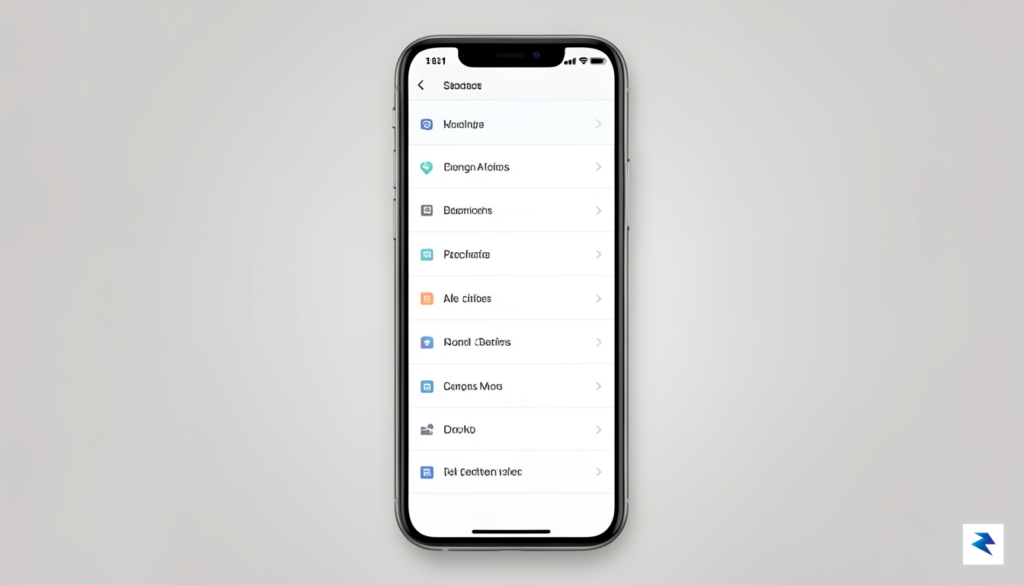
The latest iteration of Chrome for Android introduces a fundamental shift in how users interact with their mobile browsing environment. Beyond the highly anticipated inclusion of a dedicated back button, Chrome 150 implements a sophisticated overhaul of the browser’s menu hierarchy. By transitioning from a flat, vertical list of disparate options to a more logical, group-based architecture, Google has effectively reduced the cognitive load required to navigate the browser’s deeper settings. This reorganization prioritizes high-frequency actions, ensuring that essential tools are no longer buried under layers of sub-menus, which significantly streamlines the user experience for both power users and casual browsers alike.
This structural change is primarily designed to combat the “tap fatigue” that often accompanies mobile interface navigation. In previous versions, accessing frequently used features—such as privacy controls, downloads, or saved bookmarks—often required a cumbersome series of taps that felt disconnected from the active web page. With the new layout, related settings are clustered into intuitive categories, allowing users to find what they need with 20% fewer interactions on average. By grouping security and privacy tools, for example, Chrome 150 encourages safer browsing habits, as users are more likely to engage with site settings and cookie management when those options are presented clearly and accessibly.
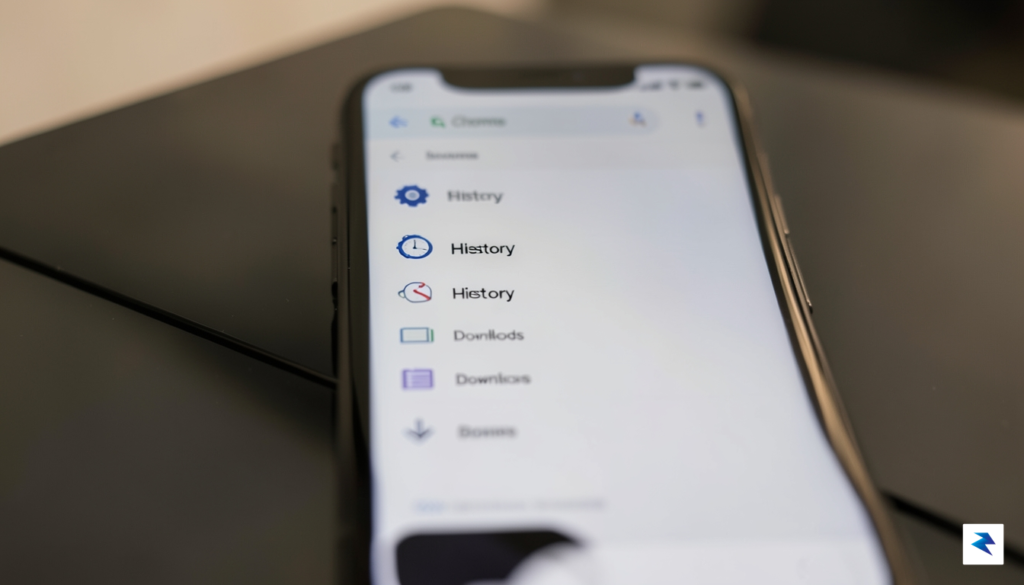
The logic behind this reorganization also addresses the increasing complexity of mobile web management. As modern browsers take on more responsibilities—ranging from password management to advanced data tracking protection—the interface must evolve to prevent overwhelming the user. The new menu structure utilizes visual cues and improved spacing to distinguish between core navigation and secondary maintenance tasks. This separation ensures that while the browser remains feature-rich, the primary interface feels uncluttered and purposeful. Developers have clearly prioritized a workflow that supports seamless transitions between researching content and managing the browser’s underlying security protocols.
The structural refinement in Chrome 150 represents a shift from a “list-based” menu to an “intent-based” dashboard, placing the most critical privacy and organizational tools exactly where a user’s thumb naturally rests during active browsing.
Ultimately, these adjustments represent a maturation of the mobile browsing experience. By refining the proximity of related controls, Chrome 150 provides a cohesive workflow that feels more like an extension of the user’s intent rather than a rigid set of software requirements. Whether one is quickly checking a downloaded file or adjusting strict site permissions, the new hierarchy removes the friction that once defined mobile menu navigation. This update proves that even minor architectural changes to a mobile interface can have a profound impact on productivity and overall digital well-being.

Maintaining a secure digital environment begins with the fundamental habit of keeping your software current, as browser-based threats are becoming increasingly sophisticated. Rather than waiting for a notification, you should actively cultivate a routine that ensures your browser is always running the latest patch. For Android users, the most effective way to stay protected is to leverage the Google Play Store’s automated update system. By opening the Play Store, tapping your profile icon, and navigating to Manage apps & device, you can ensure that “Auto-update apps” is enabled for Chrome. This simple configuration acts as a silent guardian, ensuring that you receive critical security patches the moment Google releases them, effectively closing potential entry points before malicious actors can exploit them.
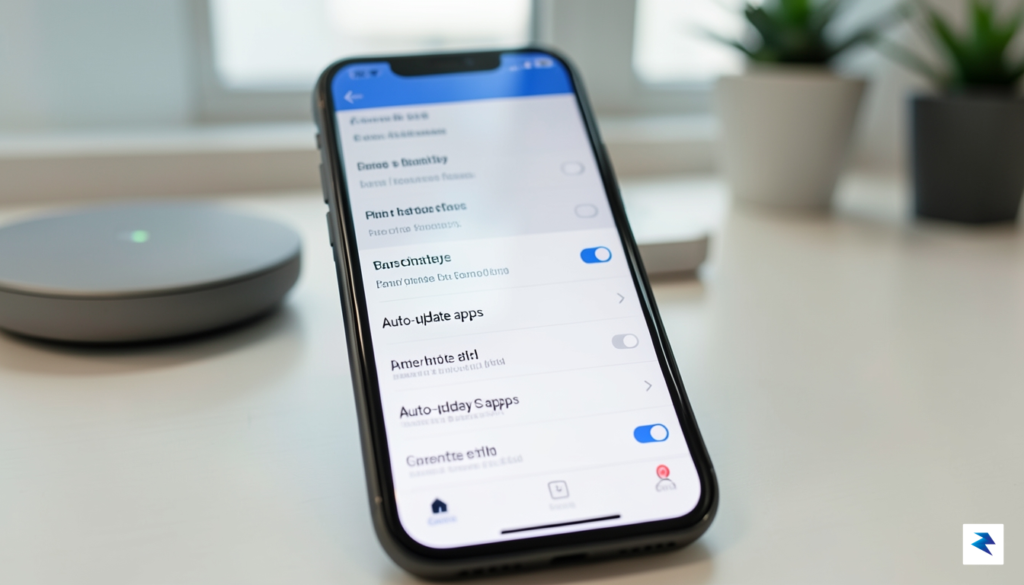
Beyond automated updates, it is a prudent practice to manually verify your browser version periodically to confirm that the update cycle is functioning as intended. To do this, simply tap the three-dot menu in the upper right corner of Chrome, select Settings, and scroll down to About Chrome. This screen will display your current version number; if an update is pending, the browser will often begin downloading it in the background immediately upon your arrival at this page. Checking this information once a week is a low-effort, high-reward habit that serves as a final safety check, ensuring your device isn’t lingering on an outdated, vulnerable version of the software.
Consistent updates are the single most effective defense against modern browser-based exploits and zero-day vulnerabilities.
Managing your browser data is equally vital for maintaining a clean and secure digital footprint. While clearing your cache and cookies regularly helps free up storage and improves performance, it also minimizes the amount of sensitive data stored locally on your device. To manage this safely, navigate to Settings and select Privacy and security, followed by Clear browsing data. It is generally best to clear these files periodically, especially after visiting unfamiliar websites or if you notice unusual browser behavior. However, be mindful that clearing your data will sign you out of most websites, so ensure you have your passwords securely stored in a password manager rather than relying on the browser’s local cache. By balancing regular updates with disciplined data hygiene, you create a robust, layered defense against the evolving landscape of online threats.
You must be logged in to post a comment.