Finding Your Zone of Genius: How to Future-Proof Your Career Against AI
Defining the Zone of Genius in the AI Era For decades, the "Zone of Genius"—that intersection where your unique talents, deepest passions, and…
Over the past few years, Spotify has undergone a significant transformation, evolving from a streamlined music streaming service into a multimedia platform that prioritizes dynamic, visual-heavy content. This shift is most apparent in the introduction of the “Canvas” feature—short, looping visual clips that replace static album artwork—and the more recent integration of full-length music videos. While these features are designed by Spotify to increase user engagement and provide a more immersive “artist-to-fan” connection, they often disrupt the primary utility of the platform: a reliable, distraction-free environment for music consumption.
For many listeners, Spotify serves as a background companion during work, study, or daily commutes. In these contexts, the sudden appearance of high-motion video loops or full-screen music videos can be jarring, effectively breaking the rhythm of a focused task. When your screen is constantly shifting or flashing, it forces your brain to re-allocate attention, which undermines the very flow state that curated playlists are meant to foster. Furthermore, these visual elements consume significant amounts of cellular data and battery life, creating a tangible trade-off for users who simply want to enjoy their high-fidelity audio without the unnecessary overhead of streaming video files simultaneously.
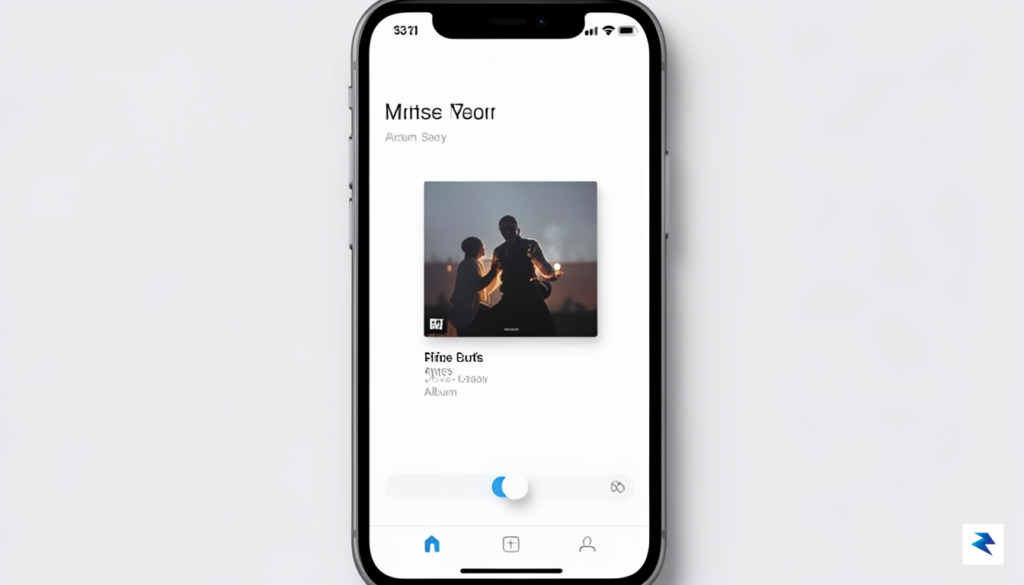
The beauty of digital music has always been its ability to act as a sonic backdrop; by forcing visual complexity into the interface, Spotify risks turning a passive listening experience into an active, screen-demanding chore.
The transition toward a video-first approach reflects a broader industry trend where platforms compete for the limited attention span of the modern user. However, this strategy ignores the specific needs of audiophiles and productivity-focused listeners who view the app as a library rather than a social media feed. Reclaiming your audio-only experience is not merely about personal preference; it is a practical step toward optimizing your device’s performance and ensuring that the interface remains a tool to serve your listening habits, rather than a distraction that competes for your focus. By understanding how to manage these settings, you restore the simplicity that made Spotify a staple in the first place, allowing the music to take center stage once again.
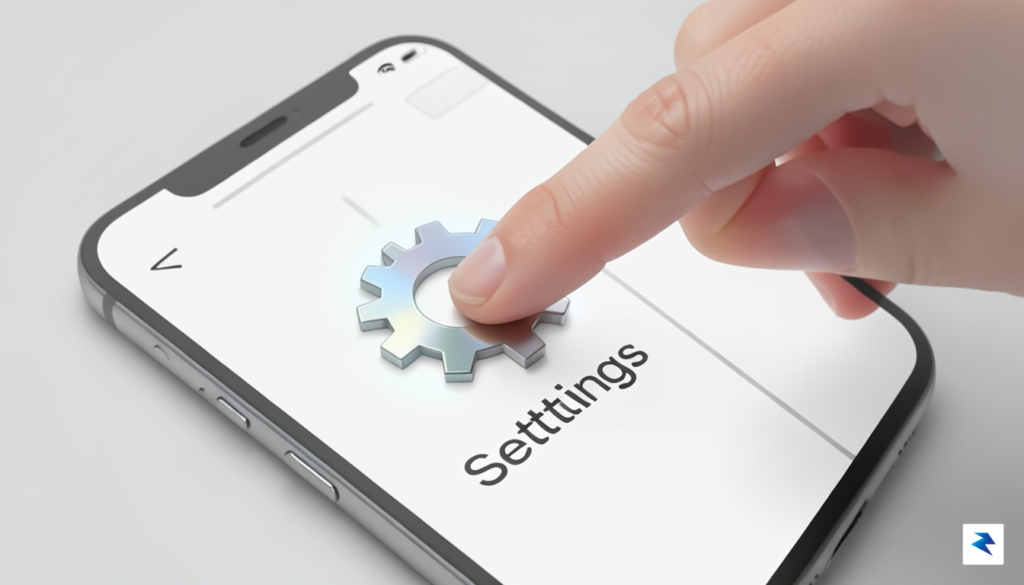
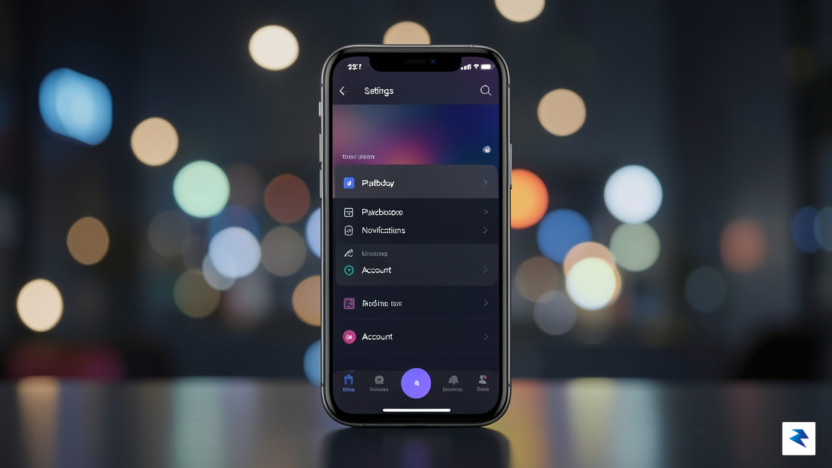
If you find that the constant motion of Canvas loops or auto-playing music videos distracts from your listening experience, you can easily reclaim the traditional, streamlined interface of Spotify. The primary feature responsible for these looping visuals is known as “Canvas,” which transforms the album art view into a short, repeating video. To disable this on your mobile device, navigate to the Settings menu by tapping the gear icon located in the top-right corner of your Home tab. From there, select the Playback option, scroll down until you locate the “Canvas” toggle, and switch it to the off position. Once this is disabled, Spotify will revert to displaying the static high-resolution album cover for every track, allowing you to focus entirely on the audio quality rather than the visual performance.
It is important to note that while the mobile application offers a granular toggle for Canvas, the behavior on desktop versions can vary slightly. Desktop users generally do not have a specific “Canvas” toggle because the interface is naturally more static; however, disabling video-heavy features within the mobile app often helps keep your account settings consistent across platforms. Because your Spotify account syncs your preferences via the cloud, toggling these settings on your primary smartphone will often prevent these visual elements from populating your library history or influencing your future playback sessions. If you frequently switch between mobile and desktop, ensure that you are logged into the same account and that your app is fully updated to the latest version to ensure these preference changes propagate correctly across all your hardware.
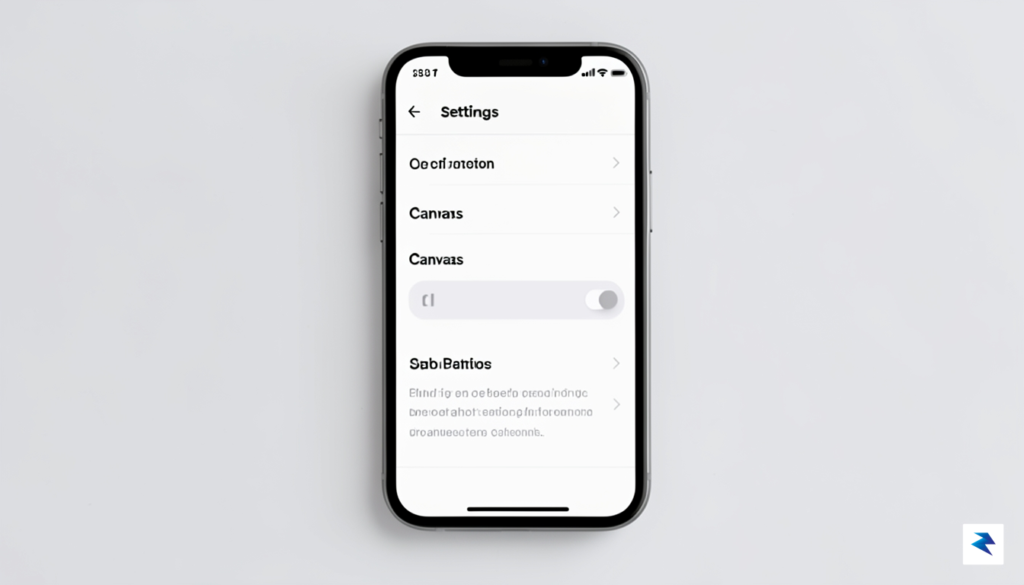
Pro Tip: Disabling Canvas does more than just simplify your visual experience; it also reduces the amount of data your app consumes in the background and can slightly improve battery efficiency on older devices.
For those who wish to ensure their experience remains entirely audio-focused, double-check your data saver settings as well. In the same Playback menu, you may find options to limit video playback quality or disable auto-play features entirely. By taking a few moments to audit these settings, you effectively strip away the modern “bloat” that many users find intrusive. This process ensures that every time you open your app, you are greeted by a clean, professional, and consistent interface that keeps your focus firmly planted on your curated playlists and favorite artists rather than distracting promotional loops.
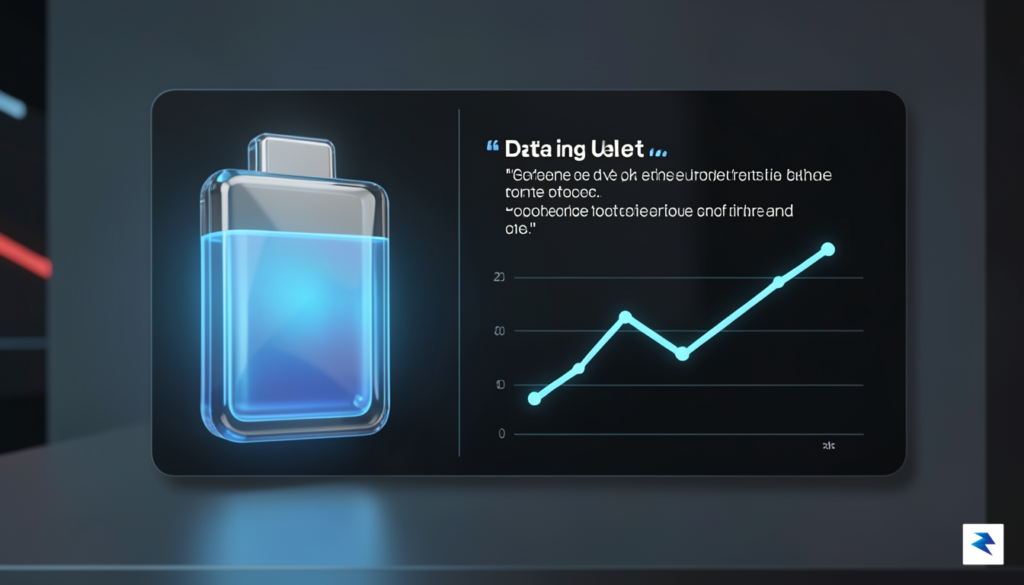
Streaming high-definition video in the background is a silent, persistent drain on both your monthly data allotment and your device’s overall battery longevity. While Spotify’s “Canvas” feature and integrated music videos add a layer of visual flair to your listening sessions, they force your smartphone to work significantly harder than it would for simple audio playback. By disabling these visual assets, you aren’t just cleaning up your interface or removing distractions; you are proactively managing your hardware’s finite resources. When the application stops fetching and decoding video frames, your device’s mobile processor can throttle back, resulting in lower power consumption and a noticeably cooler device during extended playback sessions.
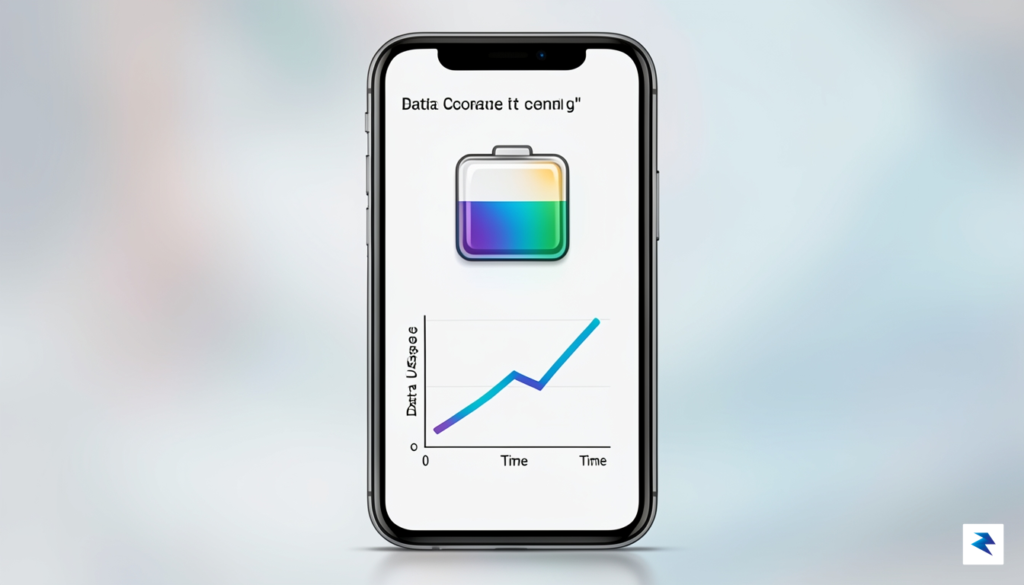
Quantitatively, the difference between streaming audio and video is profound. A standard high-quality audio stream typically consumes roughly 2 to 3 megabytes of data every few minutes, whereas a looped video or music video component can easily multiply that usage by five or even tenfold depending on the resolution and frame rate. Furthermore, processing video requires constant hardware acceleration from your phone’s GPU and CPU, which keeps these components in a high-power state. Even when the app is running in the background, this constant processing prevents your smartphone from entering a deep sleep mode, leading to a measurable decline in standby time. By toggling off these features, you effectively shift the app into a “lean” mode that prioritizes the stability and longevity of your mobile device.
Disabling visual extras is not just a preference for minimalism; it is an essential strategy for users who rely on limited data plans or those who spend long hours away from a power outlet.
To further maximize these benefits, consider combining the deactivation of video features with Spotify’s built-in “Data Saver” mode. This feature automatically adjusts the streaming quality and reduces the frequency of background data syncs, creating a secondary layer of protection for your bandwidth. Additionally, you should periodically clear your application cache to ensure that temporary files from previously viewed videos do not continue to occupy valuable storage space on your device. Managing these settings holistically ensures that your music streaming experience remains smooth and uninterrupted, allowing your battery to last through the entire day while keeping your data usage safely within your monthly limits.

While many users focus their efforts on trimming down visual distractions in their music library, podcast playback has introduced a entirely different set of challenges. Increasingly, content creators are uploading high-definition video versions of their episodes, which Spotify often prioritizes by default. While this is a welcome feature for those sitting at a desk, it quickly becomes a nuisance if you are driving, working out, or simply trying to save mobile data. Unlike music videos, which are often supplementary, video podcasts replace the standard playback interface, sometimes consuming extra bandwidth and battery life without your explicit consent.
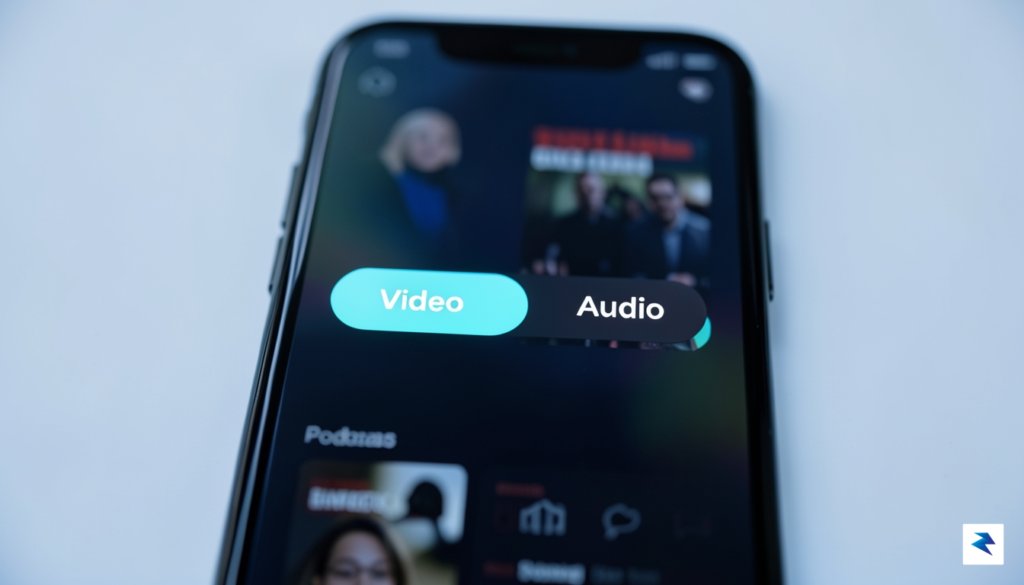
To determine whether you are currently streaming the video version of a podcast, look closely at the “Now Playing” bar at the bottom of your screen. If you see a small video player window instead of the standard static episode artwork, or if the background of your player is moving, you are actively consuming the video feed. Simply tapping the screen or looking for the “Switch to Audio” option in the episode menu can instantly revert your experience to a standard audio-only stream. It is important to note that your podcast preferences operate independently from your music settings, meaning you must manage them as a distinct category within the application.
To ensure a consistent audio-only experience, always check the playback settings within the specific podcast episode page, as some creators may default to video by default regardless of your global account preferences.
Managing the “Auto-play” feature is the most effective way to prevent video episodes from catching you off guard. Navigate to your Spotify settings and look for the “Playback” section; here, you can toggle off specific features that allow the app to bridge into video content automatically. By disabling these settings, you essentially force the application to treat every podcast episode as an audio file unless you manually choose to expand the video player. This configuration is particularly useful for commuters who want to avoid the distraction of a video stream while their phone is mounted on a dashboard, as it guarantees that your playback remains focused on the audio content without any unexpected visual interruptions.
Ultimately, taking control of these settings transforms your Spotify experience from a cluttered, multi-media interface into a streamlined audio platform. By spending just a few minutes configuring these preferences, you prevent the app from defaulting to resource-heavy video streams during moments where you only need the audio. This not only creates a more stable listening environment but also ensures that your data plan and battery health are preserved for when you actually intend to watch long-form video content.
While the urge to strip away visual distractions and focus exclusively on the audio is perfectly valid, there are distinct instances where Spotify’s visual integration serves as a genuine enhancement rather than a cluttering nuisance. For many independent musicians, the “Canvas” feature—those short, looping visual clips that replace static album art—acts as a vital digital showcase for their creative vision. These loops often provide a deeper narrative context for a track, offering a glimpse into the artist’s aesthetic world that a simple thumbnail simply cannot convey. By keeping these features active, you are not just listening to a song; you are engaging with a multi-sensory piece of art that helps bridge the gap between the studio and the listener, often fostering a stronger emotional connection to the music.
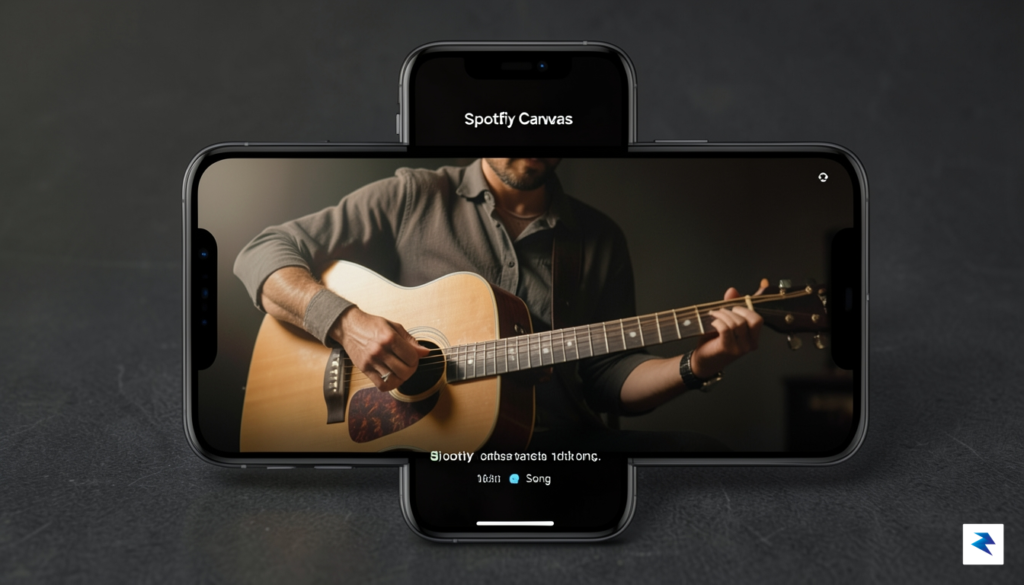
Beyond music, the rise of video podcasts on the platform has fundamentally shifted how we consume long-form content. When a show relies on visual aids, guest demonstrations, or nuanced body language during an interview, the audio-only format can feel incomplete, leaving you to miss out on half the story. Keeping video enabled for these specific programs ensures that you catch those subtle visual cues and essential details that define the experience. It transforms a passive listening session into an active viewing engagement, which is particularly useful for educational content, tech reviews, or comedy shows where the physical presence of the host provides the punchline.
Maintaining a flexible approach to your settings allows you to curate your environment based on the specific content you are consuming rather than applying a blanket rule to every track or episode.
If you decide that you prefer a mostly minimalist interface but still want to occasionally enjoy these visual elements, you do not have to commit to a permanent “all or nothing” setup. You can easily toggle these settings back on when you know you are diving into a favorite artist’s new visual album or a highly anticipated video interview. By treating your Spotify settings as a dynamic tool rather than a rigid configuration, you gain the best of both worlds: the distraction-free focus you crave for your daily workflow and the rich, immersive visual storytelling that makes certain artists and creators truly stand out. Developing this habit of mindful toggling ensures that your listening experience remains personalized and perfectly aligned with your immediate goals.
You must be logged in to post a comment.