
Why AI Has Broken the Hiring Funnel (And How to Fix It)
The Erosion of the Early-Stage Hiring Funnel The traditional hiring funnel, once a reliable mechanism for filtering talent, is currently…


At the heart of modern computer security lies a mechanism known as Secure Boot, a critical layer of protection embedded directly into your computer’s UEFI firmware. Think of Secure Boot as a digital bouncer for your operating system: before your computer even begins to load Windows or Linux, this mechanism checks the digital signature of every piece of boot software—including drivers, kernels, and bootloaders—to ensure they come from a trusted source. If the software hasn’t been “signed” by a recognized authority, the system refuses to run it, effectively preventing rootkits and boot-level malware from compromising your machine before you have even reached the login screen.
The current urgency stems from a looming expiration date: June 24. Like a passport or a credit card, the cryptographic keys used to verify these digital signatures have a limited lifespan. These keys are managed by a central entity known as the UEFI Certificate Authority (CA). Because security standards evolve and the risk of cryptographic keys being compromised increases over time, these authorities intentionally set expiration dates to force the industry to rotate to stronger, more secure keys. However, because these keys are baked into the firmware of millions of motherboards globally, this is not a simple software update you can ignore; it represents a fundamental shift in how your hardware verifies the software it trusts.
If these keys expire without proper intervention, the consequences could be significant for both individual users and enterprise IT departments. When a system attempts to boot using an expired certificate, the UEFI firmware may perceive the operating system as unauthorized, potentially resulting in a “Secure Boot Violation” error. This effectively bricks the boot process, leaving the user with a machine that cannot reach the operating system. For large-scale organizations, this isn’t just a minor inconvenience; it is a potential operational nightmare that could render thousands of workstations and servers unusable simultaneously.
The expiration of these keys is a mandatory maintenance event, not a voluntary feature update. Administrators must ensure that the updated certificates are deployed to the UEFI variables, or they risk widespread system downtime.
For power users and system administrators, this deadline serves as a vital reminder that hardware maintenance extends far beyond mere physical cleaning or component upgrades. Managing the chain of trust within the UEFI environment is a complex task that requires careful coordination between firmware updates, OS patches, and bootloader configurations. As we edge closer to June 24, the focus must shift toward verifying that your hardware’s firmware is up to date and capable of recognizing the new, valid cryptographic keys that will take over the essential task of securing your digital environment.
At the heart of every modern computer’s security architecture lies a concept known as the Chain of Trust. Think of this process as a rigorous series of identity checks that occur the very second you press your power button. When your computer initializes, the UEFI firmware—the modern replacement for the old BIOS—does not simply run any code it finds on your drive. Instead, it acts as a gatekeeper, verifying the digital signature of the bootloader against a set of cryptographic keys stored securely in your hardware. If the signature is recognized as authentic, the chain remains intact, and the system proceeds to load the operating system. If the signature is missing or altered, the boot process is halted, effectively preventing unauthorized or malicious software from ever gaining a foothold.
This “silent guardian” known as Secure Boot is essential for maintaining system integrity because it stops threats before they have a chance to hide. Without this verification, your system is vulnerable to sophisticated, low-level threats like rootkits and bootkits. These malicious programs are particularly dangerous because they reside in the deepest layers of your software stack, often loading before your antivirus or operating system can even begin to function. By intercepting the boot sequence, these attackers can gain near-total control over your machine, making them nearly impossible to detect or remove once the system is fully operational. Secure Boot breaks this cycle of infection by ensuring that only code explicitly trusted by the manufacturer or the user is permitted to execute during the critical startup phase.
It is common for users to worry that the upcoming expiration of these cryptographic keys means their computer will suddenly stop functioning on the deadline, but this is a significant misunderstanding. Your system will not instantly “break” or refuse to start just because a specific security certificate has reached its end of life. Instead, the risk is more subtle and revolves around the validation mechanism. If these keys are not properly updated or rotated, your computer may lose the ability to verify new, legitimate updates to your bootloader or hardware drivers. Over time, this creates a situation where your system is stuck using outdated protocols that are no longer supported, eventually leaving you unable to install security patches or modify your hardware configuration.
The Chain of Trust is only as strong as its weakest link; keeping your cryptographic keys current is the equivalent of regularly changing the locks on your front door to ensure only those with the latest, authorized credentials can enter.
Ultimately, keeping this chain updated is about maintaining your system’s long-term health and compatibility. When security certificates expire, the “trust” between your hardware and your software begins to erode, even if the computer still boots for the time being. If you ignore these maintenance requirements, you risk creating a “frozen” environment where the system can no longer distinguish between genuine software updates and potential security threats. By staying proactive and ensuring your firmware and security keys remain current, you are not just performing routine maintenance—you are actively participating in the defense of your digital identity against the most persistent forms of low-level exploitation.
Secure Boot relies on a chain of trust established by cryptographic keys embedded directly within your motherboard’s firmware. When these foundational keys expire, the way operating systems validate their bootloaders must change, but the path to updating them looks radically different depending on whether you reside in the Microsoft ecosystem or the open-source world. While the ultimate goal is to maintain a secure boot path that blocks rootkits and unauthorized code, the mechanism of delivery and the risk of system disruption vary wildly between Windows and Linux. Understanding these differences is crucial for preventing unexpected boot failures as the enforcement deadlines loom.
For the vast majority of Windows users, the transition is designed to be relatively seamless, managed behind the scenes by Microsoft’s robust update infrastructure. Microsoft controls the primary third-party Certificate Authority (CA) used by UEFI firmware, allowing them to push updated Allowed Signature Databases (DB) and Revocation Lists (DBX) directly through Windows Update. Once these updates are applied, the operating system coordinates with the system’s UEFI to revoke the expiring certificates and apply the new ones without requiring manual user intervention. However, because this process relies on motherboard manufacturers (OEMs) properly implementing UEFI firmware standards, some users—particularly those with older hardware or custom-built PCs—may still experience compatibility issues if their BIOS is severely outdated.
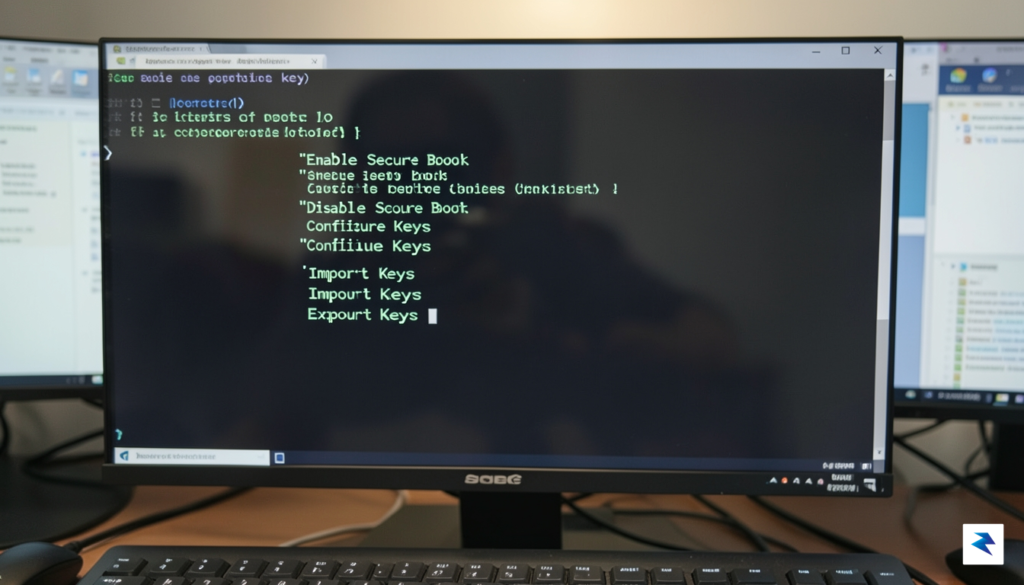
In contrast, the Linux ecosystem faces a much more fragmented and complex challenge due to its decentralized nature. Most mainstream Linux distributions, such as Ubuntu, Fedora, Debian, and Red Hat Enterprise Linux, rely on a small, intermediate bootloader known as a “shim” to bridge the gap between Microsoft’s UEFI CA and the Linux bootloader (GRUB). This shim is signed by Microsoft to allow it to run under standard Secure Boot configurations, but it then validates the actual Linux kernel using the specific distribution’s own keys. Because of this multi-tiered architecture, updating the expired keys requires coordinated updates across the shim loader, the GRUB bootloader, and the distribution-specific kernel signatures, making the update path significantly more precarious for Linux administrators and enthusiasts.
The primary risk for Linux users is not just a theoretical security gap, but the very real possibility of a boot failure during subsequent kernel updates. If a distribution pushes a new kernel signed with a new key before the system’s shim or UEFI database has been updated to recognize it, the Secure Boot mechanism will flag the new kernel as untrusted and refuse to load it. Conversely, if the DBX revocation list is updated too quickly without the corresponding shim updates, users may find themselves locked out of their operating systems entirely. This delicate synchronization means that Linux users must be exceptionally vigilant, ensuring that their system packages, particularly grub2, shim, and system firmware, are fully updated before applying major kernel transitions.
“Unlike the centralized deployment model of Windows, securing the Linux boot path requires a delicate orchestration between hardware OEMs, distribution maintainers, and end-users to prevent systems from failing to boot when security keys expire.”

The most effective defense against the upcoming security certificate expiration is a commitment to proactive maintenance. Updating your system firmware is no longer merely an optional task for fixing minor bugs; it has evolved into a fundamental security requirement to ensure your computer remains both bootable and fully protected against modern threats. By keeping your UEFI environment current, you ensure that your hardware can recognize and trust the updated security keys required for Secure Boot to function correctly after the deadline passes.
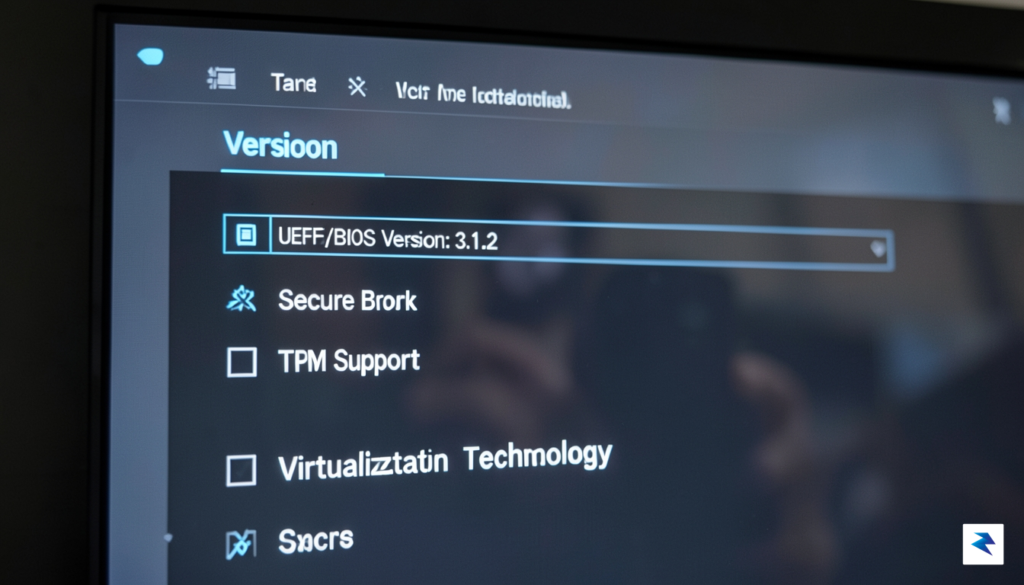
Before you begin the update process, you must first determine your current UEFI version. On Windows, you can quickly find this information by pressing the Win + R keys, typing msinfo32, and pressing Enter. Look for the “BIOS Version/Date” entry in the System Summary tab, which tells you exactly what version of the firmware you are currently running. If you are using Linux, you can open your terminal and run the command sudo dmidecode -s bios-version to retrieve the same information. Knowing your current version allows you to compare it against the latest releases available on your manufacturer’s support portal.
Important: Always perform a full system backup of your critical data before initiating any firmware update. While modern flashing tools are reliable, power interruptions or unexpected system errors during the update process can potentially lead to a non-bootable state.
Once you have identified your current version, visit the official support website for your device manufacturer—such as Dell, HP, or Lenovo. Navigate to the “Drivers and Downloads” section and enter your specific serial number or service tag to ensure you are downloading firmware tailored precisely to your hardware configuration. For many business-grade laptops, manufacturers provide automated software assistants that scan your device and suggest updates automatically. If you are running Linux, check if your distribution supports fwupd, a robust command-line tool that simplifies the process of installing firmware updates directly from the Linux Vendor Firmware Service (LVFS).
For Linux users, verifying that your Secure Boot environment is properly configured is just as vital as the firmware update itself. You can utilize the mokutil (Machine Owner Key utility) to check the state of your security keys. By running mokutil --sb-state in your terminal, the system will return a clear confirmation of whether Secure Boot is currently enabled. If it is disabled, you may need to enter your UEFI settings menu during the boot process—usually by pressing F2, F12, or Del—to manually re-enable the feature after ensuring your firmware is fully up to date. Maintaining this security chain is the best way to prevent unauthorized software from loading during your system startup.

It is natural to feel a sense of urgency when a major security deadline looms on the horizon, but it is important to distinguish between immediate system failure and long-term risk. Failing to update your system or address the pending Secure Boot revocation before the June 24 cutoff does not mean your computer will suddenly cease to function or crash the moment the clock strikes midnight. Your existing applications, files, and operating system will continue to operate as they did the day before, meaning you will not be locked out of your daily workflow or vital documents. However, while the system remains operational in the short term, you are essentially choosing to leave the front door of your digital infrastructure slightly ajar, creating a window of vulnerability that malicious actors are increasingly eager to exploit.
The primary consequence of missing this deadline manifests in operational friction rather than total system collapse. If you fail to implement the necessary security patches or key updates, you may find that future software installations, OS upgrades, or hardware drivers fail to initialize correctly. Because these updates rely on a chain of trust validated by Secure Boot, an outdated environment will often reject the digital signatures of newer software packages. This creates a cascade of compatibility issues that can be far more difficult to troubleshoot after the fact than simply performing the update proactively. Over time, this “security debt” accumulates, leaving your machine unable to receive essential stability patches, which in turn makes your environment brittle and prone to unexpected errors.
In a worst-case scenario where a system fails to boot due to these security mismatches, some users may be tempted to bypass the issue by disabling Secure Boot entirely in their BIOS or UEFI settings. While this is a technically viable workaround to get a machine back into a working state, it comes with significant security trade-offs that every user must understand. Disabling Secure Boot removes the verification layer that prevents unauthorized code—such as bootkits or rootkits—from loading during the startup process. By removing this barrier, you are essentially stripping away one of the most fundamental defenses against low-level malware that can compromise your entire system before the operating system even finishes loading.
Ultimately, the goal is not just to meet a deadline, but to maintain a hardened, resilient, and reliable computing environment for the long haul.
Instead of relying on risky workarounds, the most prudent path is to prioritize good security hygiene by ensuring your firmware and software are fully aligned with current standards. Check your manufacturer’s website for BIOS updates, verify that your Linux distribution is tracking the latest security patches, and ensure your Windows environment is fully caught up on cumulative updates. By treating this deadline as a necessary maintenance milestone rather than a looming crisis, you protect your personal data and professional output from the evolving threat landscape. Staying current is the single most effective way to ensure that your hardware continues to perform reliably while keeping your digital footprint secure against modern cyber threats.
You must be logged in to post a comment.