Mesh LLM: How Distributed AI is Breaking the Cloud Bottleneck
The Shift: From Centralized Clouds to Peer-to-Peer AI Today's groundbreaking advancements in Artificial Intelligence, especially the large…
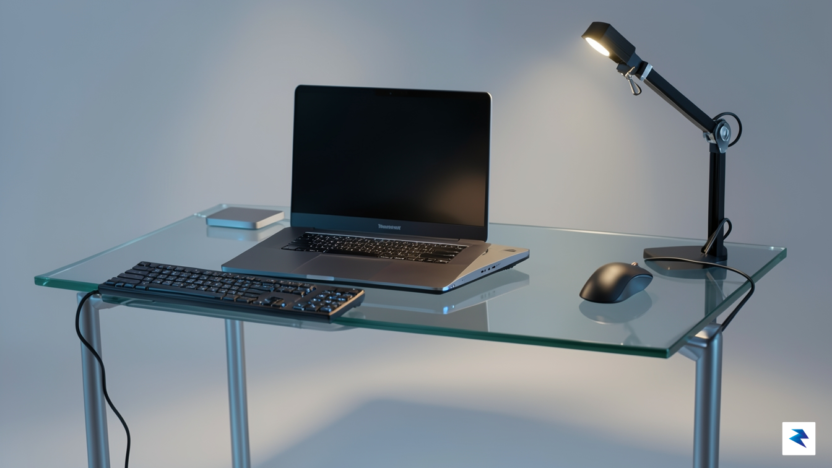
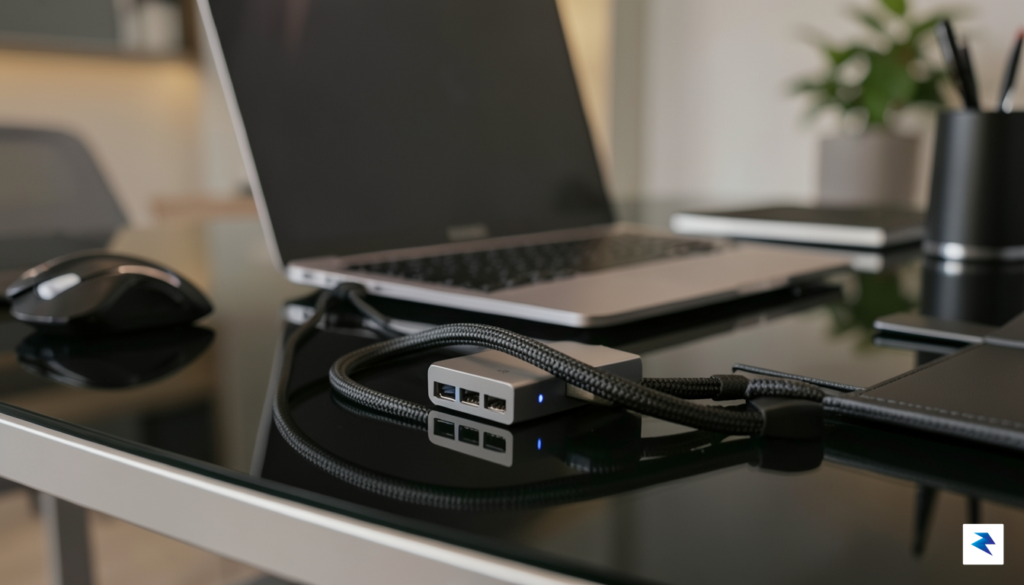
For countless professionals, the docking station stands as the undeniable nexus of their productive workspace, transforming a portable laptop into a powerful desktop command center. This seemingly simple peripheral, however, has undergone a radical evolution, far surpassing the basic port replicators of yesteryear. Modern docks, particularly those leveraging advanced standards like Thunderbolt and USB-C, are sophisticated hubs tasked with simultaneously managing high-resolution displays, gigabit Ethernet, multiple USB devices, and delivering substantial power back to the host laptop. This intricate dance of data and power, all orchestrated through a single cable, introduces layers of complexity that were unimaginable in earlier, less demanding setups.
Yet, despite their technological prowess, the fundamental act of reliably waking a computer from sleep when connected to a dock remains a persistent, often maddening, pain point for users. This common frustration, colloquially dubbed ‘docking anxiety,’ manifests as that moment of dread when you return to your desk, tap the keyboard, and are met with stubbornly dark screens and an unresponsive system. The expectation is simple: plug in, and everything just works. The reality, however, frequently involves a frustrating cycle of unplugging, replugging, rebooting, or even system crashes, eroding productivity and trust in what should be an indispensable tool.
Understanding why this common scenario plagues so many users requires delving beyond the surface expectation of ‘plug-and-play’ and recognizing it as a formidable systems-engineering challenge. A modern docking station is not merely a passive conduit; it’s an active participant in a complex dialogue between the host computer’s firmware, operating system, dedicated controller chips within the dock itself, and every attached peripheral. From negotiating power delivery profiles (PD) and establishing display handshakes via Extended Display Identification Data (EDID), to correctly enumerating USB devices and managing various deep sleep states (like S3 or Modern Standby), hundreds of tiny interactions must occur flawlessly and in precise sequence. Any misstep in this intricate choreography—be it a firmware bug, a driver conflict, or a power state mismatch—can prevent your system from springing back to life, highlighting that reliable wake-up is a testament to sophisticated engineering, not a guaranteed feature. Getting this right is a nuanced dance of hardware and firmware, a deep dive into which we are about to embark.
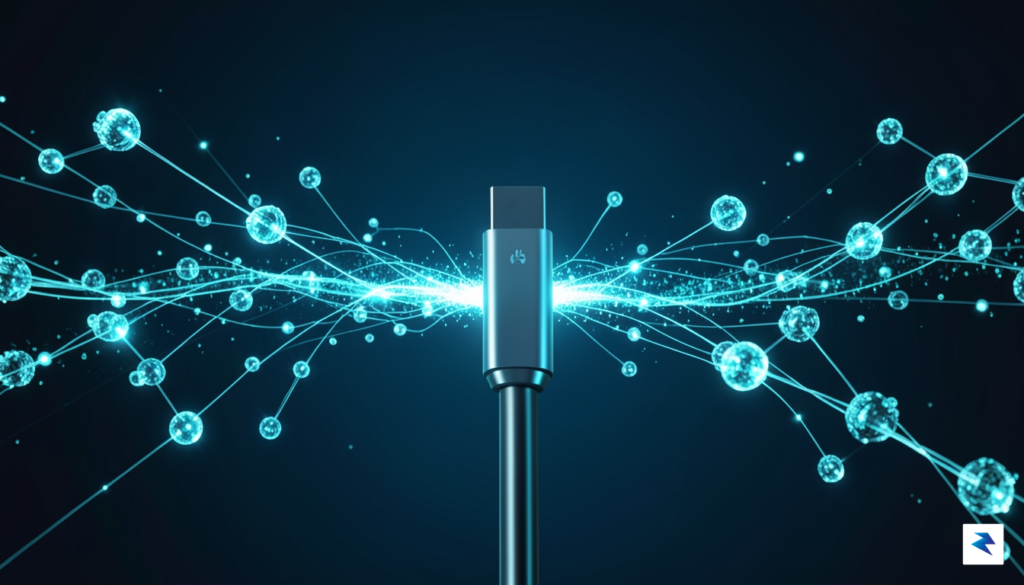
Thunderbolt 4 stands as a remarkable achievement in connectivity, promising a truly universal standard that consolidates power, data, and video transmission into a single, elegant USB-C port. This revolutionary approach eliminates clutter and offers unparalleled versatility, allowing users to connect a multitude of peripherals, external displays, and storage devices with a singular cable. However, this very sophistication, while providing immense benefits in terms of performance and expandability, also introduces intricate challenges, particularly when it comes to the seemingly simple act of reliably waking a system from sleep. The underlying architecture, designed for maximum flexibility and throughput, necessitates a complex interplay of protocols that can sometimes conflict with the desire for
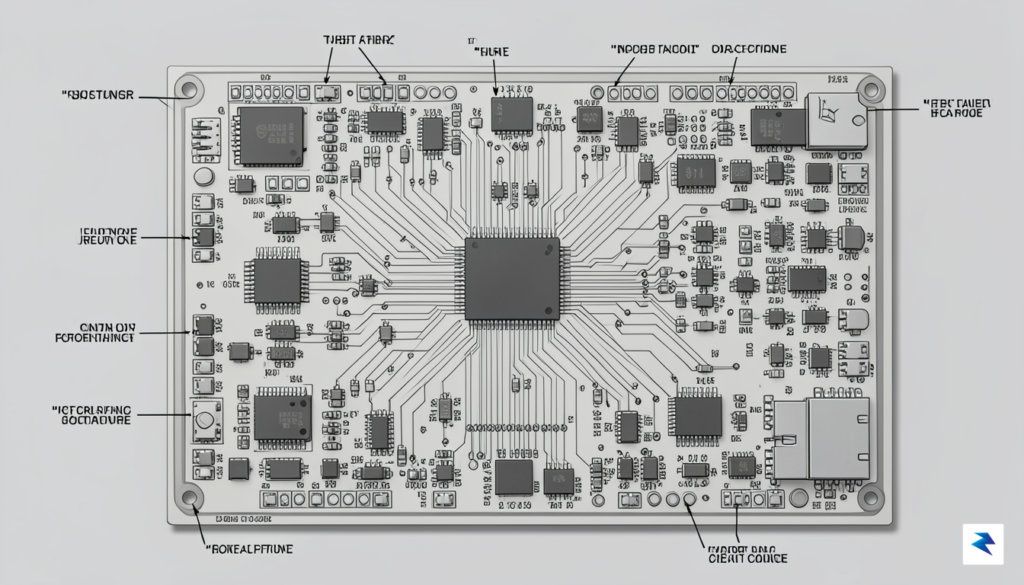
At the heart of every successful wake-from-sleep event lies a complex negotiation governed by the Advanced Configuration and Power Interface (ACPI). When you put your computer to sleep, it transitions into specific states—often referred to as S3 (suspend to RAM) or S0ix (modern standby)—where the system cuts power to non-essential components to preserve battery life. A docking station must exist in a paradoxical state during this time: it needs to be powered down enough to remain energy-efficient, yet remain sufficiently vigilant to monitor for a “wake” signal from a keyboard, mouse, or lid-open event. If the dock’s firmware fails to maintain this low-level “listening” mode, it essentially goes dark, causing the host machine to lose the connection entirely. Consequently, when the computer attempts to resume, it finds no response from the dock, resulting in the dreaded “no signal” error on your monitors or a failure to recognize peripheral devices.
The technical friction often stems from how the system handles interrupts and bus resets during the transition. When a computer wakes, it initiates a series of electrical handshakes to re-enumerate the devices connected to the PCIe bus. If the docking station’s controller is slow to initialize or fails to respond within the narrow timing window dictated by the OS, the host system assumes the device is non-existent or faulty. This is frequently exacerbated by the conflict between OS-level power management drivers and the onboard firmware of the dock’s USB-C or Thunderbolt controller. While your operating system may try to force a rapid power-up to ensure a snappy user experience, the dock’s hardware might require a longer, more deliberate initialization sequence to sync its video output and data lanes, leading to a synchronization mismatch that stalls the wake process.
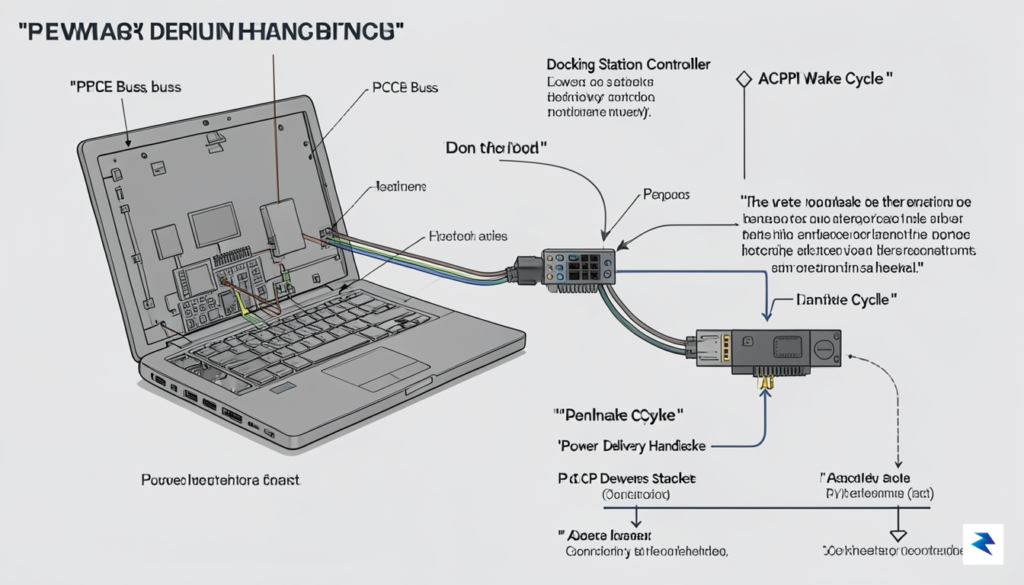
The failure to wake isn’t usually a broken cable; it is almost always a timing mismatch where the computer expects a device to be ready before the dock’s internal firmware has finished its power-on self-test.
Furthermore, the complexity of modern USB4 and Thunderbolt 4 protocols adds another layer of vulnerability. These standards allow for high-speed data, power delivery, and multiple 4K displays to coexist over a single cable, but they require constant communication between the host and the dock to manage bandwidth and power states. When the system enters a low-power state, the driver stack often aggressively suspends these controllers to save every millisecond of energy. If the wake trigger—such as a simple mouse movement—doesn’t propagate correctly through the Thunderbolt controller’s interrupt chain, the dock remains in a dormant state. Developers must carefully balance these power-saving mandates against the need for immediate responsiveness, and unfortunately, many manufacturers prioritize power efficiency over the “always-ready” reliability that power users demand.

Achieving a reliable wake-up sequence requires moving beyond the default configuration parameters provided by standard controller chipsets. At the heart of a truly responsive docking station lies the strategic use of non-volatile memory (NVM) to ensure that state retention remains intact even during deep power-saving cycles. By storing critical handshake protocols and device descriptors directly in persistent memory, developers can bypass the lengthy re-enumeration process that often causes the computer to “forget” the dock during the transition from sleep to active status. This architectural shift ensures that when the system issues a wake signal, the dock already holds the necessary configuration data, significantly reducing the latency between the peripheral being powered on and the host machine acknowledging the connection.
Modern computing environments present a difficult challenge due to the coexistence of traditional S3 sleep states and the newer, more aggressive Modern Standby (S0ix) protocols. A robust firmware solution must be capable of distinguishing between these states to manage power-state transitions without dropping the data link. If a dock firmware is not explicitly programmed to handle the nuances of Modern Standby, it may inadvertently enter a low-power mode that prevents it from listening for the specific “wake-on-USB” interrupt signal. Developers should implement custom state machines that prioritize these interrupt-handling routines, ensuring that the dock remains “awake enough” to respond to keyboard or mouse inputs while still adhering to strict power consumption regulations.
The most reliable docking experiences are built on firmware that treats the wake-up request not as an afterthought, but as the primary priority of the device’s logic controller.
Even with advanced state management, developers must vigilantly test for race conditions that occur during the chaotic milliseconds of a system wake-up. These conflicts often arise when the host computer attempts to initialize its USB controllers simultaneously with the dock attempting to re-establish its Thunderbolt tunnel. To solve this, engineers can implement a staggered initialization routine—a “firmware handshake”—where the dock holds its primary data line in a high-impedance state until it receives a secondary confirmation from the host’s BIOS or operating system. By introducing this micro-second delay, the dock avoids the common “device not recognized” error that plagues many off-the-shelf solutions. Rigorous testing with logic analyzers during these specific transition windows is the only way to ensure that these routines behave predictably across a wide variety of laptop hardware and driver versions.
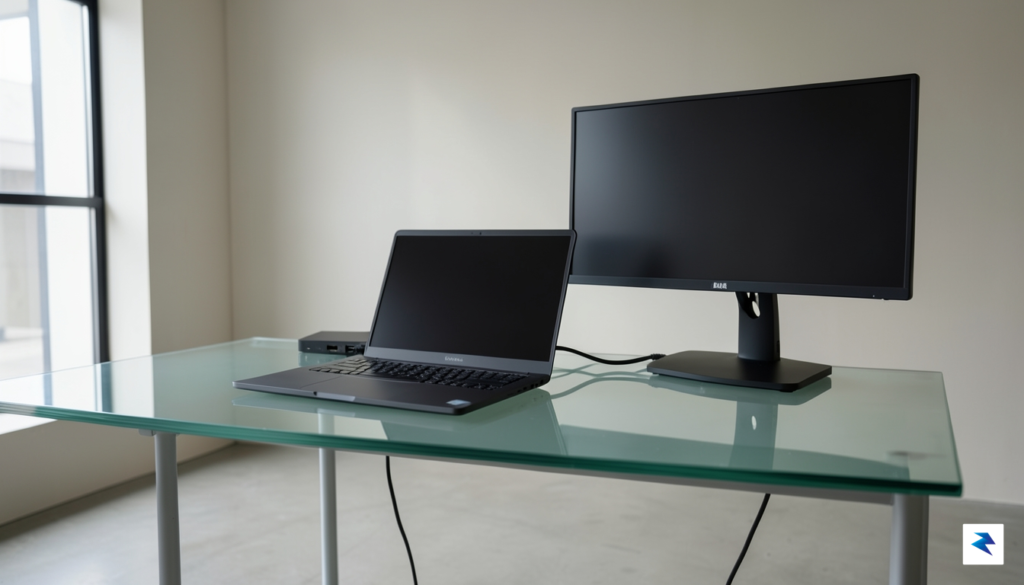
Achieving a workstation setup that wakes from sleep instantly is rarely about luck; it is about intentional hardware choreography. While firmware updates are the foundation of stability, the physical chain of components connecting your laptop to your peripherals often serves as the “weak link” that IT professionals frequently overlook. To build a truly resilient environment, you must move beyond a “plug-and-play” mindset and instead treat your workstation as a precision-engineered system where every cable and setting must be optimized for sustained performance.
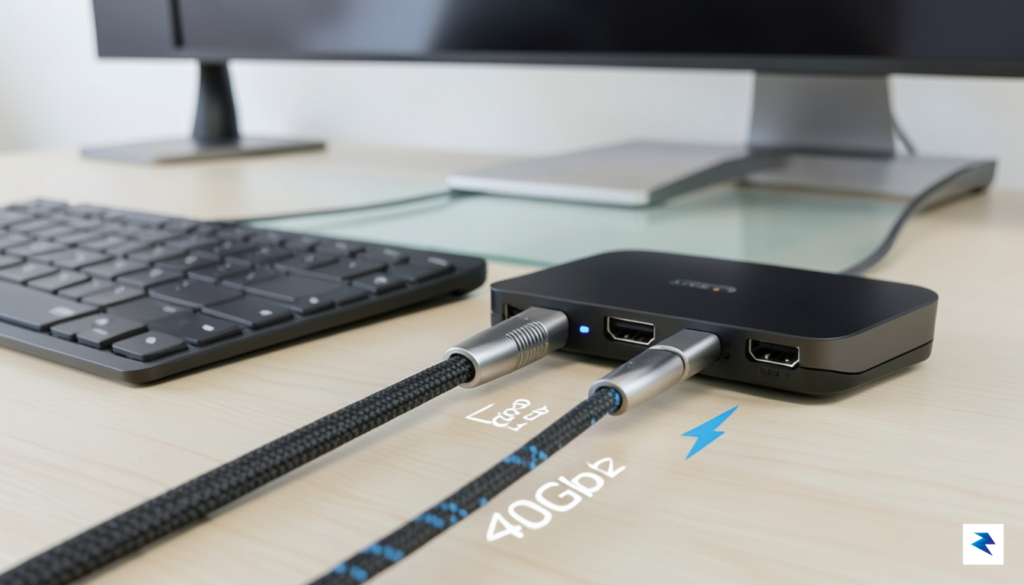
The most common culprit for intermittent wake-up failures is the quality of the cabling. Users are often tempted to repurpose older USB-C cables, but not all cables are created equal; a cable designed for charging a smartphone lacks the internal shielding and high-speed data lanes required for a reliable Thunderbolt 4 handshake. Always utilize the specific passive or active cable that was certified for your dock. Furthermore, avoid the temptation to daisy-chain through cheap, passive adapters or third-party extension hubs. These devices often introduce signal degradation, which can confuse the host computer’s power-management protocols, leading to the dreaded “black screen” when attempting to wake the system from a deep sleep state.
Reliability in a workstation environment is inversely proportional to the number of non-certified adapters in your signal path. Keep your connection chain short, direct, and fully certified.
Beyond the physical layer, your system’s BIOS or UEFI configuration acts as the conductor for power delivery. Many modern laptops come with aggressive power-saving settings that can inadvertently cut power to the Thunderbolt controller during sleep, making it impossible for the dock to trigger a wake event via a keyboard or mouse command. Navigate to your BIOS settings and ensure that “Thunderbolt Security Level” is set appropriately—often “User Authorization” or “No Security”—and verify that “Wake on Thunderbolt” or “USB Wake Support” is explicitly enabled. If these settings are disabled, the system will prioritize battery conservation over peripheral connectivity, effectively forcing you to manually open your laptop lid to wake the machine.
By systematically addressing both the physical cabling and the underlying power management logic, you transform a temperamental workstation into a seamless extension of your workflow. Consistency is the goal, and by eliminating cheap hardware and configuring the BIOS to recognize external peripherals as high-priority wake devices, you can finally achieve the reliable, instant-on experience that modern productivity demands.
You must be logged in to post a comment.