
How a 113M-Parameter AI is Revolutionizing Earthquake Detection
The Evolution of Domain-Specific AI Models The prevailing narrative in artificial intelligence often suggests that bigger is always better. We…
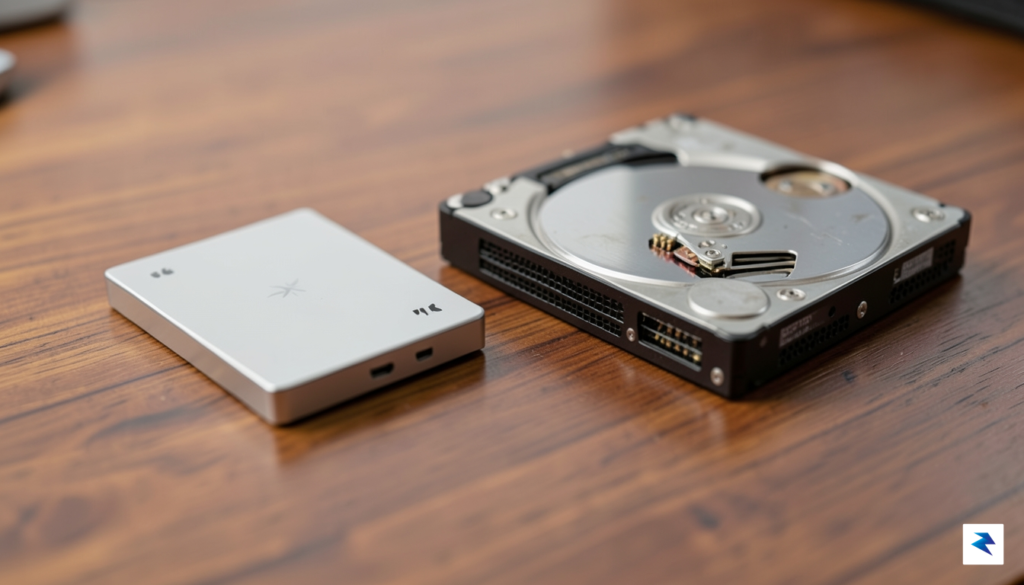
At the most fundamental level, the distinction between a Hard Disk Drive (HDD) and a Solid State Drive (SSD) comes down to movement. Traditional HDDs rely on spinning magnetic platters and a physical read/write head, an architecture that has remained largely unchanged for decades. Because the drive must physically locate data across the spinning disk, latency is an inherent limitation. In contrast, modern SSDs utilize NAND flash memory—essentially a vast grid of microscopic electronic cells—to store data. Without any moving parts to manipulate, SSDs can access information near-instantaneously, which fundamentally changes how your computer interacts with your files.
The performance gap between these two technologies has widened further with the advent of NVMe (Non-Volatile Memory Express) protocols. While older SSDs utilized the SATA interface—originally designed for the physical constraints of mechanical drives—NVMe bypasses these bottlenecks to communicate directly with your computer’s high-speed PCIe lanes. This results in transfer speeds that can be ten to twenty times faster than the best SATA-based drives, and exponentially faster than spinning HDDs. For a professional editor working with 8K raw video or a photographer scrubbing through a massive library of high-resolution images, this transition to NVMe technology is not just an upgrade; it is the difference between a seamless workflow and constant, frustrating software hangs.
The Golden Rule of Storage: Use SSDs for the work you are doing now, and HDDs for the files you only need later.
Deciding which medium to choose depends entirely on your specific workflow. If you are running an operating system, editing active video projects, or launching resource-heavy applications, an NVMe SSD is essentially mandatory in 2026. The snappiness of the user interface and the near-zero load times for massive assets provide a significant boost to daily productivity. However, HDDs still hold a distinct advantage when it comes to “cold storage.” If your goal is to maintain a massive library of archival backups, raw footage from years past, or a low-cost media server, the price-per-gigabyte of mechanical drives remains unbeatable. They provide a reliable, cost-effective way to store terabytes of data that do not require high-speed access.
Ultimately, your storage strategy should be tiered. By keeping your active, high-priority projects on a fast SSD and offloading completed work to a spacious, budget-friendly mechanical drive, you balance performance with long-term fiscal responsibility. Understanding this distinction prevents you from overspending on speed you don’t need for archival files, while ensuring you aren’t bottlenecked by outdated technology when it matters most.

When evaluating external storage for creative pursuits, it’s easy to get caught up in the headline “up to X MB/s” figures plastered on product boxes. However, for professionals dealing with massive video files, intricate photo libraries, or complex project assets, these peak numbers often tell only part of the story. Understanding the nuances of performance metrics is crucial because what looks fast on paper might falter under the sustained demands of a real-world creative workflow. A drive that boasts impressive burst speeds might buckle when faced with hours of continuous 4K video transfers, leading to frustration and lost productivity. Therefore, a deeper dive into how these drives actually perform under pressure is absolutely essential for making an informed decision.
At the heart of drive performance are two primary speed metrics: sequential and random read/write speeds. Sequential speeds measure how quickly the drive can read or write large, contiguous blocks of data, which is highly relevant for tasks like transferring a single massive video file, backing up an entire folder of RAW images, or exporting a finished project. This is where those high “MB/s” numbers typically come from. In contrast, random read/write speeds assess the drive’s ability to access and manipulate many small, scattered files across its storage area. This metric is far more critical for photographers managing extensive Lightroom catalogs, graphic designers working with numerous small assets within a complex project, or even video editors scrubbing through timelines with many short clips and effects, as these operations involve constantly reading and writing small pieces of data from various locations.
While peak sequential speeds are impressive, creative professionals, especially video editors, need to pay close attention to sustained write performance. Many SSDs can achieve incredibly high speeds for a short burst, but their performance often degrades significantly during prolonged, heavy writing tasks. This phenomenon, known as thermal throttling, occurs when the drive’s controller or NAND flash memory gets too hot, causing it to intentionally slow down to prevent damage. For a video editor ingesting hours of 8K footage or rendering a lengthy sequence to an external drive, a drive prone to thermal throttling can lead to frustratingly slow transfers, dropped
For photographers, videographers, and digital nomads who treat the great outdoors as their primary workspace, data integrity is not just a technical requirement—it is a livelihood necessity. Standard desktop-class hard drives are designed for climate-controlled environments where the biggest threat is a minor spill or a static charge; however, these devices fail rapidly when exposed to the grit of a desert hike or the humidity of a rainforest trek. When you are miles from the nearest recovery lab, your external storage must act as a fortress. This is where specialized ruggedized SSDs become an essential insurance policy for your raw footage, high-resolution RAW files, and irreplaceable personal memories.
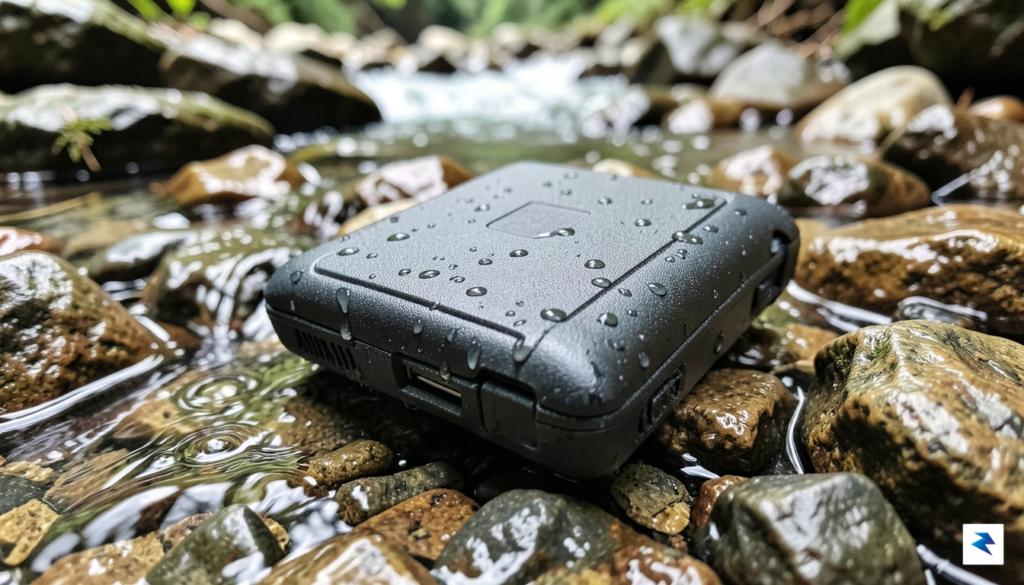
When shopping for a drive built for adventure, you will frequently encounter technical jargon that can be difficult to parse. The most important metric to look for is the Ingress Protection (IP) rating, which is typically presented as two digits following the “IP” prefix. The first digit represents protection against solid particles—like dust, sand, and fine grit—while the second digit indicates the level of liquid protection. A rating of IP67, for instance, means the device is completely dust-tight and can withstand immersion in water up to one meter deep for thirty minutes. For those working in coastal environments or dusty trail settings, these ratings provide a quantifiable guarantee that the internal hardware will not be compromised by the elements.
Beyond weatherproofing, structural integrity is paramount. Modern ruggedized drives utilize advanced shock-absorption materials, such as high-density silicone bumpers and internal suspension systems, to isolate the delicate NAND flash memory from kinetic impact. It is important to distinguish between “ruggedized” marketing jargon and genuine military-grade certifications, such as MIL-STD-810H. While a brand might claim a drive is “durable,” a product that has undergone rigorous drop-testing from six to ten feet onto concrete surfaces offers a far more reliable safety margin. These drives often feature reinforced chassis designs that distribute impact force away from the connector ports, which are usually the most common failure points in mobile storage.
True field durability is about more than just a thick shell; it is about the integration of shock-absorbing internal mounts and sealed interfaces that prevent microscopic debris from reaching the circuit board.
Ultimately, investing in a drive that prioritizes physical protection saves you from the catastrophic cost of professional data recovery. When you are balancing a camera on a tripod in high winds or rushing to pack your gear during a sudden downpour, you need the peace of mind that comes with knowing your backup solution is as resilient as your camera body. By prioritizing SSDs with high IP ratings and verified drop-test credentials, you ensure that your creative output remains safe, regardless of how challenging your environment becomes.
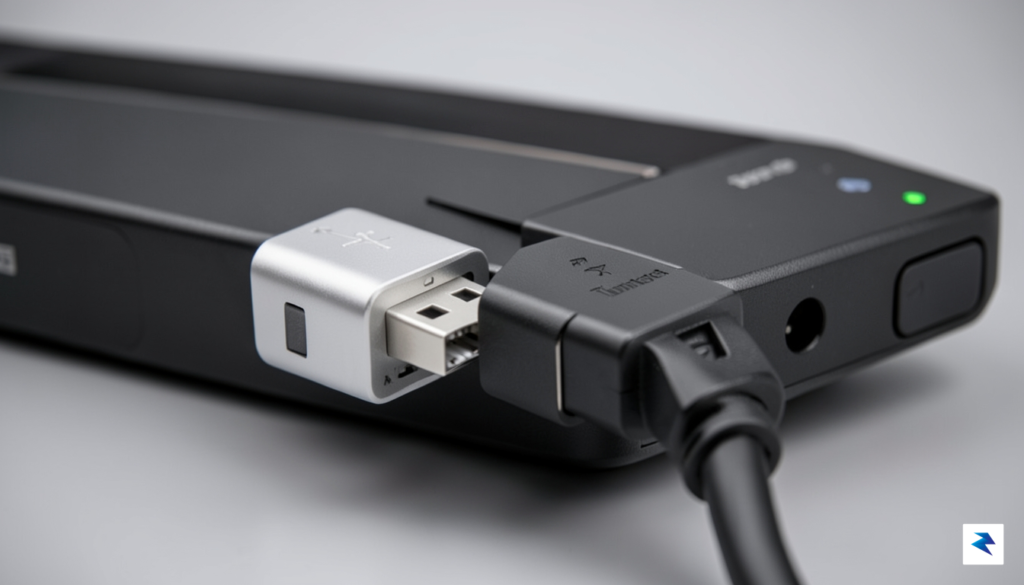
The most common point of frustration for modern tech users is the realization that the USB-C port is merely a physical shape, not a performance guarantee. While a cable might click perfectly into your laptop, that does not mean it is speaking the same language as your drive. Think of the USB-C connector as the road, while the protocol—such as USB 3.2 or Thunderbolt—is the speed limit and the vehicle driving on it. If you plug a high-performance Thunderbolt 4 drive into a standard USB 3.0 port, you are essentially trying to drive a Ferrari through a school zone; the connection will work, but you will be bottlenecked by the port’s limited bandwidth.
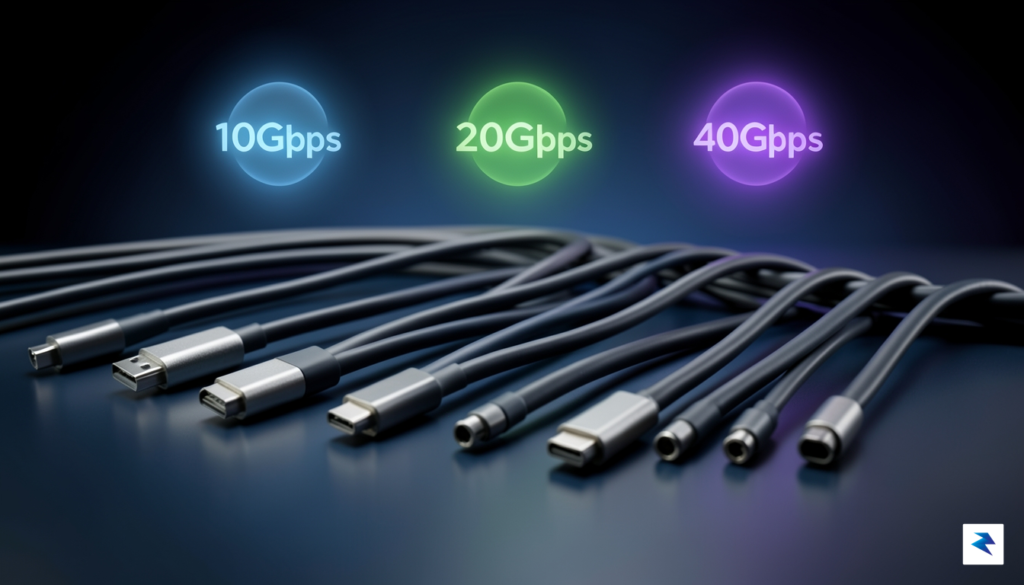
To understand the actual speed of your external storage, you must look at the generation and protocol labels. A drive labeled as USB 3.2 Gen 2×2 can reach speeds of up to 20Gbps, provided your computer’s port supports that specific standard. However, many laptops only support USB 3.2 Gen 2 (10Gbps), effectively cutting your potential speed in half. If you are a professional videographer or a data-heavy user, you should prioritize drives supporting Thunderbolt 4 or USB4. These protocols offer a massive 40Gbps bandwidth, which is essential for editing 4K or 8K video directly from an external drive without experiencing lag or stuttering.
Key Takeaway: Always verify that both your host device (computer) and your external drive support the same protocol version. A drive is only as fast as the slowest link in the connection chain.
Navigating the divide between Windows and macOS environments requires a bit of foresight. While Thunderbolt 4 is remarkably consistent across modern Mac hardware, Windows machines can be hit-or-miss depending on the manufacturer’s implementation of the port. macOS users generally benefit from a “plug-and-play” experience with Thunderbolt peripherals, which offer the unique advantage of daisy-chaining. This allows you to connect multiple devices—such as a monitor, an external SSD, and a docking station—in a single series, simplifying your workspace cable management significantly.
If you are a Windows user, keep a close eye on your laptop’s specifications sheet to see if the USB-C ports are “Thunderbolt-certified” or simply standard data ports. Standard USB-C ports may lack the power delivery or the specialized data lanes required to run high-end drives at full capacity. Before committing to a premium, high-speed drive, ensure your primary machine is capable of handling the bandwidth, or you might find yourself paying for speed that your computer simply cannot unlock.
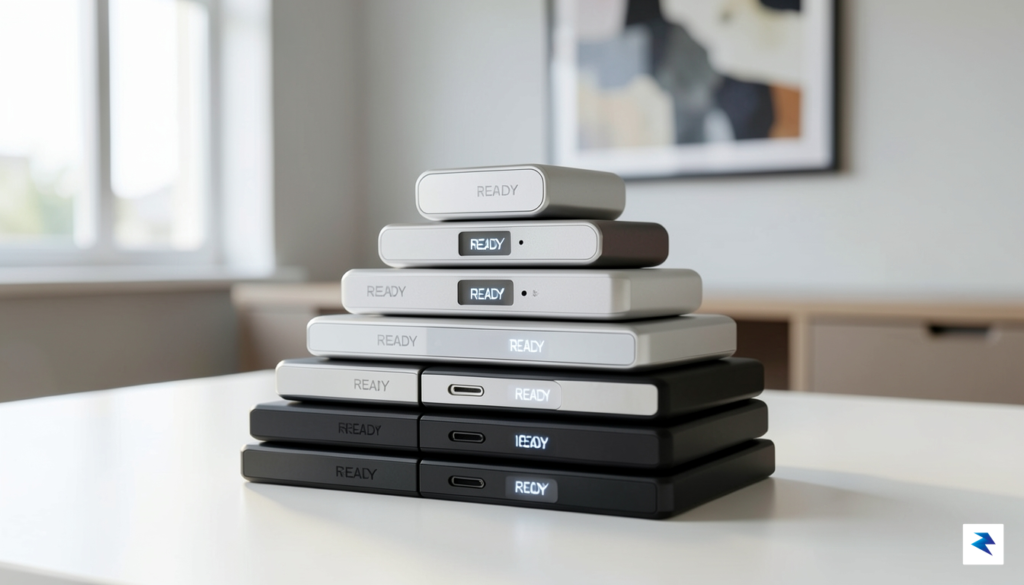
When selecting an external drive in 2026, the temptation to simply purchase the largest capacity available can often lead to inefficient spending. Instead, identifying your personal “sweet spot” is essential for balancing budget and utility. For most casual users and content creators, the 2TB tier currently represents the best value-per-gigabyte, offering enough overhead for high-resolution video projects or massive photo libraries without the premium price tag associated with 4TB or 8TB models. If your workflow involves 4K or 8K video editing, jumping to 4TB is advisable to avoid the performance degradation that occurs when an SSD reaches 85% capacity, a state where the controller struggles to manage data blocks effectively.
Beyond raw capacity, understanding the longevity of your storage is vital. Every flash-based drive is rated for a specific amount of Terabytes Written (TBW), which measures the total volume of data that can be written to the drive before the NAND flash memory cells begin to wear out. While modern drives are incredibly durable, power users who constantly overwrite files—such as those using an external drive as a dedicated scratch disk for video rendering—will hit this limit much faster than those using the drive for occasional backups. Checking the manufacturer’s TBW rating is a proactive way to gauge whether a specific drive is engineered for your intensity of use, ensuring your investment doesn’t fail prematurely.
Pro-Tip: Always treat your storage as a tiered system rather than a single bucket. By separating your data into active, semi-active, and cold storage, you minimize unnecessary wear on your high-speed SSDs while keeping your digital life organized.
To manage your digital footprint effectively in 2026, implement a tiered storage strategy that maximizes both speed and safety. First, dedicate a high-speed, high-endurance 1TB or 2TB SSD as your scratch disk, where active projects live during the editing process; this drive will experience the highest TBW stress. Second, utilize a secondary, larger capacity drive for active working files that you frequently access but don’t need to manipulate daily. Finally, for long-term preservation, rely on an offline archive—such as a high-capacity HDD or a secondary SSD kept in a climate-controlled environment—that remains disconnected from your system when not in use. By segmenting your data, you extend the lifespan of your hardware and ensure that a failure in one area does not compromise your entire digital library.
You must be logged in to post a comment.