
What Is Wi-Fi 8? Everything You Need to Know About the Next Wireless Standard
What Is Wi-Fi 8? Understanding the Next Leap in Connectivity Wi-Fi 8, officially designated by the IEEE as 802.11bn, marks the latest…

The transition of Apple’s software development cycle from an exclusive developer-only phase to a public beta program represents a significant shift in how the company approaches innovation. By opening the gates for iOS 27, Apple invites a diverse range of users to stress-test new functionalities across a vast array of hardware configurations, far beyond what internal laboratory testing can simulate. This collaborative approach allows the company to identify edge-case bugs, performance bottlenecks, and user interface inconsistencies before the final version reaches millions of devices worldwide this fall. For enthusiasts, this is more than just a chance to see new features early; it is an opportunity to actively influence the trajectory of the operating system by providing actionable data that directly informs the final polish of the software.
Participating in the Apple Beta Software Program is a straightforward process, though it requires a commitment to stability and a willingness to troubleshoot potential issues. To begin, users must visit the official Apple Beta Software Program portal and enroll their compatible device using their primary Apple ID. Once registered, you will be prompted to download and install a configuration profile, which seamlessly bridges your device to Apple’s beta update servers. After a quick restart, the latest beta build will appear in your standard Software Update settings, just like a regular iOS release. However, it is essential to remember that beta software is inherently experimental; therefore, backing up your data via iCloud or a local computer before initiation is a non-negotiable step to prevent any potential data loss.
While the allure of testing cutting-edge features is strong, the primary value of the public beta program lies in the collective feedback loop that ensures the final release is as stable and reliable as possible.
Beyond the excitement of early access, the core philosophy behind this program is the refinement of software stability through real-world usage. When users encounter a crash, an app incompatibility, or an unexpected battery drain, the integrated Feedback Assistant app becomes a critical tool for communication with Apple’s engineering teams. By submitting detailed reports, including screen recordings and logs, participants help bridge the gap between theoretical code and practical daily application. This symbiotic relationship ensures that by the time the official autumn rollout occurs, the software has been hardened against the complexities of real-world environments, resulting in a more refined experience for everyone, regardless of whether they choose to participate in the beta testing phase themselves.
The most transformative change arriving in this release is undoubtedly the long-awaited overhaul of Siri, which finally transitions from a rigid, command-based assistant into a sophisticated, generative AI powerhouse. For years, users have contended with an interface that often required specific syntax to perform even the most basic tasks; however, this latest iteration leverages advanced large language models to understand natural, conversational nuance. By moving away from static keyword triggers, the assistant can now interpret intent, allowing you to speak more like a human and less like a search engine. This shift represents a fundamental architectural change that prioritizes context-awareness over simple query-response loops, making the assistant feel less like a tool and more like an extension of your own thought process.
Currently, the integration is intentionally “brief but functional,” focusing on high-impact reliability rather than overwhelming the user with experimental features. While it may not yet handle every niche request with absolute perfection, the underlying intelligence is clearly visible in how it maintains state across multi-turn conversations. If you ask a follow-up question about a previous topic, the system retains that context seamlessly, eliminating the need for redundant phrasing. This refined approach ensures that the assistant remains useful for daily operations—such as scheduling, summarizing communications, and managing device settings—without stumbling over the “hallucination” problems often associated with generative AI.
The true value of this update lies not in the complexity of the AI, but in its ability to reduce the cognitive load of cross-app task execution.
Perhaps the most significant benefit for power users is the newfound capability for cross-app task orchestration. Previously, moving data or performing an action that spanned multiple applications often required manual navigation and fragmented inputs. Now, the AI acts as a connective tissue, allowing you to issue a single request that triggers a sequence of operations across your ecosystem. For instance, you can ask the assistant to pull data from an email, format it into a note, and share it with a contact, all without ever leaving your current screen. By reducing this friction, the software effectively removes the barriers between siloed applications, creating a unified workflow that feels markedly more intuitive than previous versions of the operating system.
As the public beta progresses, this intelligent layer will continue to evolve, learning from real-world usage patterns to become more proactive rather than merely reactive. While the current build serves as a foundational milestone, it signals a permanent departure from the predictable, scripted responses of the past. For those who have grown tired of repeating themselves to their devices, this update offers a glimpse into a future where your phone finally understands exactly what you need, when you need it.
Beyond the headline-grabbing intelligence updates, iOS 27 introduces a refined layer of system-wide improvements that fundamentally reshape how you interact with your device on a daily basis. Apple has shifted its focus toward granular control, allowing users to tailor their environment with unprecedented precision. The most immediate change is found in the updated notification management system, which now employs a sophisticated priority-based sorting engine. Instead of a chronological wall of alerts, the OS dynamically surfaces information that aligns with your current focus mode, effectively muting non-essential pings while ensuring that time-sensitive communication remains front and center. This shift from passive delivery to active curation represents a significant leap forward in reducing digital fatigue.
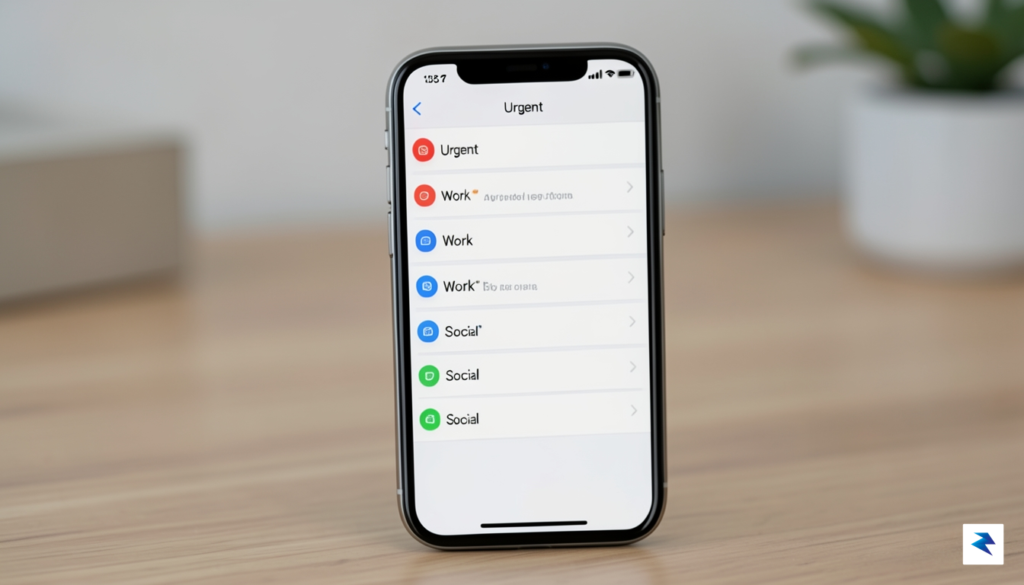
Privacy remains a cornerstone of the iOS experience, and this version takes that commitment a step further with the introduction of “Adaptive Permissions.” In previous iterations, granting app access often felt like an all-or-nothing proposition; however, iOS 27 allows for temporary, task-specific authorization. For instance, if a photo editing app requests access to your library, you can now grant permission for a single session or a specific folder rather than the entire collection. This granular approach not only bolsters your data security but also provides peace of mind when navigating the vast ecosystem of third-party applications. These under-the-hood adjustments are complemented by a new privacy dashboard that provides a real-time visualization of how often applications ping your location or sensor data throughout the day.
Visual consistency and UI responsiveness have been polished to provide a more cohesive feel across the entire operating system. Apple has overhauled the custom UI components, introducing new widget interactivity that allows users to toggle smart home devices, play media, or mark tasks as complete without ever needing to open a full-screen application. These interactive widgets are designed with a focus on high-frequency actions, significantly reducing the number of taps required to complete repetitive tasks. Furthermore, the system animations have been recalibrated to be smoother and more responsive, creating a noticeable difference in how quickly the device feels when switching between heavy applications or navigating the home screen.
The true power of iOS 27 lies in its ability to fade into the background, letting you manage your digital life with fewer interruptions and more intuitive touchpoints.
When comparing this release to its predecessors, the efficiency gains are tangible. The integration of advanced background processing means that your phone handles intensive tasks—like syncing media or updating indices—during periods of low usage, resulting in a device that feels perpetually fast. By prioritizing user autonomy through better notification filtering and refined privacy controls, Apple has successfully minimized the friction typically associated with complex smartphone management, ultimately creating a more personal and streamlined user experience.
Before you rush to experience the latest innovations in the upcoming operating system, it is vital to approach the installation with a measured dose of caution. Beta software represents a work-in-progress, which means it inherently lacks the final polish and stability of a public release. Users should anticipate encountering unexpected bugs, occasional system crashes, and localized performance issues that can disrupt your daily workflow. Furthermore, early builds are notorious for accelerated battery drain as background processes index data and developers optimize code, which might leave your device struggling to make it through a full day of typical usage.
Beyond simple performance hiccups, there is always a non-zero risk of data corruption or total software instability. Because these builds are designed for testing purposes, they may interact poorly with third-party applications that have not yet been updated for the new environment. Consequently, you might find that your banking apps, productivity suites, or essential communication tools stop functioning entirely. For these reasons, never install a public beta on a primary, mission-critical device that you rely on for work, school, or emergency contact. If you depend on your iPhone for daily tasks, the potential for downtime is simply too great to justify the early access to new features.
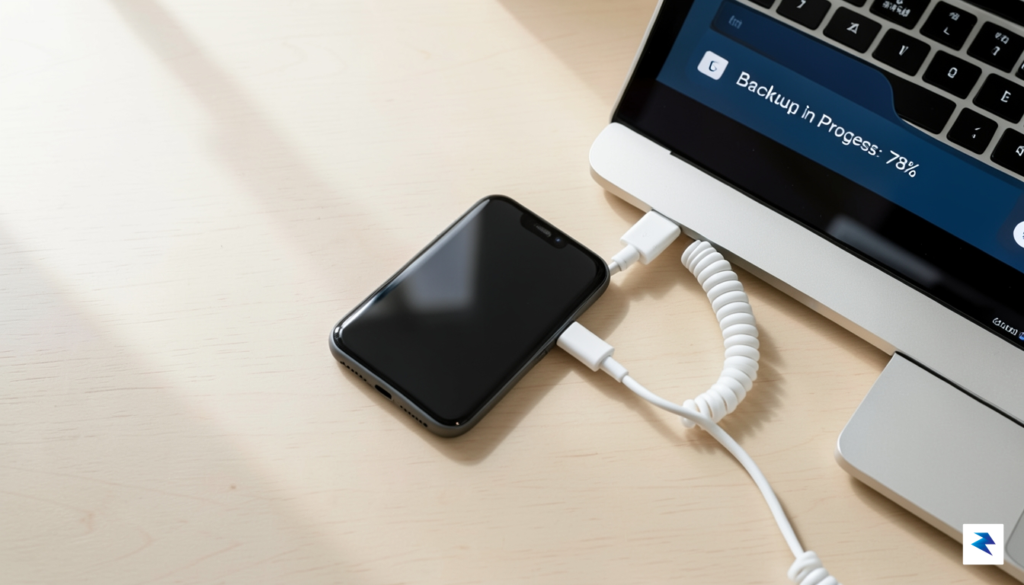
Before you proceed, remember that beta software is experimental. A comprehensive backup is not merely a recommendation; it is an absolute necessity to protect your personal data from irreversible loss.
If you have decided to move forward with the installation on a secondary device, you must prioritize preparation to mitigate any potential issues. First and foremost, perform a full, encrypted backup of your device using either iCloud or a wired connection via Finder on macOS (or iTunes on Windows). An encrypted backup is superior because it ensures that all your health data, saved passwords, and Wi-Fi settings are preserved, allowing you to restore your device to its previous state should the beta prove too unstable for your needs.
After your backup is secure, verify that your hardware is compatible with the latest build and ensure you have sufficient storage space available. The installation process requires extra overhead for unpacking files, and a device nearing its storage limit is significantly more prone to system errors during the update cycle. Finally, take a moment to review the release notes provided by Apple once the update is available. Understanding which specific features are currently “known to be broken” can save you hours of frustration spent troubleshooting behaviors that are simply inherent to the current stage of development.
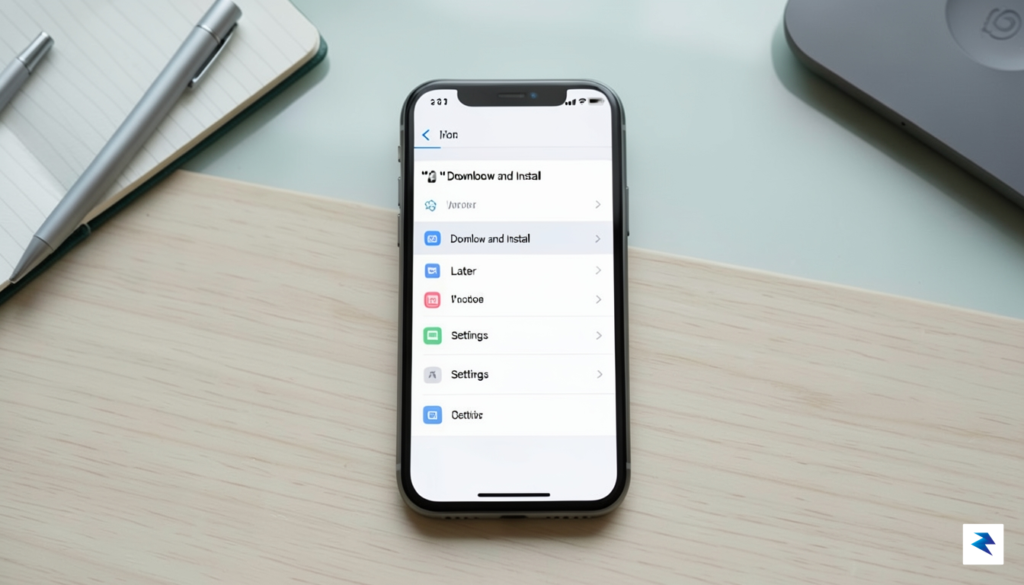
Before you begin the installation process, ensure your device is fully charged and connected to a stable, high-speed Wi-Fi network. The transition to a beta operating system is a significant software event, and an interrupted connection or a dying battery could potentially lead to data corruption or a “bricked” device. Once you have backed up your current data to iCloud or a local computer, navigate to the Settings app on your iPhone. From there, select General and tap on Software Update. You will notice a new menu option labeled Beta Updates; tapping this will allow you to select the “iOS 27 Public Beta” profile associated with your Apple ID. Once selected, head back to the main Software Update screen, where the system will check for the latest available build. If it appears, simply tap Download and Install to begin the process.
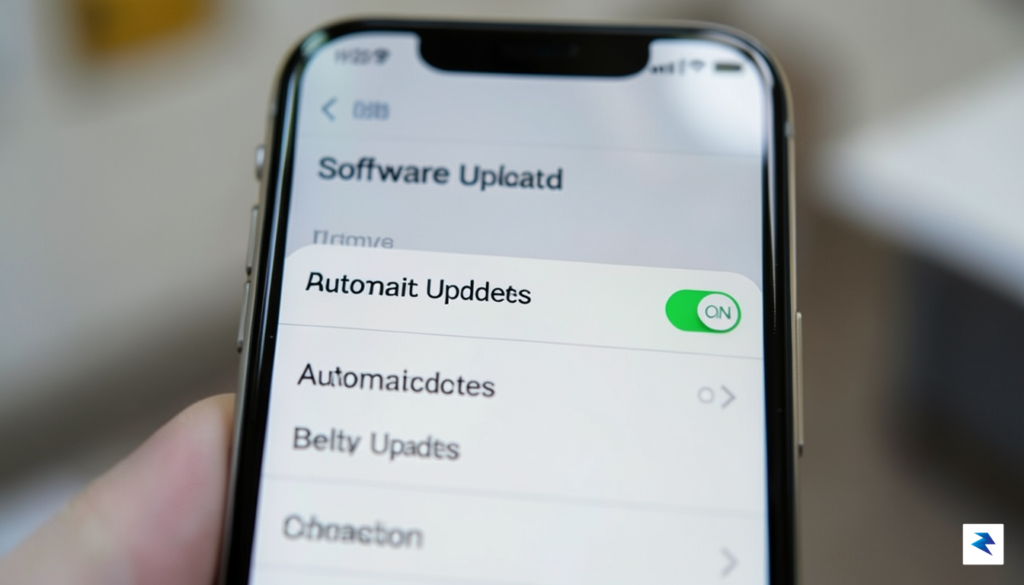
The installation may take longer than a standard point release, as the system needs to reorganize its core architecture to accommodate new testing features. You should anticipate your phone restarting several times during this phase; this is perfectly normal and indicates that the installation scripts are executing correctly. If the progress bar appears to stall for an extended period, try to remain patient, as the device is likely performing background optimizations. However, if the device remains unresponsive for more than an hour, you may need to force a restart by quickly pressing and releasing the volume up button, then the volume down button, and finally holding the side power button until the Apple logo reappears.
Remember: Beta software is experimental by nature. Always keep your primary device on the stable release if you rely on it for critical daily tasks or work-related communication.
Occasionally, users may encounter errors such as “Unable to Check for Update” or “Installation Failed.” These hiccups are frequently caused by overloaded Apple servers during the initial launch phase of a new beta. If you encounter these errors, the most effective solution is to wait a few minutes and try again, or toggle your Wi-Fi connection off and on to refresh your network handshake. If the update fails repeatedly, verify that your device has sufficient storage space—typically at least 10GB—as the installation package requires significant overhead to unpack and install. Should the issue persist, navigate back to your Beta Updates menu, toggle it to “Off,” restart your device, and then re-enable it to force the system to re-fetch the update manifest.
By following these steps meticulously, you minimize the risk of technical friction and ensure a smoother transition into the testing environment. While the allure of testing new features is strong, always treat the installation as a manual, careful process rather than a rushed update. Once the installation is complete, your device will welcome you with the standard “Hello” setup screen, and you will be ready to explore the latest advancements in artificial intelligence and interface design that iOS 27 has to offer.
You must be logged in to post a comment.