
OpenAI’s Next Frontier: Why a Screenless Smart Speaker Could Change Everything
The Evolution of Conversational AI: Beyond the Desktop Artificial Intelligence, once a concept confined to science fiction and later, the…

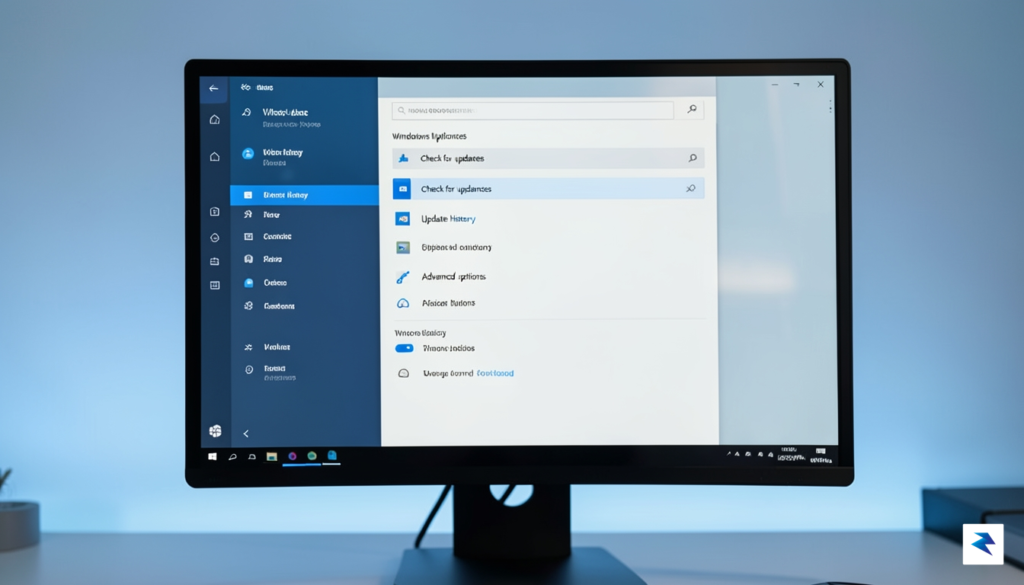
For years, Windows users have navigated a landscape defined by aggressive, often intrusive update schedules that frequently interrupted workflows at the most inconvenient times. Microsoft’s recent pivot in Windows 11 signals a fundamental shift in philosophy, moving away from the “forced update” paradigm toward a model that prioritizes user agency. By integrating more granular controls directly into the Windows Update settings, the operating system now empowers individuals to dictate the rhythm of their software maintenance. This change is particularly significant for professionals and power users who need their machines to remain in a stable, predictable state for extended periods without the fear of an unexpected restart or configuration change occurring during critical tasks.
The core of this new functionality centers on the ability to pause updates for up to 35 days, a feature that provides a substantial window of operational stability. Unlike previous iterations where users felt they were fighting against the operating system, this mechanism acts as a formal “snooze” button. When you activate this feature, Windows will refrain from downloading or installing non-essential updates, ensuring that your system environment remains static. It is important to clarify, however, that this is not an indefinite halt; it is a strategic pause. Once the 35-day period concludes, the system will require you to install all pending updates before you can engage the pause feature again. This ensures that while you have the power to defer maintenance, you cannot permanently bypass critical security patches that keep your hardware safe from emerging threats.
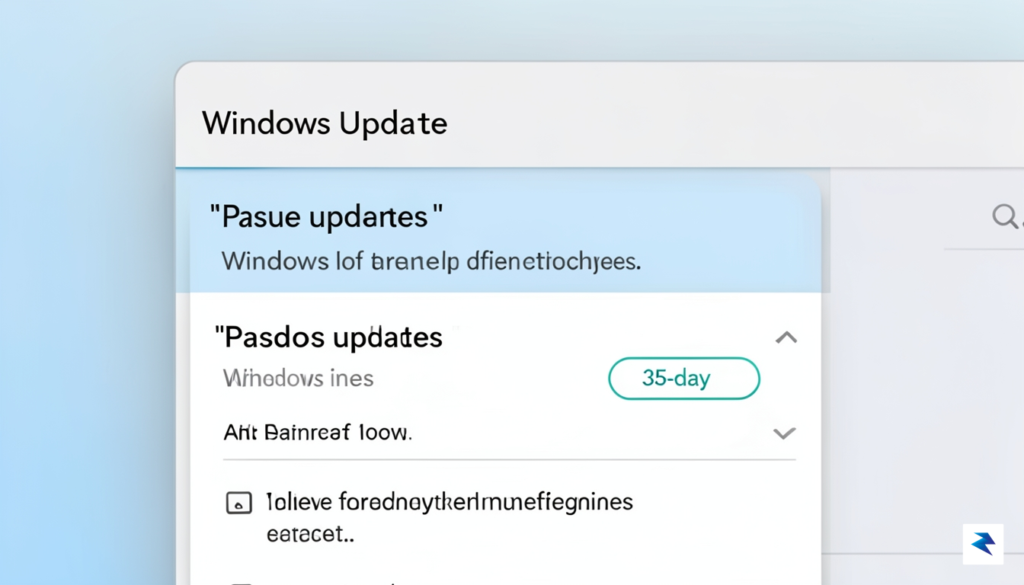
This shift represents a necessary acknowledgment from Microsoft that the “one-size-fits-all” approach to software management is largely incompatible with the modern, diverse needs of Windows users. Whether you are managing a complex creative project, running specialized software, or simply prefer to vet updates for compatibility before widespread deployment, these controls offer much-needed breathing room. By allowing users to choose the timing of these updates, Microsoft reduces the friction that often leads to frustration, fostering a more positive relationship between the user and their operating system.
The 35-day pause window serves as a middle ground between total system stagnation and forced, unpredictable downtime, offering a practical solution for maintaining long-term stability.
Ultimately, this update is about balance. It recognizes that while security is paramount, the user’s productivity should not be held hostage by a rigid update schedule. By providing these tools, Microsoft is encouraging users to take a more active role in their system’s lifecycle. It is a proactive approach to management, allowing you to choose a convenient time—perhaps over a weekend or during a break—to perform system maintenance, rather than having that time dictated by a background process. As you explore these settings, you will find that managing your digital workspace has never felt more personalized or under your command.
For over two decades, the term “Patch Tuesday” has been synonymous with a specific kind of digital anxiety for Windows users. Since Microsoft formalized its monthly update schedule in 2003, the second Tuesday of every month has served as a critical pillar of the company’s security strategy. By consolidating vulnerabilities, bug fixes, and feature enhancements into a single, predictable release window, Microsoft aimed to provide IT administrators and home users alike with a consistent timeline for maintenance. However, this “security-first” philosophy often prioritized the integrity of the operating system over the immediate workflow needs of the individual, leading to a long history of friction between the software giant and its global user base.
The primary pain points of this rigid structure have become legendary in the tech community. For years, users have dealt with the persistent frustration of unexpected reboots, software incompatibilities, and driver conflicts that occasionally rendered peripheral hardware useless immediately following an update. The notorious “forced restart” during critical moments—such as a high-stakes presentation or a long-running creative render—became a hallmark of the Windows experience. While these updates were undeniably necessary to patch zero-day exploits and maintain system stability, the lack of granular control often left users feeling like guests on their own machines rather than the administrators of their personal computing environments.

With this latest adjustment to Windows 11, Microsoft is signaling a definitive shift toward a more user-centric approach to patch management. By allowing users to pause updates for up to 35 days, the operating system finally acknowledges that “security-first” does not have to mean “disruption-first.” This extended window offers a significant buffer, granting professionals and casual users the autonomy to schedule system maintenance when it is convenient for them, rather than when the calendar dictates. It effectively resolves the fear of mid-work interruptions, providing the breathing room necessary to ensure that third-party software and critical drivers are compatible before applying changes to the OS environment.
The core of this evolution lies in the transition from a one-size-fits-all enforcement policy to a model that respects the diverse and often unpredictable nature of modern digital workflows.
This policy change is more than just a minor settings tweak; it represents a fundamental recalibration of the power dynamic between the platform provider and the end user. By granting this newfound flexibility, Microsoft is effectively building a bridge between the absolute necessity of robust system security and the practical realities of daily productivity. While security remains the bedrock of the Windows ecosystem, the inclusion of a 35-day deferral period ensures that users no longer have to sacrifice their immediate operational continuity for the sake of long-term system health. It is a welcome evolution that brings the Windows update experience into better alignment with the needs of contemporary, high-performance computing.

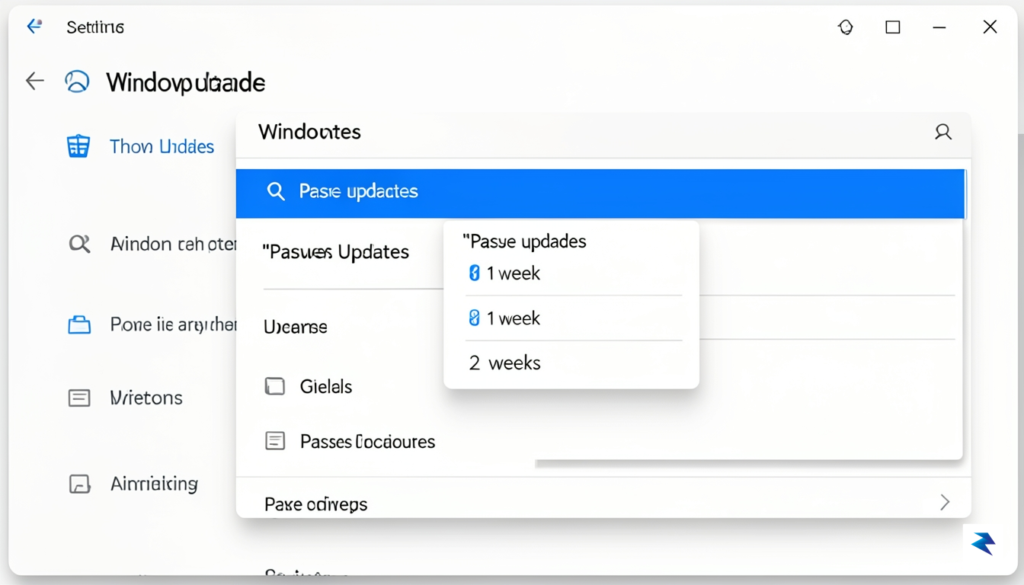
Taking control of your Windows 11 update schedule is a straightforward process, but it requires a balanced approach to ensure your system remains both stable and secure. To begin customizing your update timeline, navigate to the Settings menu by pressing Windows Key + I or by locating it in your Start menu. Once inside, select the Windows Update tab from the left-hand sidebar. Here, you will find the Pause updates option, which typically allows you to halt the automatic download and installation process for a set duration, ranging from one week up to a maximum of five weeks.
When you click the dropdown menu next to the pause button, you can select the specific number of days that fits your workflow. This feature is particularly useful if you are in the middle of a critical project and want to avoid an unexpected reboot or a potential conflict caused by a new background process. However, it is essential to remember that while this pause grants you temporary peace of mind, your device will remain vulnerable to emerging threats if you leave it unpatched for too long. You should treat this as a short-term buffer rather than a permanent solution to system maintenance.
If you find that your situation changes or a critical security bulletin is released by Microsoft, you do not have to wait for the pause duration to expire. You can easily resume updates at any time by returning to the same Windows Update settings page and clicking the Resume updates button. This action will immediately trigger a check for the latest patches, ensuring that your system is brought up to speed with the most current security definitions and feature improvements without further delay.
Important: While pausing updates is a convenient tool for productivity, always remember that delayed security patches can leave your system exposed to known exploits. Make it a habit to check for updates manually at least once every two weeks if you choose to utilize the maximum 35-day pause limit.
Should you decide to perform a manual update before your scheduled window, simply click the Check for updates button on the main Windows Update screen. This will bypass your current pause status and force the operating system to scan the Microsoft servers for any pending installations. By adopting this disciplined approach, you can effectively manage your computer’s performance without sacrificing the long-term safety and integrity of your data.

While the newfound ability to defer Windows 11 updates for up to 35 days offers a much-needed reprieve from the constant cycle of system restarts, it is essential to recognize that this convenience comes with significant security implications. In the modern threat landscape, a month is an eternity; cybercriminals often reverse-engineer security patches within hours of their release to identify the vulnerabilities they address. By intentionally leaving your system unpatched, you effectively leave a window of opportunity open for automated ransomware scripts and sophisticated malware to exploit known security gaps that Microsoft has already worked to close.
The danger of lingering on an outdated version of Windows 11 is particularly acute when dealing with “Zero-Day” vulnerabilities—flaws that are actively being exploited in the wild before a fix is widely available. When Microsoft issues an emergency “out-of-band” patch or a critical security bulletin regarding an active exploit, deferring that update is akin to leaving your front door unlocked after being warned of a local crime spree. While the temptation to prioritize a smooth, uninterrupted workflow during a deadline-heavy project is understandable, the potential cost of a system-wide ransomware infection far outweighs the minor inconvenience of a quick reboot.
To maintain a secure balance, consider the 35-day deferral as a “pause button” for convenience, not a permanent exemption from security hygiene. If your system contains sensitive personal data, financial information, or is part of a high-risk network, prioritize security over total control.

To navigate this trade-off effectively, you should adopt a flexible framework for managing your update schedule. Use the pause feature strategically during periods of intense productivity, such as when you are in the middle of a business-critical project or a high-stakes creative endeavor where a sudden system restart could result in lost progress. However, you must pair this strategy with a strict “catch-up” policy: the moment your critical project concludes, or as soon as you see reports of a high-severity vulnerability being actively exploited, you should immediately resume updates.
Ultimately, the goal is to practice proactive, rather than reactive, maintenance. By staying informed about the nature of the updates you are delaying, you can make an educated decision about whether the risk is acceptable for your current usage scenario. Remember that security is not a “set it and forget it” task, but a continuous process that requires you to weigh the immediate needs of your workflow against the long-term integrity of your system.

Effective system maintenance requires moving away from a reactive approach—where you are forced to deal with updates at inconvenient moments—toward a proactive, scheduled workflow. The most reliable way to maintain a healthy operating system is to establish a recurring “Maintenance Sunday.” By designating a specific time each week to manually check for pending updates, you ensure that your system remains secure without the risk of an unexpected restart during a critical project. During this window, you can review what is being installed, read through brief release notes, and clear your schedule to allow the machine the uninterrupted time it needs to finalize changes properly.
Before you commit to installing major feature updates or cumulative patches, it is imperative to secure your digital footprint. Even with modern safeguards, software conflicts can occasionally lead to data loss or system instability, making a comprehensive backup strategy your most valuable insurance policy. Whether you prefer using cloud synchronization services, an external drive with File History, or a full system image backup, you should verify that your critical files are safely copied elsewhere before beginning the update process. By creating a restore point or a full backup, you ensure that you have a “safety net” should an update fail to perform as expected.
Once you have established your maintenance schedule, you must leverage the built-in Windows 11 tools to exert granular control over your environment. The “Active Hours” setting is an essential feature that tells the operating system exactly when you are using your computer, effectively preventing the machine from forcing a reboot while you are in the middle of a workflow. When combined with the extended pause feature—which now allows you to defer updates for up to 35 days—you gain complete sovereignty over your update cycle. Instead of letting the system dictate your pace, you can intentionally delay updates until you have verified their stability or until you have a day set aside for system maintenance.
Pro Tip: Always pair the 35-day pause feature with a calendar reminder. It is easy to lose track of time, and the extended pause is designed to give you breathing room, not to bypass security patches indefinitely.
Ultimately, managing your Windows environment is about balancing security with your need for consistent, uninterrupted productivity. By integrating these practices—scheduling dedicated maintenance time, prioritizing data backups, and fine-tuning your active hours—you transform the update process from a source of frustration into a manageable routine. This structured approach allows you to stay current with the latest protections while ensuring that your computer serves your needs, rather than the other way around.
You must be logged in to post a comment.